Learn how to enable American Sign Language (ASL) or British Sign Language (BSL) support for shows and movies in the Apple TV app on your iPhone, iPad, Mac, and Apple TV.
Apple goes the extra mile to ensure people who can’t hear aren’t left behind, and they can enjoy music through the Music Haptics feature, which uses the iPhone’s haptic motor so they can feel music.
And now the updated Apple TV app in iOS 27.2, iPadOS 27.2, macOS 27.2, and tvOS 27.2 has added sign language support. The only drawback is that, as of now, I couldn’t find any TV show or movie that supports it.
But now the core feature is in place, and I’m sure leading studios will support sign language, at least for new TV+ movies and shows.
This is yet another step that proves Apple’s commitment to accessibility and ensuring all kinds of people feel included. In case you don’t already know, Apple also has a SignTime feature (much like FaceTime) that lets people who can’t speak contact Apple customer care for help in these languages:
- American Sign Language (ASL)
- Australian Sign Language (Auslan)
- French Sign Language (LSF)
- German Sign Language (DGS)
- Italian Sign Language (LIS)
- Japanese Sign Language (JSL)
- Korean Sign Language (KSL)
- Spanish Sign Language (LSE)
Right now, the Apple TV app’s sign language support isn’t as extensive as SignTime, and it supports only American and British Sign Languages. But it’s a great start.
Here’s how to enable it on your device or a family member’s device.
Note that all Apple OS 27.2 versions are currently in beta, with a public release coming soon.
iOS
- Update your iPhone or iPad to iOS 27.2 or iPadOS 27.2 or later.
- Open the Settings app.
- Scroll to the bottom and tap Apps.
- Select TV from the list of applications.
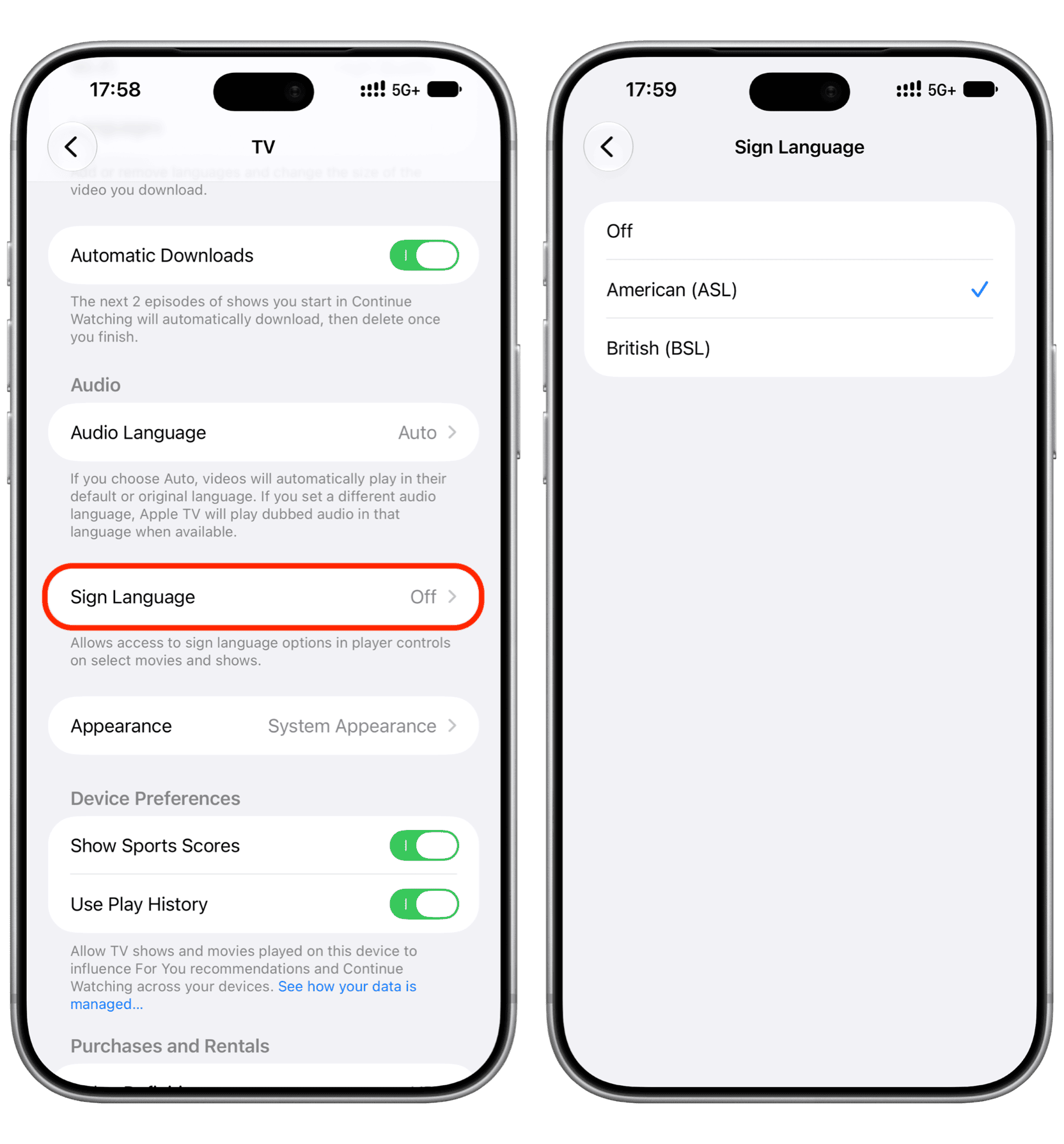
- Tap Sign Language and select American (ASL) or British (BSL).
macOS
- Update your Mac to macOS 27.2 Golden Gate or later.
- Open the TV app.
- Click TV > Settings from the top menu bar.
- Switch to the Playback tab.
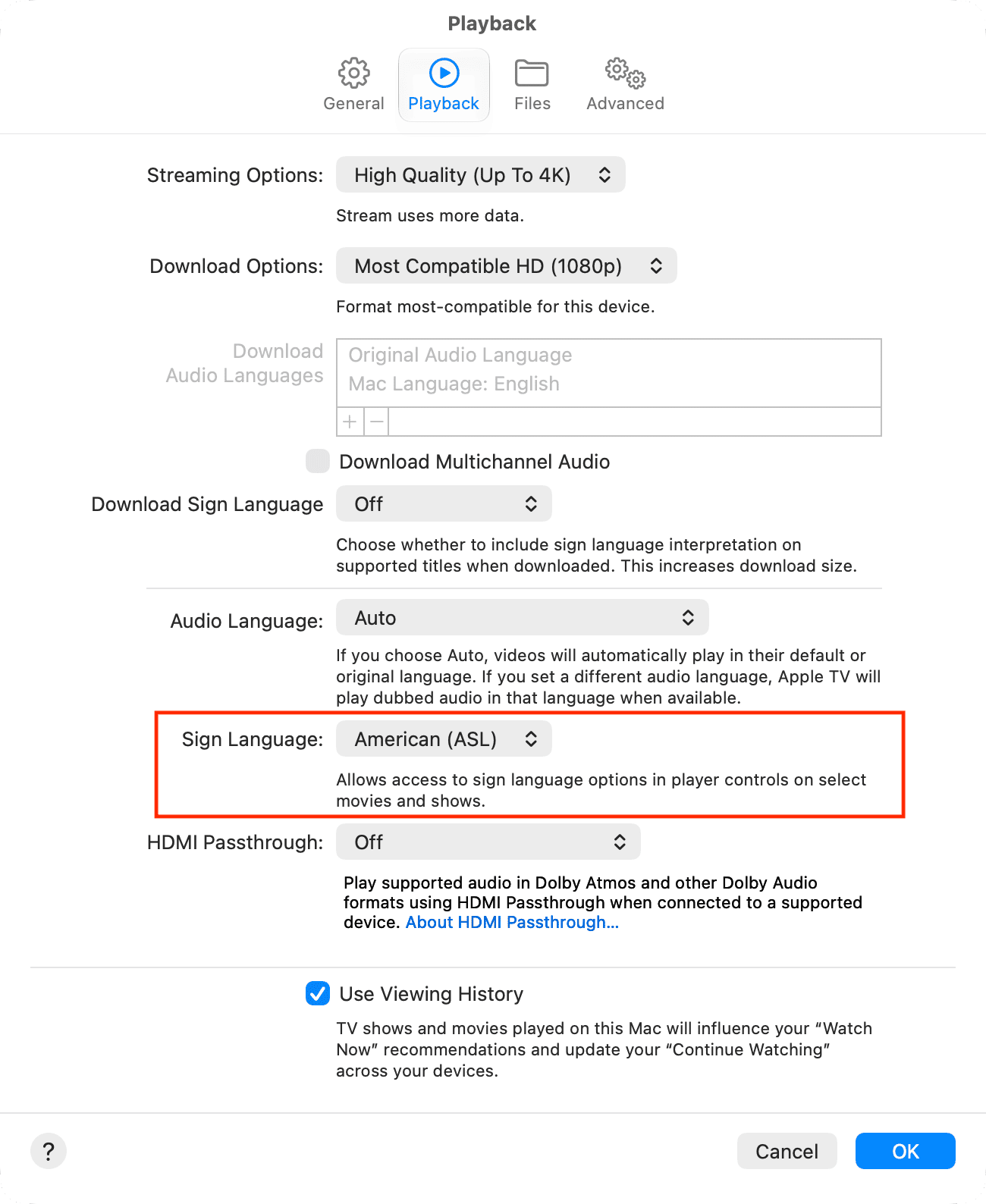
- Set Sign Language to American (ASL) or British (BSL).
tvOS
- Download and install tvOS 27.2 or later on your Apple TV box.
- Open the Settings app.
- Scroll down and select Apps.
- Select TV under the App Settings heading.
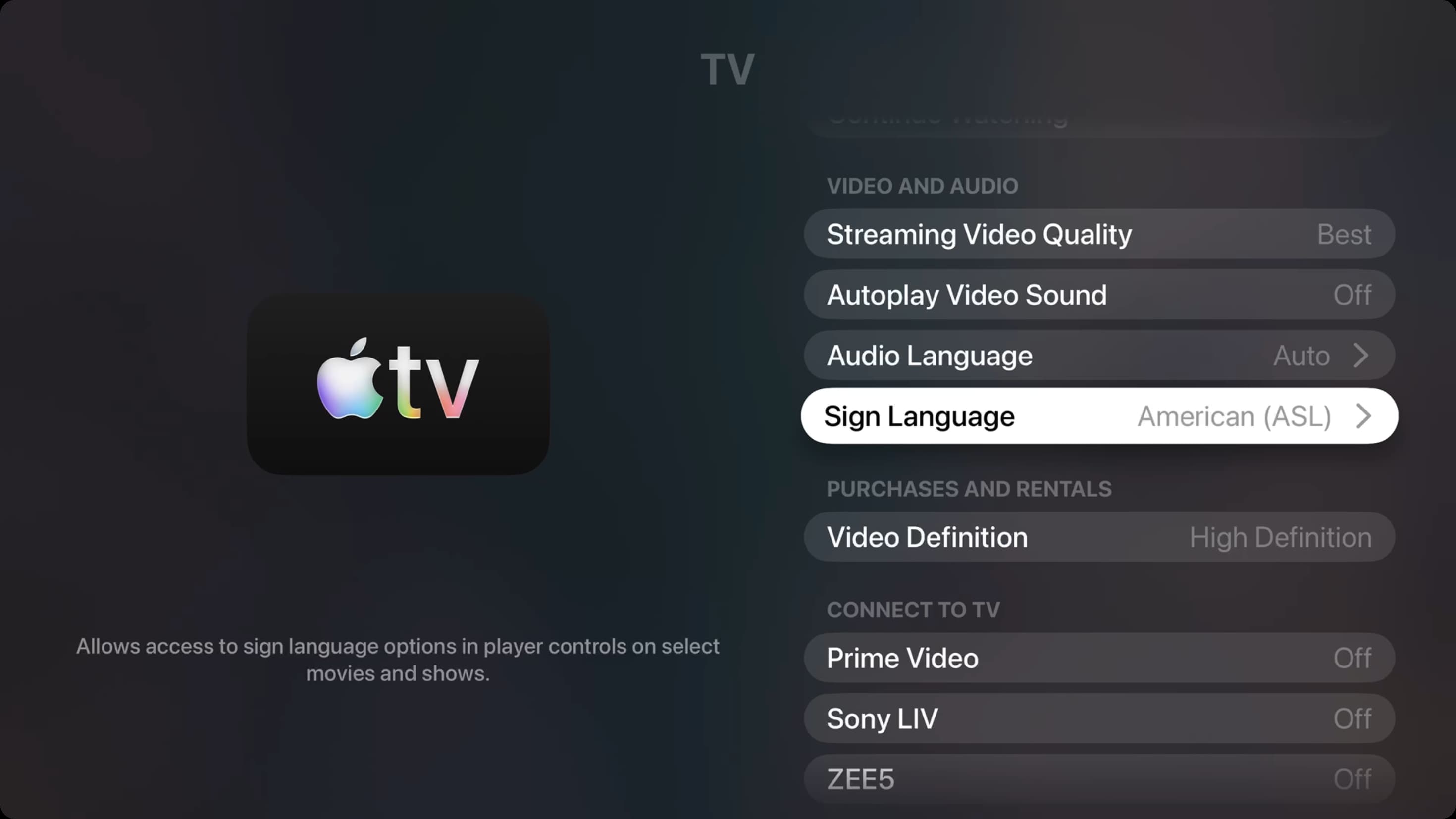
- Select Sign Language and set it to American (ASL) or British (BSL).
Again, as of now, there is no word on which movies or TV shows support sign language. But when some do in the future, you should be able to see its icon on the item page or under the Accessibility section.
Also, check out: