In this step-by-step tutorial, we guide you through downloading and installing watchOS 27 on your Apple Watch to get the new features.

Before you get to the steps, please keep these important points in mind.
Compatibility: watchOS 27 is only supported on Series 9, 10, 11, and 12, Apple Watch Ultra 2, 3, and 4, and Apple Watch SE 3. Unlike watchOS 26, the latest version drops support for the Series 8, 7, 6, Apple Watch SE 2, and even the $800 Apple Watch Ultra 1, which is just 3 years old!
Install watchOS 27 on your Apple Watch
1) The first step is to update your iPhone to iOS 27. You can’t update your Apple Watch to watchOS 27 if your iPhone is still on iOS 26.
2) Open the Watch app on your iPhone that’s connected to Wi-Fi and go to General > Software Update.

3) Wait a few seconds on the Software Update screen and tap Download and Install when you see it.
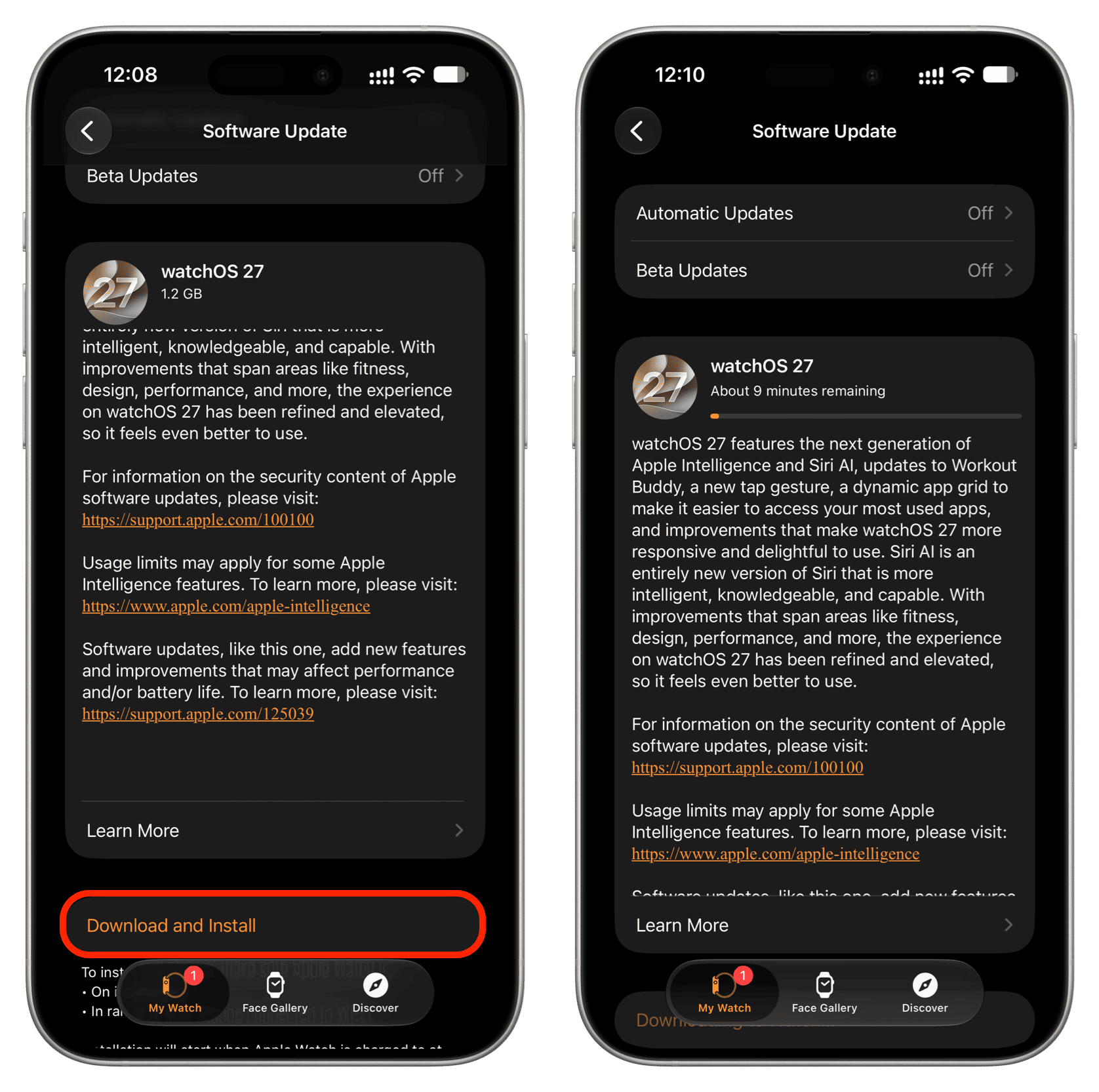
If you want to install beta updates, tap Beta Updates, select watchOS 27 Public beta or watchOS 27 Developer beta, then tap the back button (<).

Your iPhone will check for a new beta update, and soon you’ll see watchOS 27 Beta as an option on the screen. Tap Download and Install and follow along.

If you want to dramatically speed up the entire watchOS 27 update process, make sure you follow the steps above and start the download. Then turn off Bluetooth in the Settings app (not Control Center) on your iPhone or Apple Watch to force your iPhone to communicate with your Watch over Wi-Fi, which is much faster than transferring data over Bluetooth.
Alternatively, turn off Bluetooth in Apple Watch Settings, and then restart it. The ongoing watchOS 27 update will stop. Now, turn off Wi-Fi on your iPhone in Settings so your phone has no way to talk to your watch. Then, make sure your Apple Watch is directly connected to Wi-Fi (you’ll see its icon in watchOS Control Center), and go to watchOS Settings > General > Software Update to download the new watchOS 27 quickly over the watch’s own Wi-Fi. This will cut down the process time by several minutes or even hours!

Once the update is downloaded, place your Apple Watch on its charger, and it will install when the battery is over 50%.
Important: Don’t remove it from the charger until the update is complete. If you experience frequent power outages, charge your Apple Watch using a computer UPS (I use one from APC for my Mac) or power bank.
In case the update doesn’t start installing automatically, go to Apple Watch Settings > General > Software Update and tap Install.

Also, check out: