Learn how to record videos on your iPhone while a song or podcast episode is playing on the device.
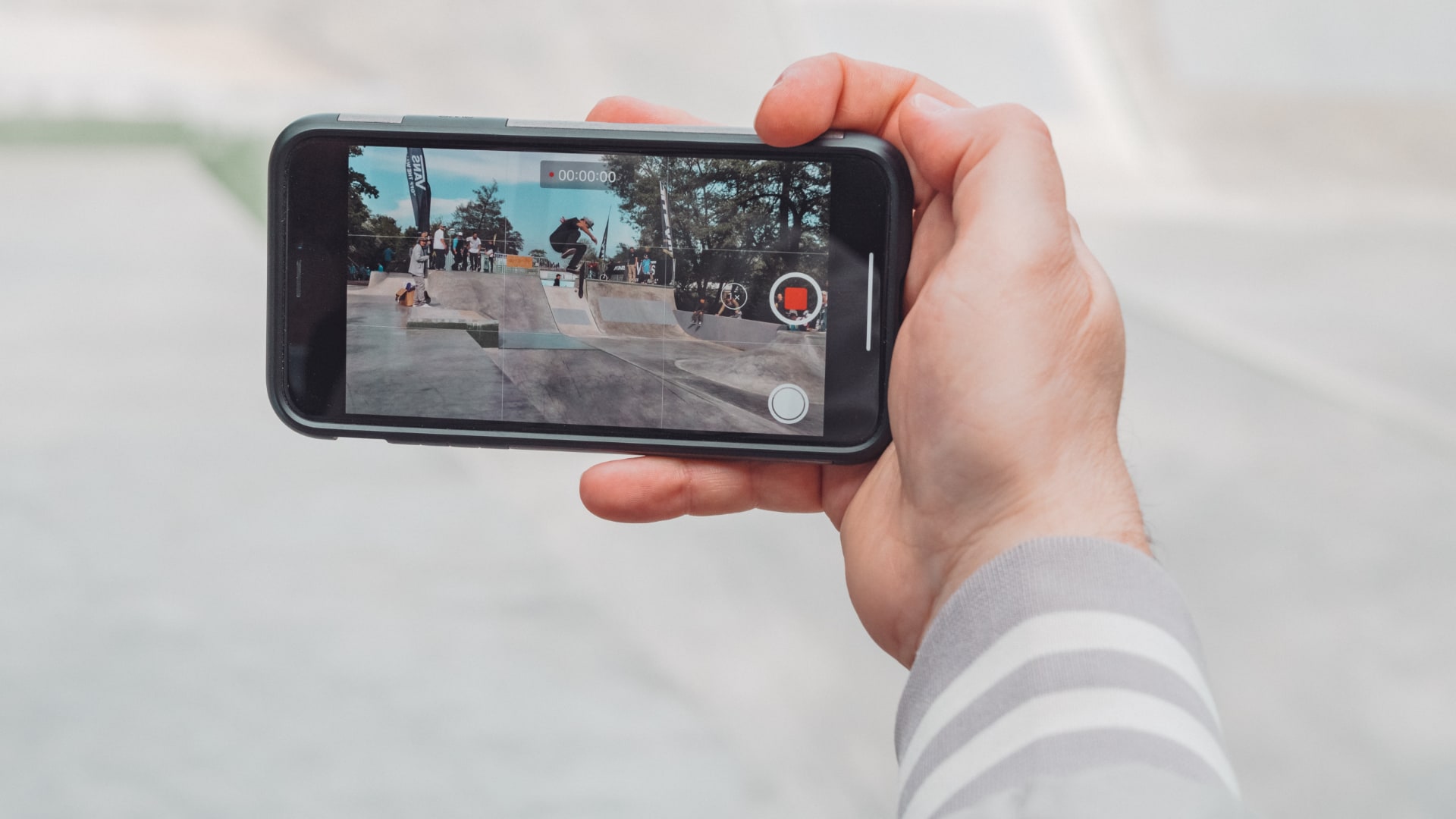
It has always bothered me that shooting in the Camera app’s VIDEO mode automatically stops audio. Sometimes, I want to share a video with friends where I comment on a song playing through my iPhone’s speaker.
Sure, QuickTake video (i.e., a video you record without switching out of Photo mode) has always supported audio playback during a recording session. Still, you need to keep touching the shutter button. Plus, QuickTake recordings are limited to a lower 1440p resolution at 30 frames per second with mono sound on older iPhones (4K at 60 fps in Dolby Vision HDR on iPhone 16 and newer).
Thankfully, iOS 18 and later address this by allowing proper video recording during audio playback.
Record video on iPhone while audio is playing
1) Open the Settings app on your iPhone.
2) Scroll down and tap Camera.
3) Tap Record Sound and make sure “Allow Audio Playback” is enabled.

4) Now, open Music, Podcasts, Spotify, YouTube Music, or another such app and play something via the iPhone speakers. It won’t work if you use video streaming apps like YouTube, Netflix, and so on, even in Picture-in-Picture mode. Similarly, the video won’t record the song you’re playing if you have connected AirPods or other earphones to your iPhone.
5) With audio playing, launch the Camera app on your iPhone, switch to VIDEO mode, and start recording. You’ll notice that the audio keeps playing, and the video recording also continues.

The audio playing through the speakers will be a part of the final recorded video file when you play it in the Photos app or elsewhere. When watching this video in the Photos app, remember to tap the speaker icon to unmute the sound.
Why you should disable audio playback while recording video on iPhone
The Allow Audio Playback option is enabled by default in iPhone camera settings. As practical as this can be, I suggest disabling this feature and only using it when you’d like audio playback to be picked up in your footage. This is because allowing audio playback during video recording will result in mono sound.
Alternatively, if you need to shoot a video while listening to a song, don’t turn off Allow Audio Playback in settings. Instead, use your AirPods or other earphones to ensure the video is recorded with stereo sound. Only audio playback through the iPhone’s speaker results in mono sound in your captured footage.
Note that, as mentioned earlier, when you record a video on your iPhone with songs playing through the connected AirPods, the internal sound (i.e., the song you’re listening to) won’t be recorded into the video. This is different from iPhone screen recording, which records internal sounds even when you have connected AirPods or other headphones.