Learn how to classify a Bluetooth device as a speaker, headphone, hearing aid, car stereo, or something else for more accurate headphone audio level measurements.
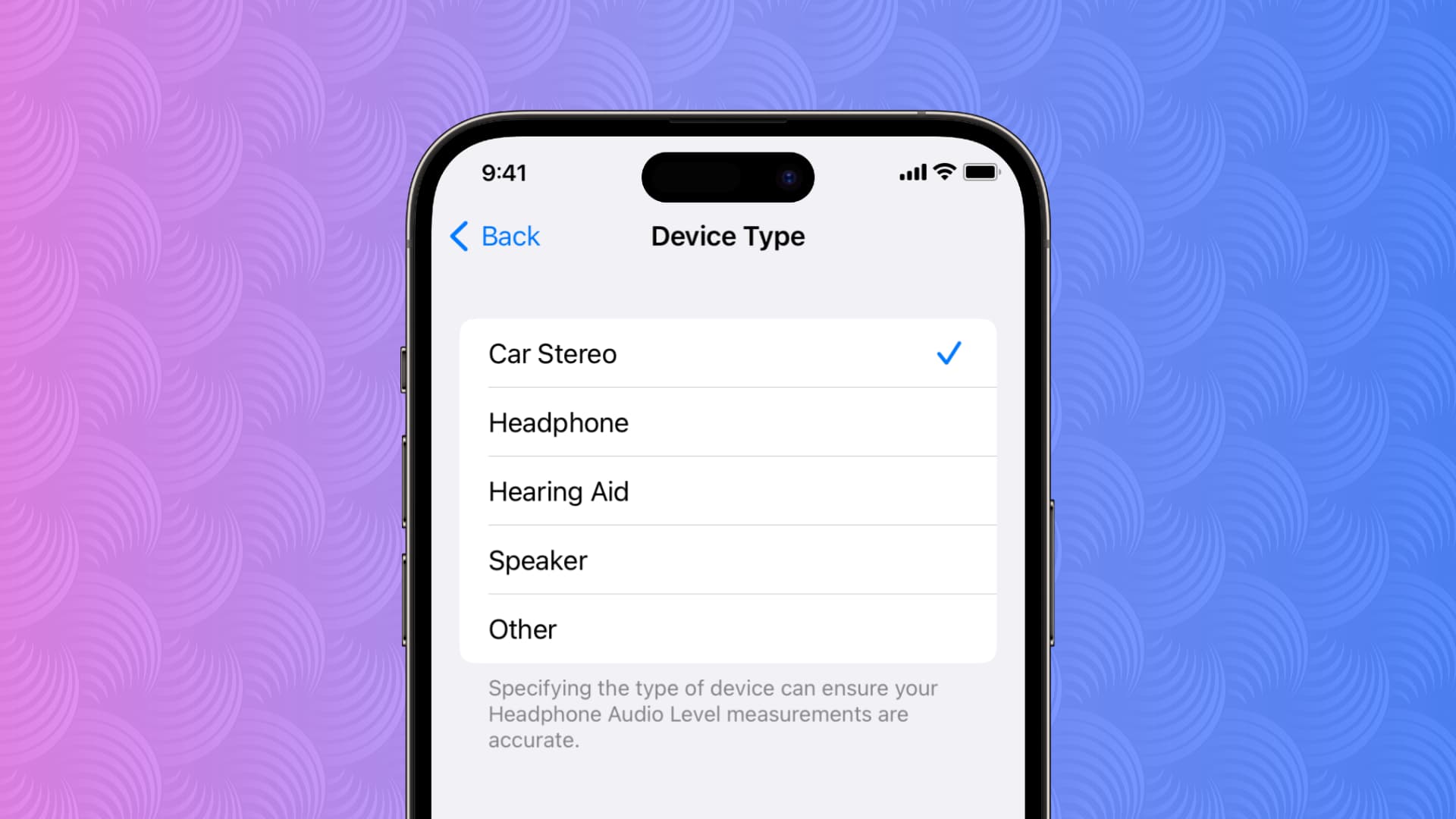
If your iPhone or iPad misidentifies the type of connected Bluetooth accessory, some features, like hearing health notifications, may not work properly.
In this situation, you can manually classify your Bluetooth accessory, which enables smoother operation and more precise measurements of your headphone audio levels.
Why Bluetooth device type is important
AirPods and other Apple accessories are always identified correctly in Bluetooth settings. But this cannot be said about some non-Apple accessories, which, if incorrectly classified, may cause issues. For example, an incorrectly classified Bluetooth headset may incorrectly report its volume level. To fix this, you can manually designate Bluetooth accessory type by following the steps below.
Classify Bluetooth device type on iPhone or iPad
- Connect your Bluetooth accessory to your iPhone or iPad.
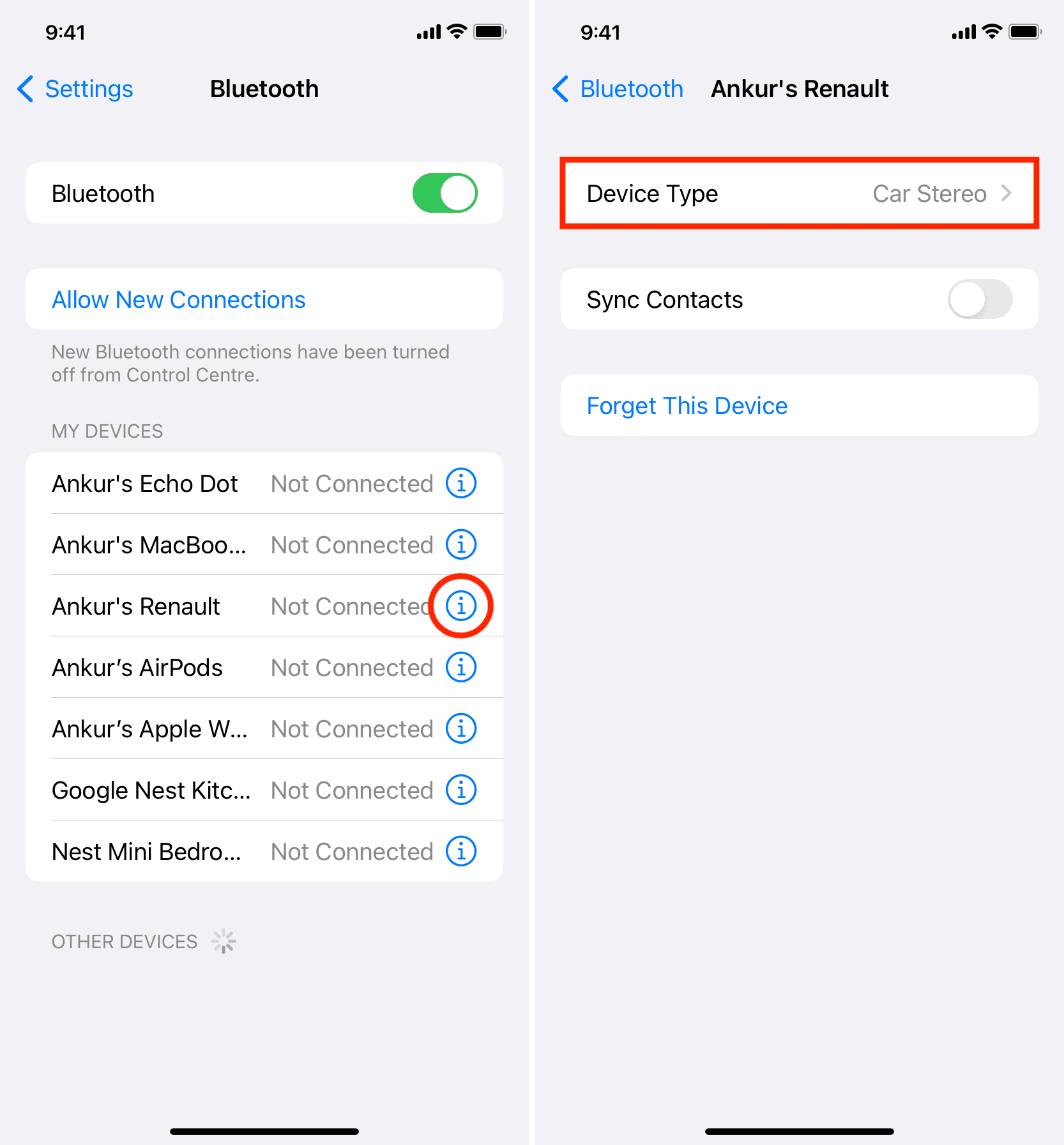
- Open the Settings app and tap Bluetooth.
- Tap the info button ⓘ next to the name of your accessory.
- Tap Device Type, then pick a desired device category: Car Stereo, Headphone, Hearing Aid, Speaker, or Other.
Set your device type to Other if no other option is suitable.
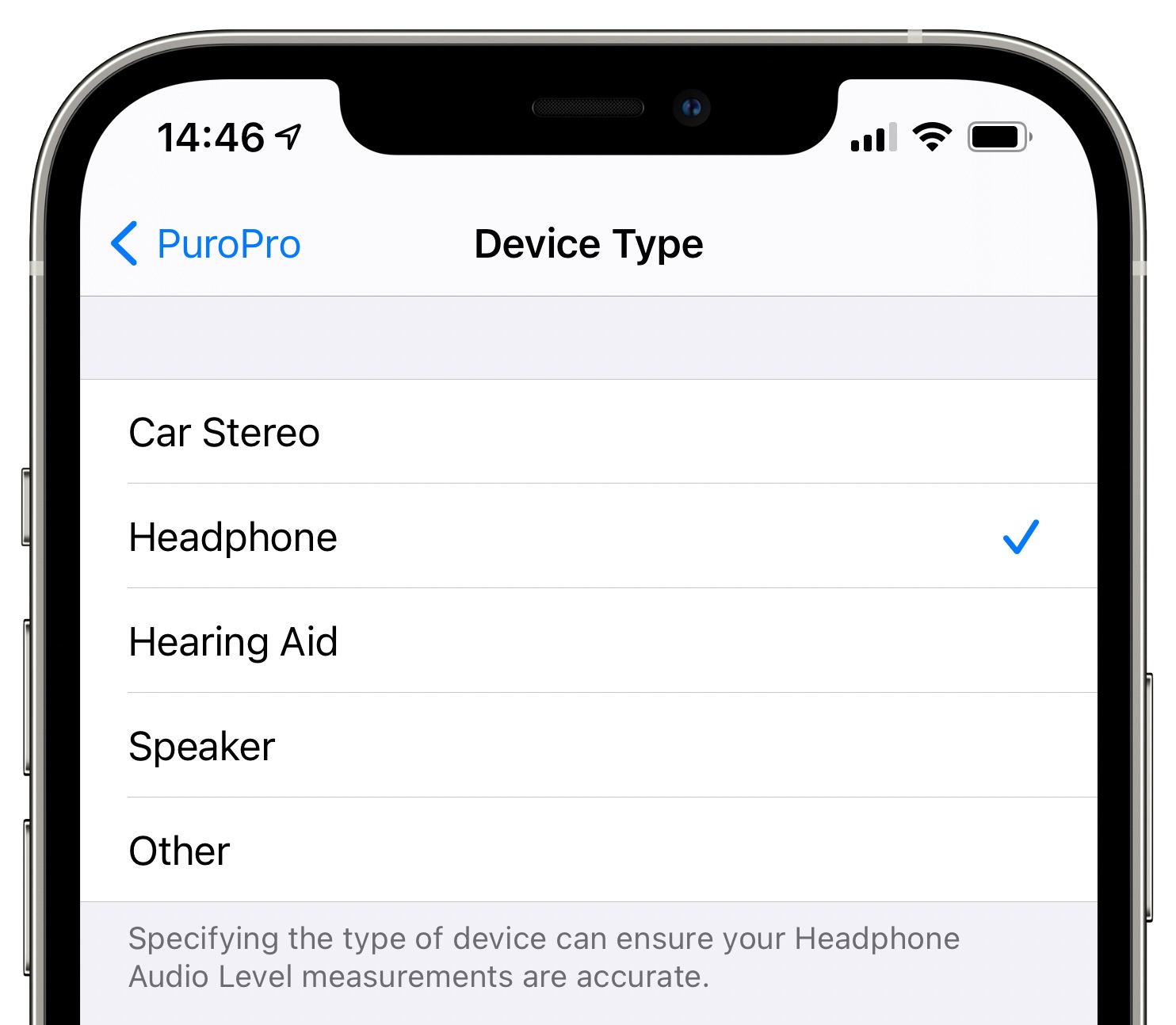
Apple explains that setting the correct device type will ensure accurate headphone audio level measurements. It will also prompt iOS to include this device when measuring your 7-day volume exposure limit. For further information, peruse our tutorial explaining how to configure headphone audio level measurements to protect your hearing.
Also, check out: How to add an audiogram to iPhone and set headphones to map to your hearing profile