Productivity

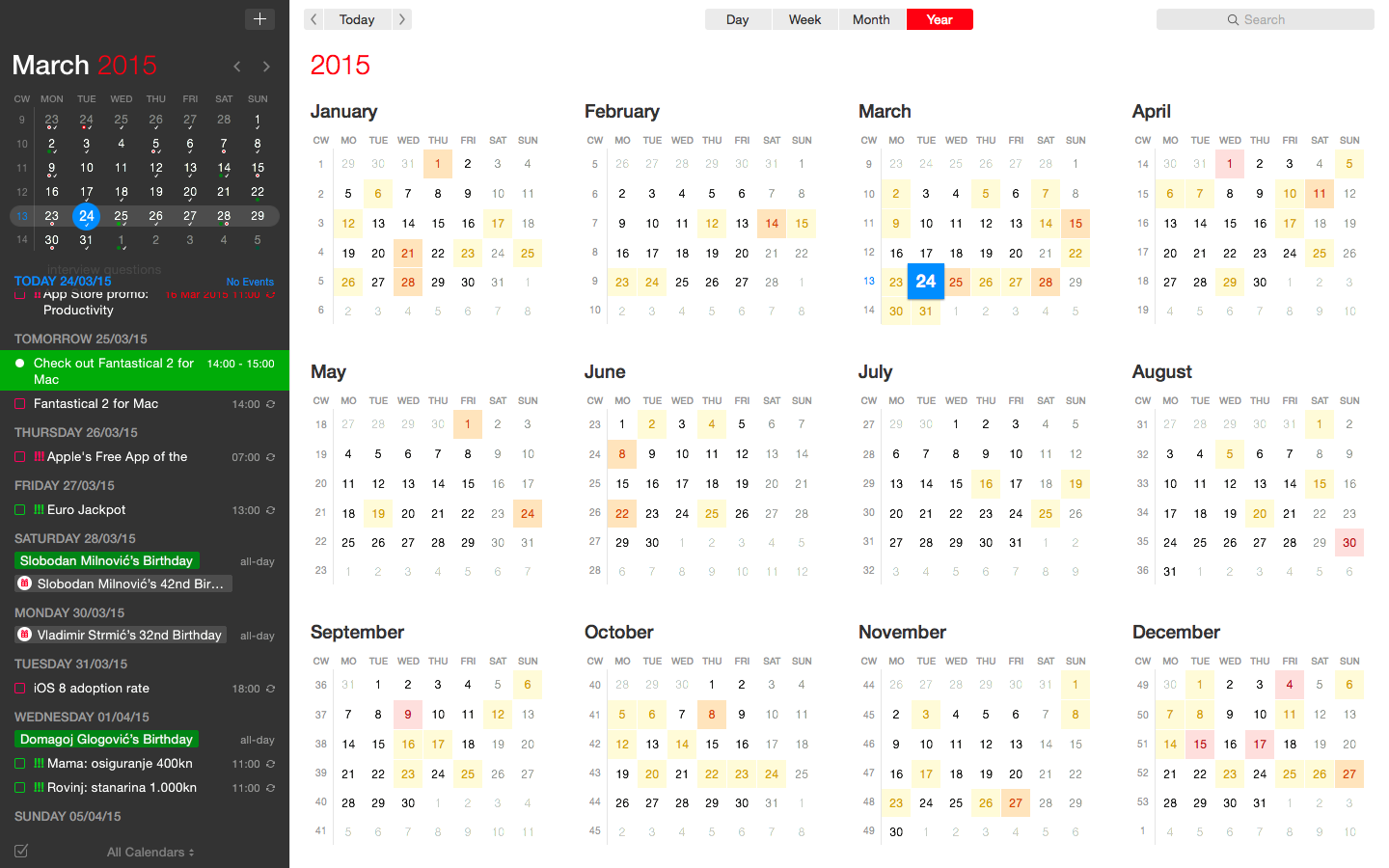
Fantastical for Mac gains attachment and travel time support, time to leave alerts & more

Developer FlexiBits today released a major update to the Mac edition of its award-winning calendar application, Fantastical, that you may be familiar with.

Version 2.4 brings a host of improvements, including new features like time to leave alerts, attachment support for iCloud and Exchange calendar events, undo/redo and more.

You can now view, create, and edit attachments on iCloud and Exchange (or view them on Google Calendar). With this feature, you can attach things like images, videos, Keynote presentations and other files to your calendar events.

The feature works on other CalDAV servers that support managed attachments.

https://www.youtube.com/watch?v=s2lJ5p8hd8A

Another new feature, aptly named Travel Time, allows customers to receive notifications when they need to leave to help ensure they reach an event on time. You can even define your own travel time so you can plan how long it will take to reach an event.

https://www.youtube.com/watch?v=_tVOwXgnipE

Fantastical 2.4 also improves invitation support for Google Calendar and Exchange with response messages, invitation guest count for Google, the ability to forward Exchange invitations and the option to respond to Exchange invitations without sending a reply.

TUTORIAL: How to create app-specific passwords for Fantastical and other apps

The app includes a bunch of refinements and under-the-hood fixes, like full undo/redo support for adding, editing, and deleting events and reminders, the ability to combine identical events that are on multiple calendars, to mention a few.

There's also a new More link in the Month view to show additional events and reminders, Facebook push updates are now instantaneous while new options in preferences at long last permit you to customize the number of weeks per month.

Have a look at everything new in Fantastical 2.4 for Mac.

https://www.youtube.com/watch?v=GZm3PWDBh5k

Last but not least, you can now forward invitations to other people on Exchange accounts, see the year of the anniversary for contacts and respond to an Exchange invitation without sending a message to the sender by clicking and holding the Accept, Decline or Maybe buttons.

Fantastical requires macOS El Capitan 10.11 or later.

Current users can get the update for free via the Mac App Store's Updates tab or through the in-app updater if the app was purchased directly from the Flexibits Store.

Fantastical 2.4 for Mac is $49.99 on Mac App Store.

A three-week trial is available via the Flexibits website.

You can now edit text files right from Dropbox app

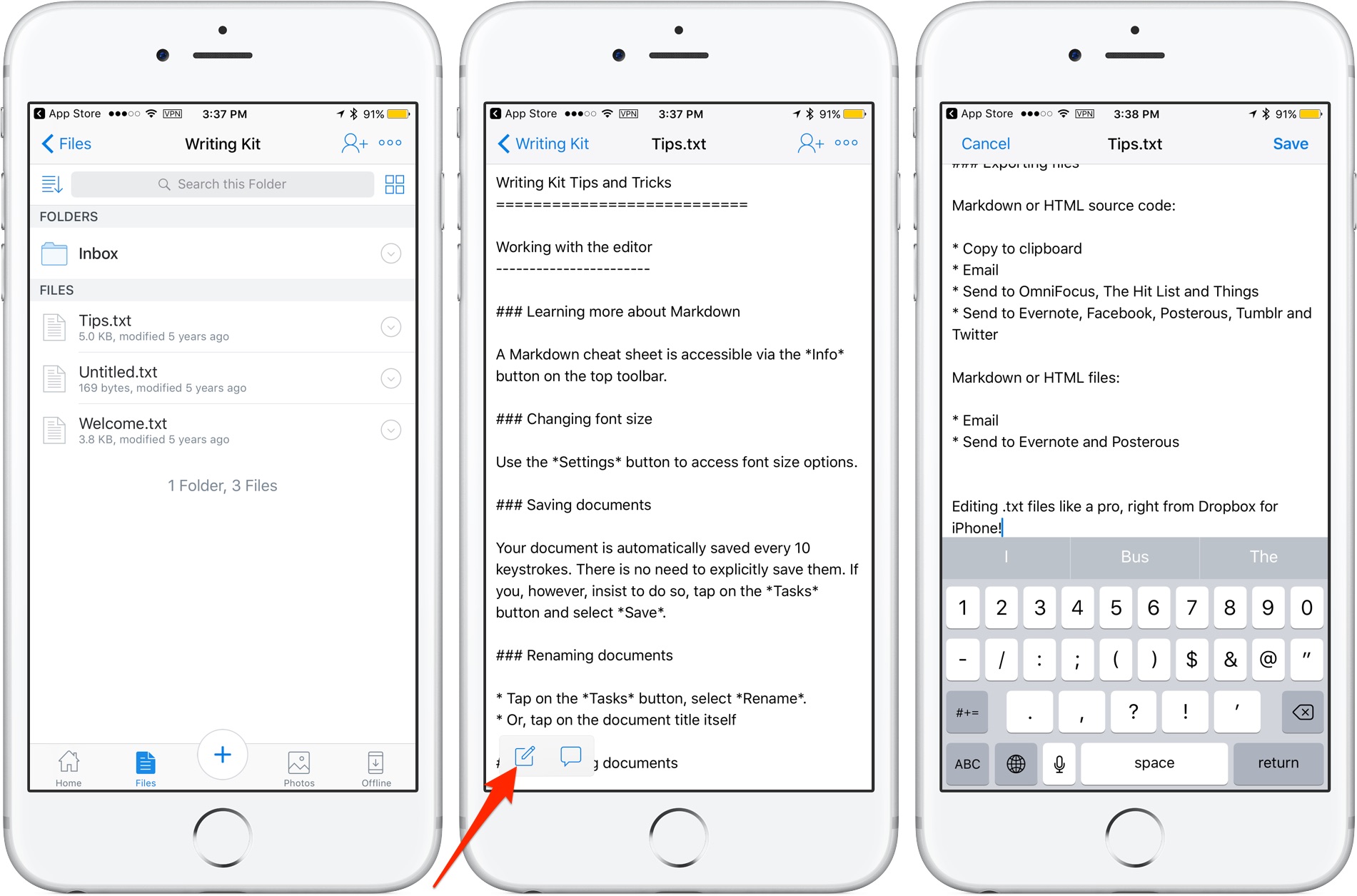
Cloud storage provider Dropbox today updated its app on App Store with the ability to edit text files right from the mobile app. Now when you browse the files in your Dropbox, simply view any text file then tap a new Edit icon to enter the app's new built-in text editor.

When done editing, tap Save to save the changes directly to the text file in your Dropbox. No more emailing the file back and forth. The bast part is, no longer do you need to use a third-party editor just to make a few quick changes to a text file saved in your Dropbox.

Aside from the built-in text editor, Dropbox for iOS version 54.2 has gained a new auto-capture function. When scanning documents, simply focus on the document and this feature will take a picture automatically.

Dropbox for iOS is a free download via App Store.

iWork apps gain editing improvements, 500 shapes & more in latest update

Apple's iWork productivity suite was updated today on Mac App Store and App Store with several new editing features and other improvements available across iPhone, iPad, iPod touch and Mac devices.

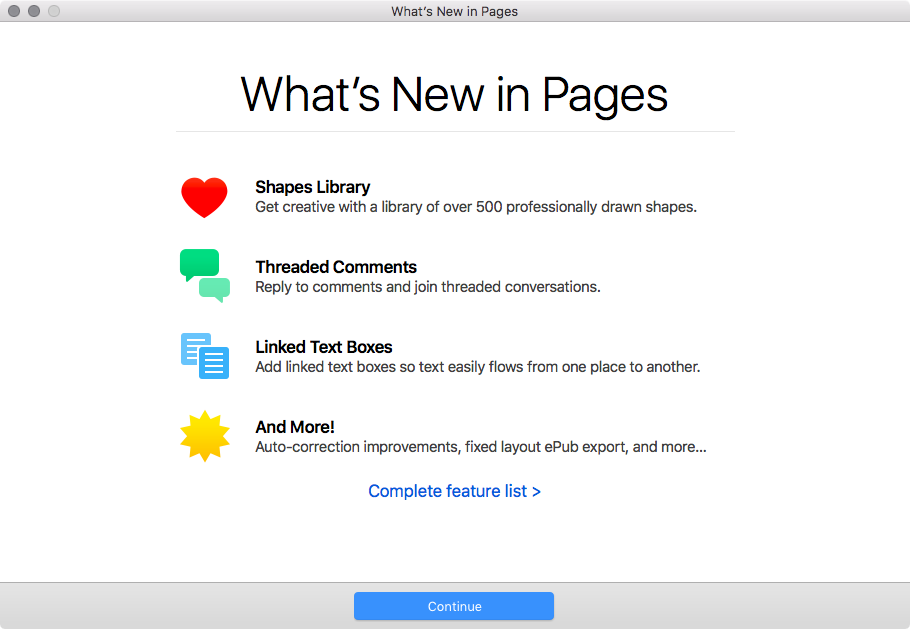
For starters, Pages, Numbers and Keynote for Mac, along with their iOS counterparts, now come with a brand new library of over 500 professionally drawn shapes that you can readily use in your documents, spreadsheets and presentations.

Across all the iWork apps, users can now reply to comments and join threaded conversations, making collaborative editing even easier than before, while new auto-correction and text replacement options save time while typing.

In Numbers, the new Insert Stock Quote feature and the Stock and Currency functions let you get data from the previous market day’s close. Keynote now lets you scroll like a pro on your Mac's trackpad with new pan and zoom options and your presenter notes can be edited while displaying slides in Light Table view.

Here's the full list of new features, fixes and enhancements in Pages 6.2, Numbers 4.2 and Keynote 7.2 for Mac, iPhone and iPad listed in release notes accompanying these downloads:

What's new in Pages 6.2 for Mac Enhance your documents using a library of over 500 professionally drawn shapes Reply to comments and join threaded conversations Add linked text boxes so text easily flows from one place to another New auto-correction and text replacement options save time while typing Export documents as fixed layout ePub books Change margins, headers, footers and paper size while collaborating Improved support for Hebrew and Arabic languages

Learn more about the new Pages for Mac features on Apple's website.

What's new in Numbers 4.2 for Mac Enhance your spreadsheets using a library of over 500 professionally drawn shapes Reply to comments and join threaded conversations Support for print preview in collaborative spreadsheets New auto-correction and text replacement options save time while typing The Insert Stock Quote feature and the Stock and Currency functions now return data from the previous market day’s close

Learn more about the new Numbers for Mac features on Apple's website.

What's new in Keynote 7.2 for Mac Enhance your presentations using a library of over 500 professionally drawn shapes Reply to comments and join threaded conversations New auto-correction and text replacement options save time while typing Scroll anywhere with new pan and zoom options Edit presenter notes while displaying slides in Light Table view Improved support for Hebrew and Arabic languages The Stock and Currency functions now return data from the previous market day’s close

Learn more about the new Keynote for Mac features on Apple's website.

What's new in Pages 3.2 for iOS Enhance your documents using a library of over 500 professionally drawn shapes Reply to comments and join threaded conversations Add linked text boxes so text easily flows from one place to another New auto-correction and text replacement options save time while typing New page thumbnail view allows you to easily navigate your document Export documents as fixed layout ePub books Change margins, headers, footers and paper size while collaborating

Learn more about the new Pages for iOS features on Apple's website.

What's new in Numbers 3.2 for iOS Enhance your spreadsheets using a library of over 500 professionally drawn shapes Reply to comments and join threaded conversations Support for print preview in collaborative spreadsheets New auto-correction and text replacement options save time while typing The Insert Stock Quote feature and the Stock and Currency functions now return data from the previous market day’s close

Learn more about the new Numbers for iOS features on Apple's website.

What's new in Keynote 3.2 for iOS Enhance your presentations using a library of over 500 professionally drawn shapes Easily rearrange your slides with the new Light Table view Edit presenter notes while viewing slides Reply to comments and join threaded conversations New auto-correction and text replacement options save time while typing Improved support for Hebrew and Arabic languages

Learn more about the new Keynote for iOS features on Apple's website.

These apps used to be paid downloads, but Apple recently made them free for all users.

Grab Pages, Numbers and Keynote for free from Mac App Store.

Pages, Numbers and Keynote for iPhone and iPad are available free on App Store.

iOS 11 adds new dock, drag and drop and other iPad productivity features

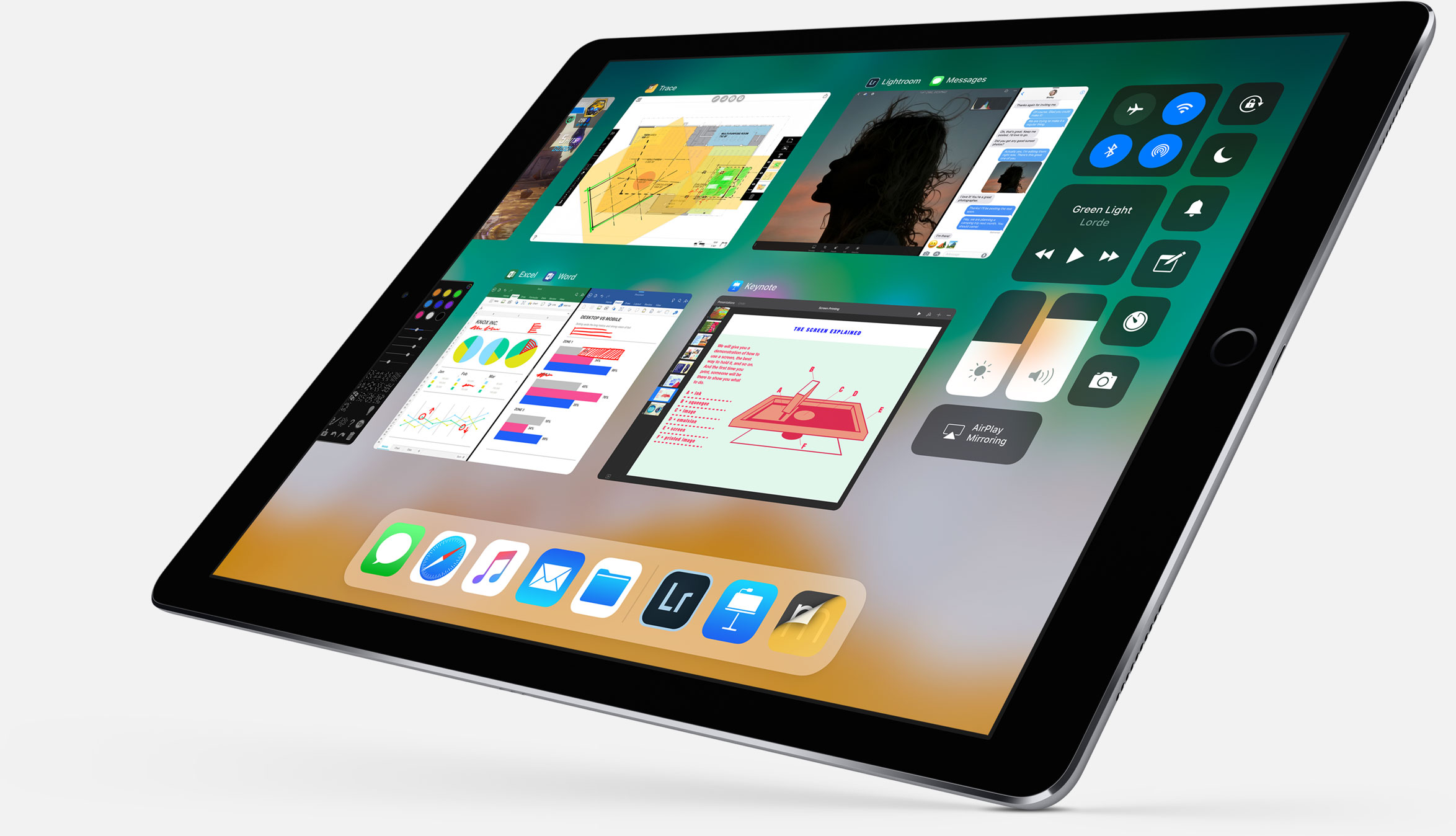
Following the announcement of its new 10.5-inch iPad Pro, Apple showed off a slew of new iPad-specific features that are coming in iOS 11. It's a pretty impressive collection of improvements, clearly aimed at making the tablet more of a productivity tool.

Apple calls this the "biggest iOS release for iPad ever," and there is a lot of new stuff here. So for now, instead of going into each new feature in detail, we're just going to list out all of the features so you can get an idea of what to expect.

New dock - can be filled with a ton of apps now, and there's a new predictive area to the far right that guesses which app you'll want to use next. You can pull it up from anywhere and slide an app up from it to the Slide Over view. New app switcher - preserves spaces, along with app pairings, so you can open the same set of apps easily. Drag and drop - drag and drop anything including images, texts and URLS. Even if you're in a full screen app you can collect multiple images by swiping with opposite hand and drag and drop. New Files app - supports iCloud, Dropbox OneDrive, etc. Allows you to drag and drop files into apps by swiping up on dock and holding down on the Files icon. Spotlight search for handwritten notes in Notes app. Inline drawing with Apple Pencil in Notes app. Quickly input numbers by swiping on corresponding key on virtual keyboard. New screenshot-editing UI that lets you crop image, annotate with pencil, and share with Share Sheet. Notes now has document scanner built-in.

Here's a shot of the new Files app:

And here is Files app with drag and drop:

Here's the official excerpt on iPad features in iOS 11 from Apple's website:

iOS 11 makes multitasking on iPad even more powerful with a new customizable Dock that provides quick access to frequently used apps and documents from any screen, and a redesigned app switcher makes it easier to move between pairs of active apps, used in Split View and now Slide Over. The new Files app keeps everything in one place, whether files are stored locally, in iCloud Drive or across other providers like Box, Dropbox and more, and with Drag and Drop available across the system, moving images and text is easier than ever. Apple Pencil is more deeply integrated into iPad with support for inline drawing and a new Instant Notes feature opens Notes from the Lock Screen by simply tapping Apple Pencil on the display.

So what do you think, did Apple achieve its goal of making the iPad more productive?

You can now drag and drop files on iPad between Readdle’s productivity apps

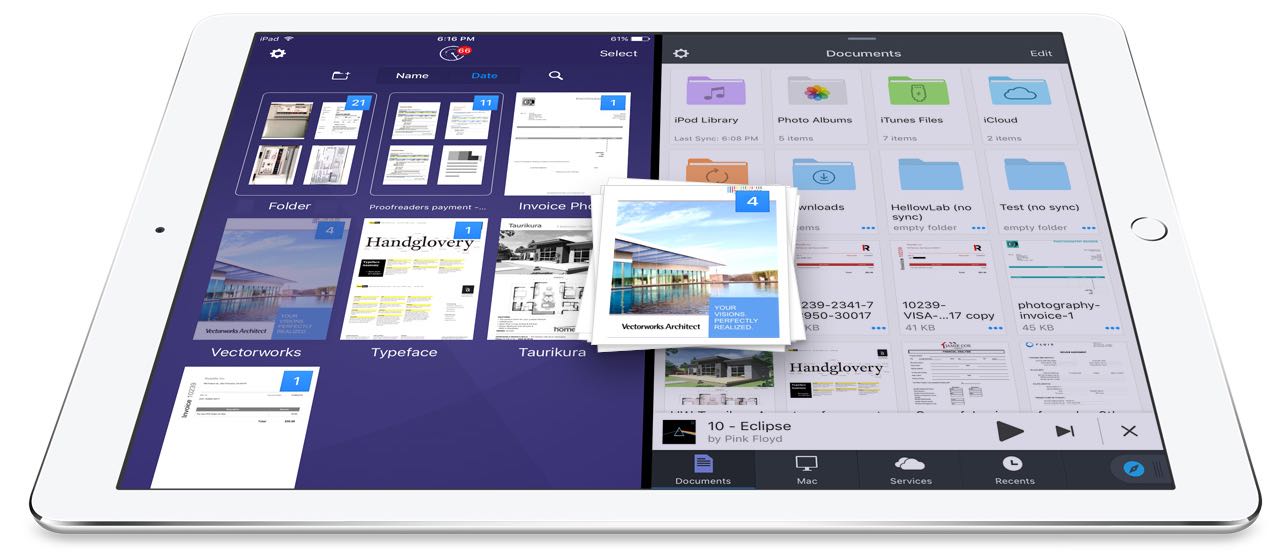
Readdle, Ukrainian makers of fine productivity software for iPhone, iPad and Mac, today announced that, for the first time ever, they're making it possible to drag and drop items in the split screen mode on iPad between its most popular productivity apps: Documents, PDF Expert, Scanner Pro and Spark.

In addition to cross-app drag and drop in Split View multitasking mode, Readdle's excellent Documents app has received a major update that turns it into a Finder on iOS of sorts.

Cross-app drag and drop

Drag and drop between Readdle apps works like a charm, really.

For instance, you can drag a file from Documents and drop it on Spark to instantly create a new email message with an attachment. Or, you can drag and drop scans from Scanner Pro to PDF Expert for further editing.

How about moving that attached contract from Spark to PDF Expert to sign it before sending the signed document back to Spark as a reply? You can do all that—and much, much more—across the aforesaid Readdle apps on your iPad.

The promo video below showcases drag-and-dropping files between Readdle apps.

https://www.youtube.com/watch?v=epzh9-rd-AI

True, some third-party iOS apps do support direct manipulation of content within the app.

That being said, however, the ability to drag and drop files and other content between multiple apps has not been utilized on iOS at all. While Apple could enhance iOS's Split View multitasking mode in the future with useful interactions like drag and drop, Readdle has already found a way to make cross-app drag and drop work.

Denys Zhadanov, Readdle's Vice President of Marketing, said via email:

We see it as a major improvement of iOS and this is how all iPad apps should work between each other. It’s so freaking awesome—glues all our apps into a phenomenal productivity ecosystem.

“The Readdle Team hopes that Apple will introduce their own implementation of inter app drag and drop one day,” developers noted. “That will support other apps and make iPad a much better productivity device than it is now.”

New features in Documents 6

As mentioned earlier, Readdle's capable (and free) file manager, called Documents, is getting a major update today turning it into the iOS Finder you’ve always wanted. The update brings out various enhancements, including an overhauled design with Spark-like quick actions, an easier way to import files, improved file management, an all-new media player, on-the-fly editing of cloud files, music and video streaming and more.

https://www.youtube.com/watch?v=i-314ezmBgE

According to Readdle:

iOS has always been a 'no-file-manager' system. Everything is taken care of by the apps. That’s a blessing and a curse at the same time.However, some of us are very comfortable with controlling things on our devices, especially when it comes to getting real work done.

This is why we created Documents, an extremely powerful, versatile hub for all of your files on iPhone or iPad. It’s your Swiss knife that removes iOS file management woes.

Documents has always been a powerful iOS file manager and now it's gotten even better.

The completely rethought user interface is very functional.

As the screenshots attest, you can now easily edit, zip, tag, move or sync your files with fewer taps than before. Bigger file preview thumbnails give you a better idea of the content of that Excel spreadsheet or PPT presentation before you even open it.

A prominently featured “+” button lets you quickly import files, including documents from your computer, Dropbox, Google Drive, Box, WebDAV or any other cloud-based storage source. Files are now organized into folders exactly the way you are comfortable with.

Just select one or a few of them and easily drag them to the right location. And with cross-app drag and drop support, you can move a single or multiple files between Documents and Spark, Scanner Pro or PDF Expert.

“The best part is that you can access any of the locally stored files in any app with the ‘Open in’ option,” notes Readdle. “This is a unique experience on iOS, and it’s what finally gives you that Finder feel on your iPhone or iPad.” Now you can work directly with your cloud files in Documents and even stream photos, videos and music from any cloud storage without needing to download the files to your device.

The new media player helps you organize your music into playlists, with the ability to shuffle and loop your favorite tracks. And if you have PDF Expert installed on your device, Documents will let you annotate and edit PDFs, fill out forms, sign applications and more.

If you haven't played with Documents before, you should really give it a try.

Acting a central hub for all of your files, it lets you view almost any file format natively, store your files directly on the device or connect to the popular cloud storage service to keep everything together in perfect sync.

Availability

Spark and Documents are available at no charge from App Store.

PDF Expert is $9.99 on App Store.

Scanner Pro is $3.99 on App Store.

You should really download the latest version of Spark, Documents, Scanner Pro and PDF Expert and see for yourself what kind of a productivity device your iPad can be with proper drag and drop support.

Microsoft refreshes OneNote apps with new design and accessibility features

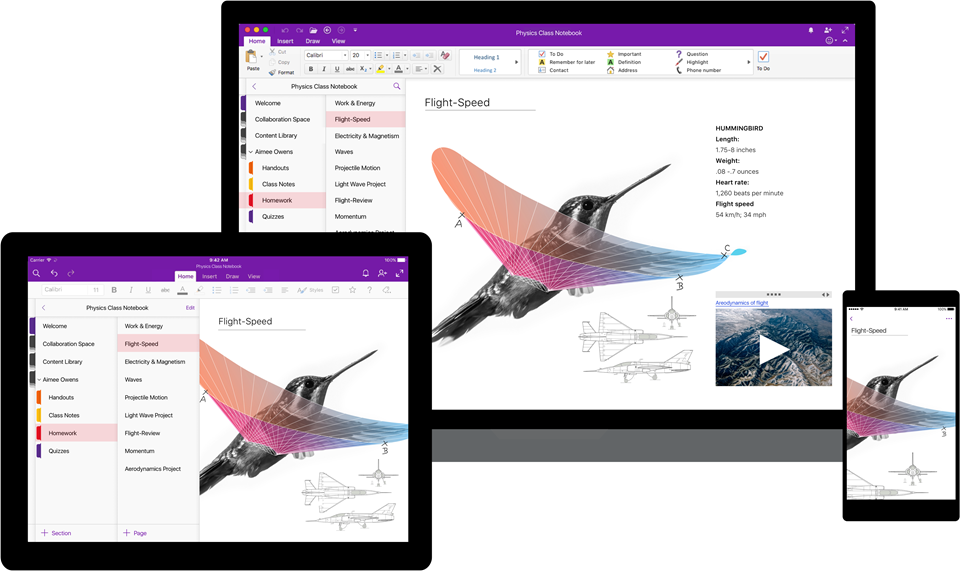
Software maker Microsoft on Friday rolled out new versions of its note-taking apps for iPhone, iPad, Apple Watch, Mac, Android, Windows 10 and the web. OneNote's interface has been tidied up and navigation improved in the latest release.

The app now includes new assistive features to help users with disabilities.


OneNote's revamped interface makes organizing your notes easier than before with an improved layout. You'll notice that the reworked interface puts your content front and center, with all of the notebooks, sections and pages moved to columns on the left side of the app.

This allows for efficient organization of your notebooks.

The company celebrated the redesigned OneNote launch with the following video.

https://www.youtube.com/watch?v=fmGVp76WyIU

The newly implemented accessibility features, available across iOS and macOS, let people with various disabilities efficiently navigate the app with screen readers, improved keyboard shortcuts and other assistive technologies.

And with the left-hand navigation controls, screen readers can easily navigate through the app.

OneNote is now available with a consistent experience across devices: with this update, says Microsoft, your experience will be the same regardless of what device you happen to be using.

The new redesign for OneNote is rolling out for Windows 10, Mac, iOS, Android and on the web over the coming weeks so check back later if it's not live yet.

OneNote for iPhone, iPad and Apple Watch is available free on App Store.

OneNote for Mac is available free on Mac App Store.

Things 3 is out with overhauled interface and multiple new features

German developer Cultured Code on Thursday released Things 3, a major new iteration of its powerful personal task manager for iPhone, Apple Watch, iPad and Mac. Things 3 brings out a beautiful timeless new design with delightful interactions and animations. Aside from the new look and feel, the refreshed app is packed to the gills with a host of new features.

Released as three separate apps (they've kept the current pricing), Things 3 is Cultured Code's first paid update for existing users since versions 1.0.

Here's what developers had to say about the app's gorgeous new UI:

The all-new Things comes with an all-new design. It's not just how it looks—but also how it works, and how it feels. The interactions are delightful. The animations are smooth. The content is more structured. The concepts are clearer.

Open a to-do and you'll immediately get a sense of how the new apps feel.

Nicely animated transitions expand the selected to-do into an empty white piece of paper. You can add additional details to your to-do, neatly tucked away in the corner until you need them.

“There are no distractions here, it’s just you and your thoughts,” said developers.

The choice is yours: you can create either a simple to-do that looks like text on a piece of paper or opt for a richer to-do which may include additional details such as tags, checklists (a new feature for to-dos in Things 3), a start date, a deadline and so forth.

Speaking of to-dos, Things 3 introduces an all-new Magic Plus Button.

Found in the corner of the screen, you can tap it to quickly add a new to-do or actually drag the button to a particular list in order to generate a to-do in a specific location. Plus, managing to-dos is now way easier than before with expanded support for gestures, like dragging and dropping, swiping, tapping to expand and more.

Seasoned Things users will be delighted to know that developers have implemented one of the most-requested features: time-based reminders. For those to-dos you absolutely cannot miss, adding a reminder will give you peace of mind.

While scheduling a to-do in Jump Start, click Add Reminder and set the time. There are three ways to set the time: manually, using the app's natural language parser (just type “Wed 8pm” or some such, and you're all set) or you can speak to Siri (“Remind me to call Seb at 5am.”)

Watch the promotional video for Things 3.

https://www.youtube.com/watch?v=2R6o5t0VK_A

Things 3 now supports headings to break up complex projects into sections.

And with the app's Magic Plus Button, you can create and place headings in new projects like a pro. The app's cleaner design extends to your Today and Upcoming sections which now combine calendar events and to-dos into one unified view with a timeline at the top, giving an outline of your schedule.

A new This Evening section is your at-a-glance overview of any to-dos that you won’t get to until later in the day, like things you can only do when you get home. The This Evening section is a handy way to keep these to-dos separate from the rest, in their own discrete list.

And to help you find a needle in the haystack, Things 3 now includes a Quick Find feature.

Just pull down on any list to reveal search, which can now find content across the entire app. Quick Find also includes handy shortcuts to your to-dos, lists, tags and more.

Type Travel, another new feature in Things 3, lets you navigation to any project, area or to-do in the app. On iPad, you can now swipe away the sidebar and focus on just the current list you’re working on, both in portrait and landscape orientations.

On your Mac, Things now has a Slim Mode which cuts out distractions so you can focus on the task at hand. To enter this mode, collapse the sidebar with a two-finger swipe. Slim Mode is especially great when you’re working in macOS's Split View multitasking mode.

You can even open multiple windows in Slim Mode and drag and drop items between them.

https://culturedcode.cachefly.net/things/videos/2017-05-03-allnewthings-when/video.mp4

Developers have completely rewritten core layers of the apps, which are now shared between macOS and iOS for increased reliability. The Apple Watch app has been updated as well (it now shows checklists and headings), there's a new structure for Areas in the iOS app and you can now import data from Wunderlist or OmniFocus into Things 3.

And with TouchBar support, owners of the new MacBook Pro can take advantage of convenient access to the app's most-used commands.

Things is fully integrated with all the latest iOS technologies: Apple Watch, Calendars, Siri, Reminders, Today Widget, Quick Actions, Action Extension, Handoff and Notifications.

The apps all stay updated via Things Cloud, which is the push sync service that Cultured Code custom-built for the app. Unfortunately, iCloud syncing is not supported in Things.

For the complete overview of what's new in the app, visit the official Things website.

Things 3 for iPhone and Apple Watch is $9.99 on App Store.

Things 3 for iPad is $19.99 on App Store.

Things 3 for Mac is $49.99 on Mac App Store.

To celebrate the launch of Things 3, all apps are 20 percent off until next Thursday, May 25.

A 14-day trial of Things for Mac is available via the Cultured Code website.
PDF Expert 6 for iOS is out with revamped look, enhanced search, new editing tools & more

Readdle, a prolific Ukrainian developer of fine productivity software for iOS and macOS, today pushed a major new version of its fast, robust and beautiful PDF editor, called PDF Expert.

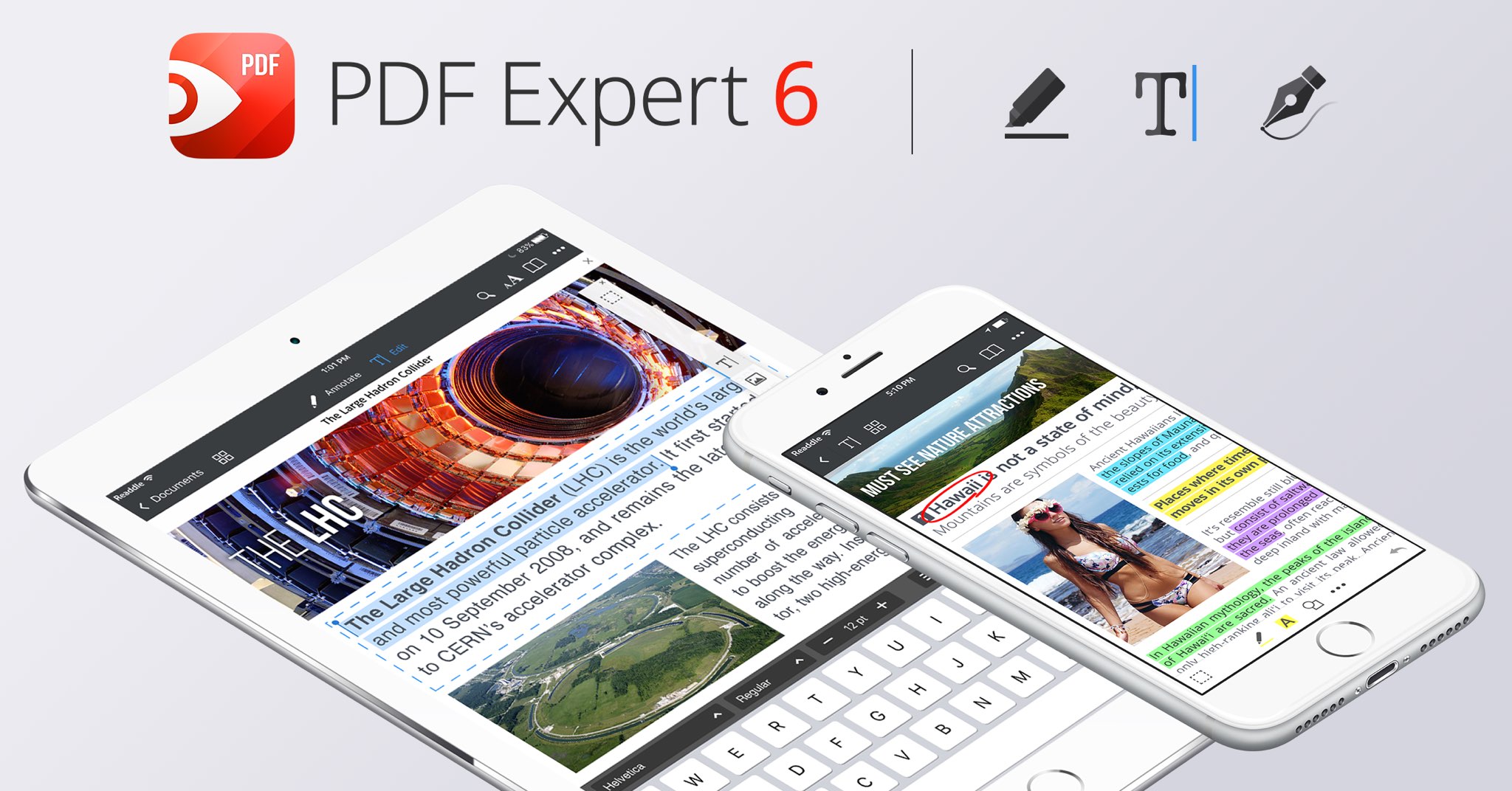
Aside from an overhauled interface which allows you to navigate your documents in a most effective way, PDF Expert 6.0 for iPhone and iPad includes a brand new experience when adding and managing files and built-in editing tools for those times when you're required to edit that contract, update presentation slides or change the invoice logo while on the go.

PDF Expert for iPhone and iPad

“You make fewer taps in order to edit, zip, tag, move or sync files,” developers noted, adding that “bigger file preview thumbnails give you a better idea of the content of that Excel spreadsheet or PowerPoint presentation.”

Aside from the usual features, PDF Expert 6.0 now allows users to edit and modify text and images in their PDFs, as well as add links, redact information and more.

But first, watch the promotional video below.

https://www.youtube.com/watch?v=_Jrg8txgDVo

The new editing tools in the iOS app let you:

Edit and modify PDF text Add and replace images Add links to text and pictures Hide sensitive information using Redact feature

For those who work in the cloud, the app now allows you to edit, annotate or sign documents in your Dropbox or any other supported cloud storage service without needing to download the document locally—all your edits are now saved directly in the cloud version of the document.

With PDF Expert 6.0, PDF documents that contains sensitive data can be finally protected with a password. Lastly, the iOS app now lets you edit outlines to help structure data in huge documents and provides an enhanced search feature with the ability to search for a word or a document across multiple documents and file types.

PDF Expert for Mac

The Mac app was refreshed with enhanced navigation, faster search and other updates back in March 2017, here are your key highlights. To make the editing process even easier, the Mac app automatically detects the font, size and opacity of the original text.

This is very useful because no longer do you have to adjust the formatting after every single edit. “Now, you can edit PDF text and images, add links, work directly from the cloud without downloading files and much more,” Readdle noted.

The improved search is smarter and quicker than before. Perhaps more important than that, you can save all relevant discoveries into your search history to easily find them in the future.

Lastly, you'll notice the all-new toolbar layout with several page layout templates and the ability to customize your reading experience in macOS's Split View multitasking mode. Whether you’re comparing contracts or reading an article, you can now bring up the new rendering options to choose the most convenient layout to quickly accomplish your task.

The new editing tools in PDF Expert 6.0 for iOS require a one-time $9.99 In-App Purchase. All the other new features are free for existing users of the iPhone and iPad app.

New users can grab PDF Expert for iOS on App Store in exchange for $9.99.

PDF Expert for macOS is available for $60 via Mac App Store.

A free trial is available via the official PDF Expert website.

iMovie, GarageBand and iWork apps go free for all users

As first spotted by Juli Clover of MacRumors, Apple has made the GarageBand and iMovie apps as well as the iWork suite available free for all users. In the last few years, since 2013, only people who bought a new iPhone, iPad, iPod touch or Mac device were allowed to download these apps at no additional charge. Starting today, new hardware purchase is no longer required to get these apps.

Pages, Numbers and Keynote pick up new editing features, Touch ID support & more

Apple's productivity-focused iWork apps—Pages, Numbers and Keynote for iPhone, iPad, iPod touch, Mac and iCloud.com— were updated this morning with a bunch of new features, including new editing capabilities across iOS, macOS and the web and the ability to quickly open password-protected documents using Touch ID. Pages, Numbers and Keynote for iOS are available free from App Store.

Pages, Numbers and Keynote for Mac are available via Mac App Store. Web-based versions of these apps are accessible via a desktop web browser at iCloud.com.

Spark for Mac gains labels, better folder management, smarter search & more

Prolific Ukrainian developer Readdle today pushed a major update to its award-winning macOS email client, Spark, bringing new features such as labels, improved folder management, smart filters the ability to save emails in Drafts manually and other improvements that will make you love email again.

As I wrote before, Spark is (in my personal opinion) hands down the best email client I've used on my Mac. Spark 1.2 for macOS is available at no charge from Mac App Store.

The app is also available for iPhone, iPad and Apple Watch.