Productivity

7 tips to make the most of Launchpad on Mac

Main Launchpad Screen on Mac

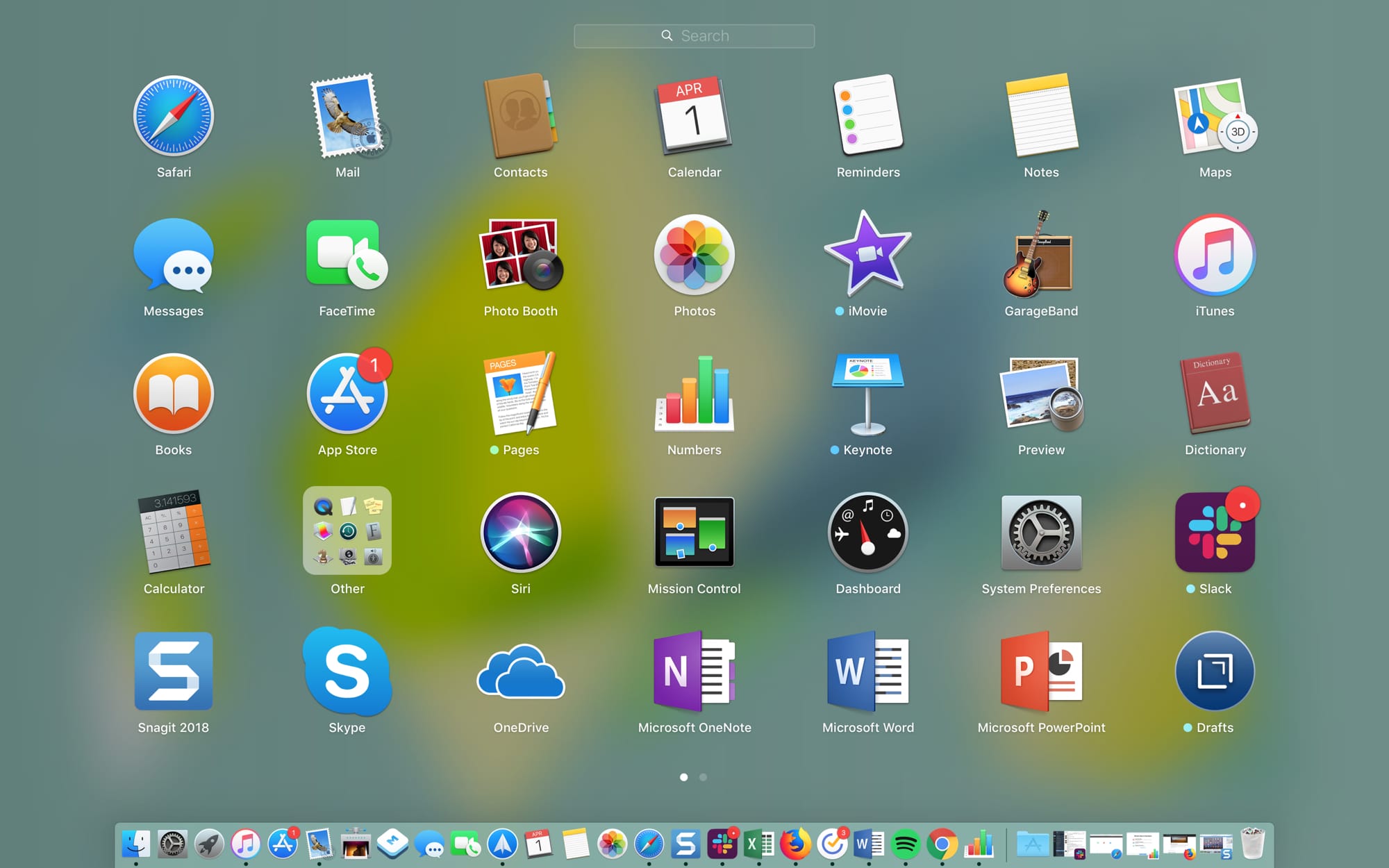
The Launchpad on your Mac might remind you of the Home Screen on your iPhone or iPad. There’s a nice and neat grid of your apps. When you download an app from the App Store, it pops right into the Launchpad, and you can take action on your apps from there.

The thing is, you have to access the Launchpad, so it’s not right on your screen when you use your Mac like the Home Screen is on your mobile device. This might keep you from using it as much as you could. But the Launchpad can be a handy tool.

We’ve put together some tips for making the most of the Launchpad on Mac in case you decide to make more use of it.
This free team collaboration app is changing how teams work together [sponsored]

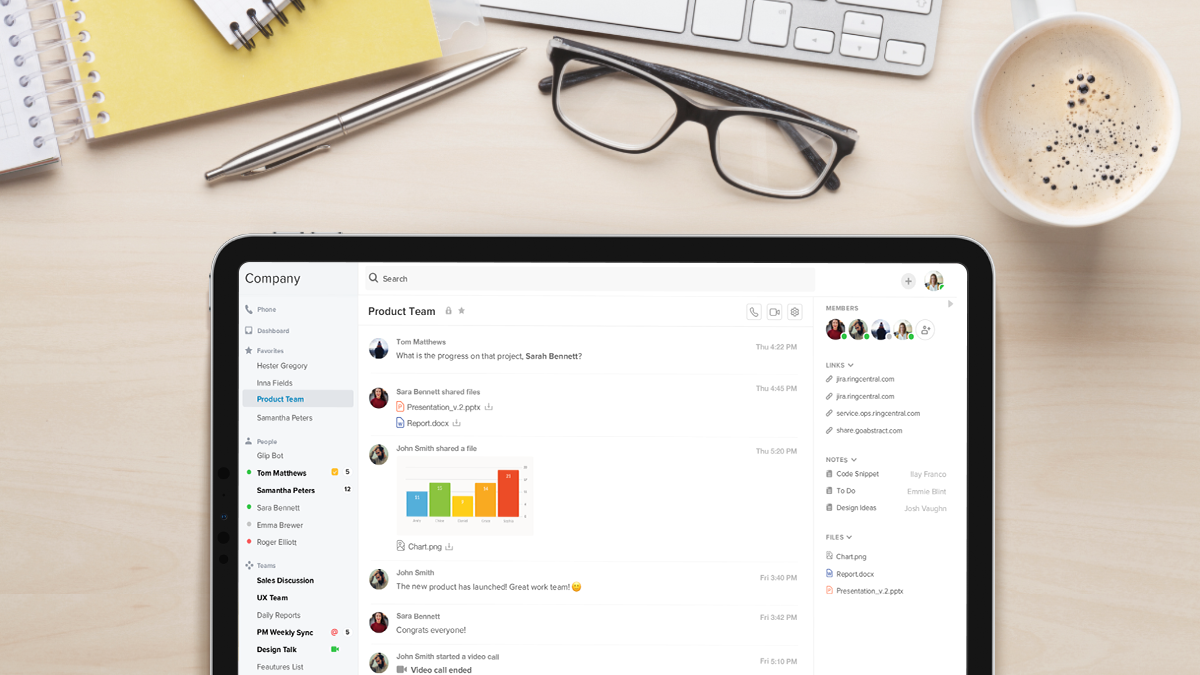
Efficiency is the name of the game in today’s fast-paced digital world; and whether you’re leading a team—or an entire company—you should always be looking for new and creative ways to get more done in less time. That’s the goal, right? While there are plenty of pricey tools like Slack and Skype that promise to fine-tune your productivity, few are as quick and impactful as Glip, and it won’t cost you a dime.

How to delegate emails in Spark to assign tasks to others

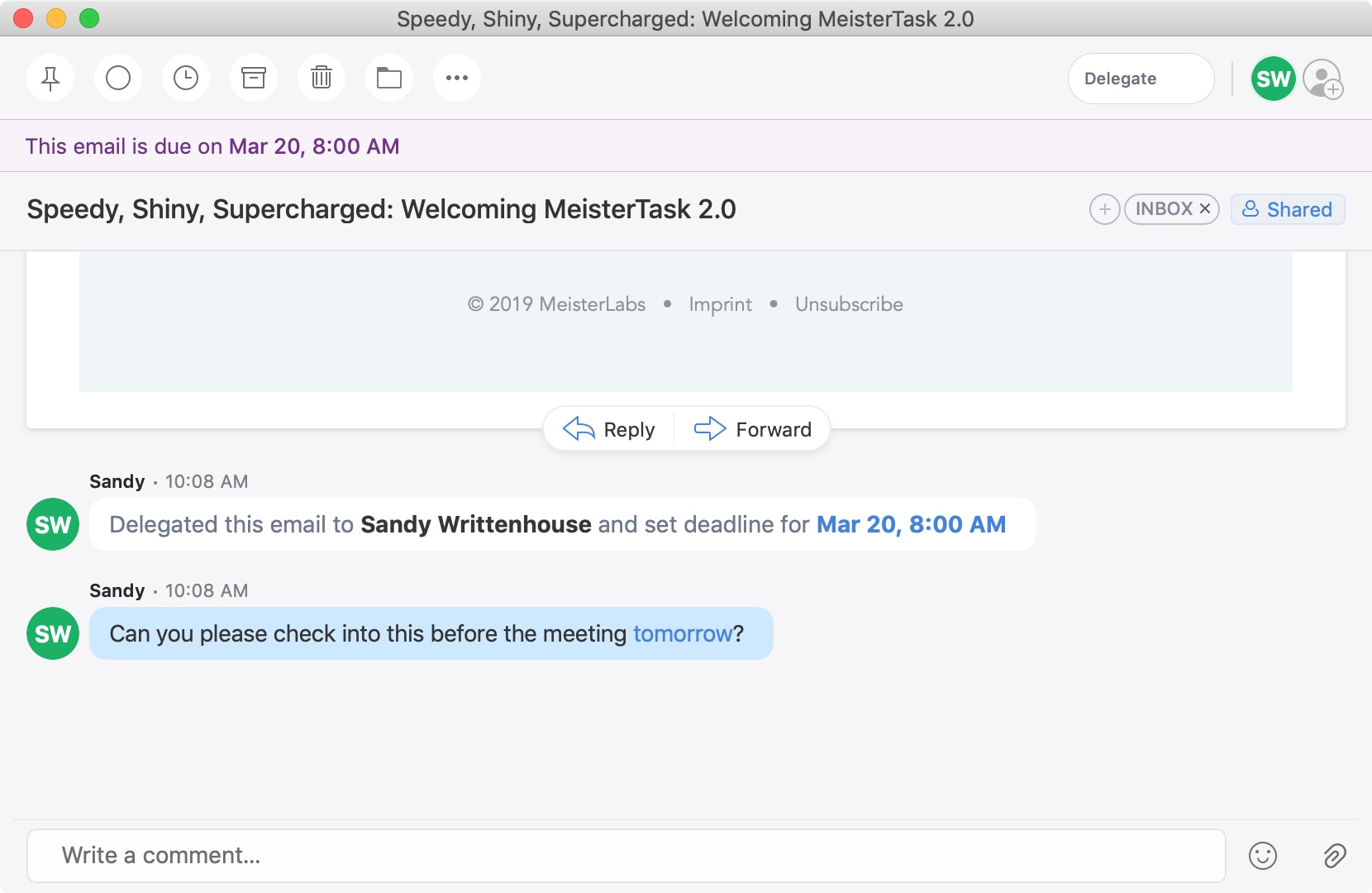
Delegated Spark Email Message on Mac

A recent update to the Spark email application brought a cool new feature. You can now delegate emails to your team or employees on iPhone, iPad, and Mac. Along with assigning emails to others, you can set due dates and times and keep track of what’s pending and completed.

This is a great new feature if you use Spark for business but is also handy for personal situations. You might want to delegate an email to a family member or friend like reminders for bills due, appointments made, or travel plans.

If you’re interested in this convenient feature, we’ll show you how to delegate emails in Spark to assign tasks to others.