Learn how to lock files and folders on Mac, including your Desktop folder, to prevent accidental changes or deletions.
How to lock files, folders, and your Desktop on Mac

Learn how to lock files and folders on Mac, including your Desktop folder, to prevent accidental changes or deletions.
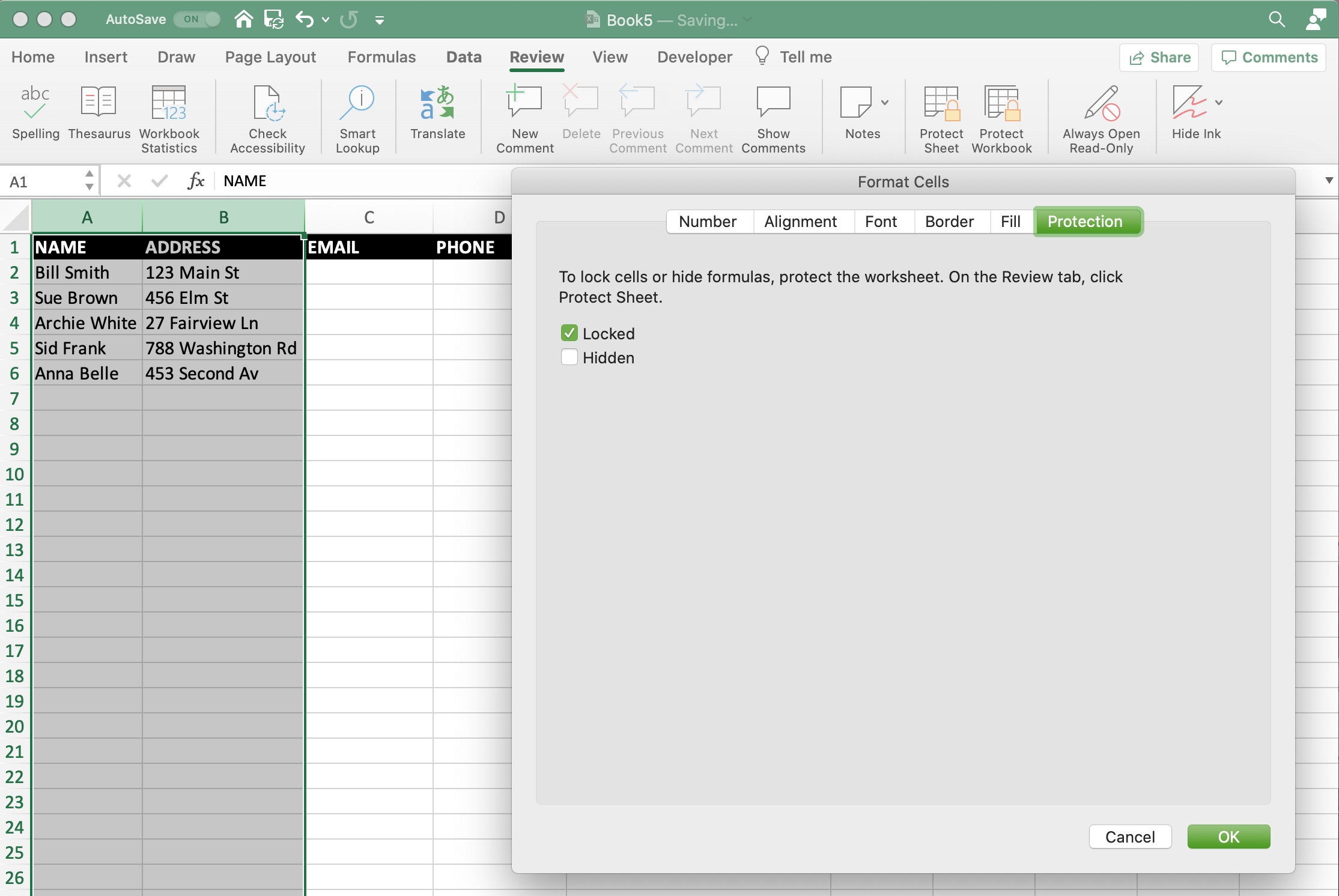
If you have an Excel spreadsheet or workbook that you want to either share with others, you likely have data that you don’t want them to be able to change. Maybe you want to allow them access to only edit certain cells. On the other hand, you may have data that you want to make sure doesn’t get accidentally changed as you work on the sheet yourself.
Unlike Numbers, you can lock cells in Microsoft Excel in a variety of ways. You can lock specific cells, cell ranges, rows, and columns. There are a few sets of steps in the process, but after you do it once, it will come easily for future workbooks. Here, we’ll walk you through how to lock cells in Microsoft Excel on Mac.
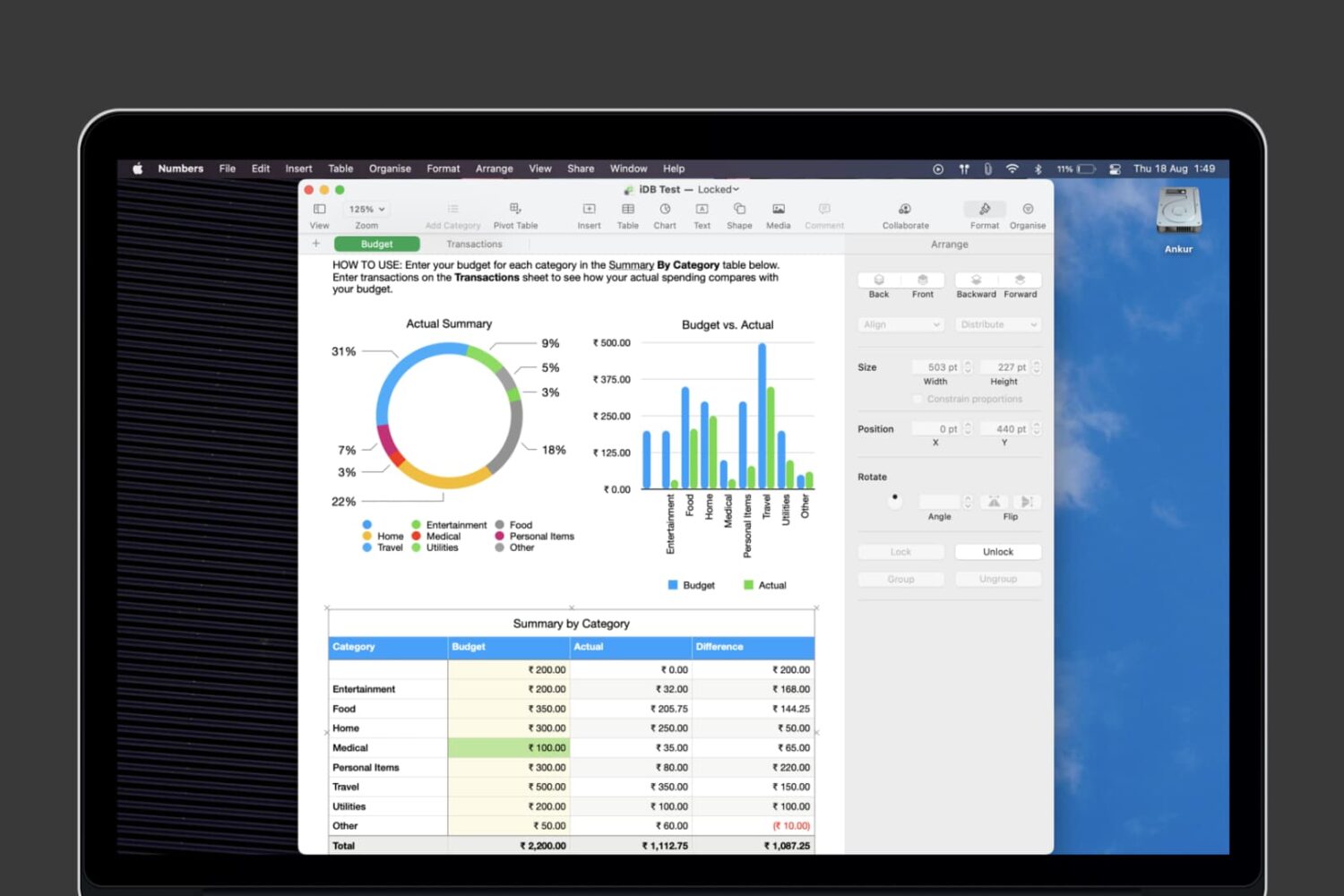
Learn how to lock individual tables or the entire workbook in the Apple Numbers app on your Mac, iPad, and iPhone to prevent unwanted changes to your spreadsheet.

Learn how to view carrier information on your iPhone to confirm whether the device you’re buying or selling is locked or unlocked.
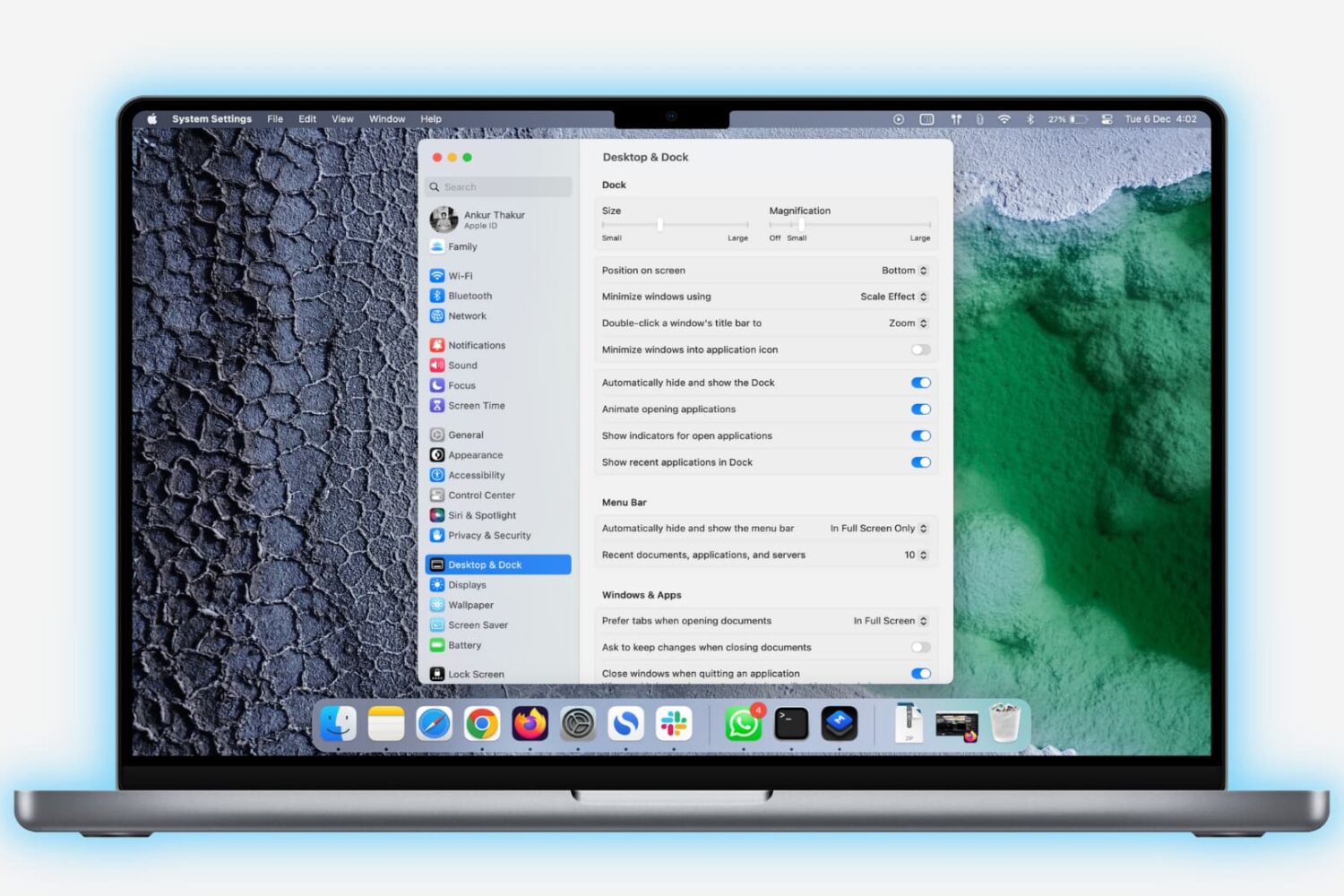
Learn how to lock the bottom Dock on your Mac to prevent unwanted changes to it by you or anyone with access to your computer.