iPod Touch

How to adjust the intensity of bright colors on iPhone and iPad

Since iOS 7.1, Apple's mobile operating system has included a feature that allows you to manually adjust the display's white point to your liking. A white point, also known as reference white or target white, defines the color white in reproduction.

Lowering the white point makes bright colors on your iPhone, iPad or iPod touch's screen more intense. Conversely, increasing the white point reduces the intensity of bright colors, thereby helping extend the run time of your iPhone or iPad.

The ability to manually adjust the white point so that it matches a white surface in your room is particularly handy for owners of devices that lack Apple's True Tone display technology.

How to adjust the intensity of bright colors on iPhone and iPad

1) Launch the Settings app on your device.

2) Tap Accessibility.

3) Tap Display & Text Size underneath the Vision heading.

4) Slide the button labeled Reduce White Point to the ON position.

5) Now drag the slider underneath the button to the right to make bright colors less intense or move it to the left to lower the white point, which will make bright colors more intense.

Reducing the intensity of the screen's battery-hogging backlight by increasing the white point is one of the nearly dozen proven ways to save battery life on iPhone and iPad.

TIP: To get to this feature faster, set it as a triple-click Home button action in Settings → General → Accessibility → Accessibility Shortcut.

Again, don't confuse Reduce White Point with the True Tone feature.

True Tone ≠ Reduce White Point

What exactly is the difference between True Tone and Reduce White Point?

True Tone is Apple's display technology currently found on iPad Pro models which changes the white point of the display on the fly while simultaneously adjusting brightness in order to compensate for the lighting in the environment

The Reduce White Point option does not take advantage of the ambient light sensors in your device like True Tone does. As a result, you cannot tell your device to adjust the white point of its display dynamically to match the current lighting conditions in a room.

Put simply, should lighting conditions change you'll need to repeat these steps to manually recalibrate the intensity of bright colors for the current ambient lighting.

Have you ever wanted to set the screen brightness on your iOS device below the normal threshold? If so, the Low Light filter in your Zoom accessibility settings is your friend.

Need help? Ask iDB!

If you like this how-to, pass it along to your support folks and leave a comment below.

Got stuck? Not sure how to do certain things on your Apple device? Let us know via help@iDownloadBlog.com and a future tutorial might provide a solution.

Submit your how-to suggestions via tips@iDownloadBlog.com.
Apple issues sixth beta of iOS 10.3.3 to developers

Apple on Wednesday seeded iOS 10.3.3 beta 6 to its registered developers and members of the paid Apple Developer Program. The new update has a build number of 14G57 or 14G58, depending on the device. It can be deployed to any compatible iPhone, iPad or iPod touch via the Software Update mechanism in the Settings app.

Your device must have an appropriate configuration profile installed, which can be downloaded from Dev Center. The latest beta arrives following iOS 10.3.3 beta 5, which was seeded to developers on June 28 (the first beta dropped on May 16).

Some of the fixes in iOS 10.3.3 are mentioned in Andrew’s walkthrough video of the first beta.

https://www.youtube.com/watch?v=Xvh5kOofWW0

Subscribe to iDownloadBlog on YouTube.

As mentioned, iOS 10.3.3 is a bug-fix release which enhances the security and performance of your iPhone, iPad and iPod touch. This is most likely that last point update to iOS 10 as Apple continues to beta-test the major iOS 11 software update ahead of its public release in the fall.

Apple also released macOS Sierra 10.12.6 beta 6 for developer testing today.

How to use Control Center without 3D Touch

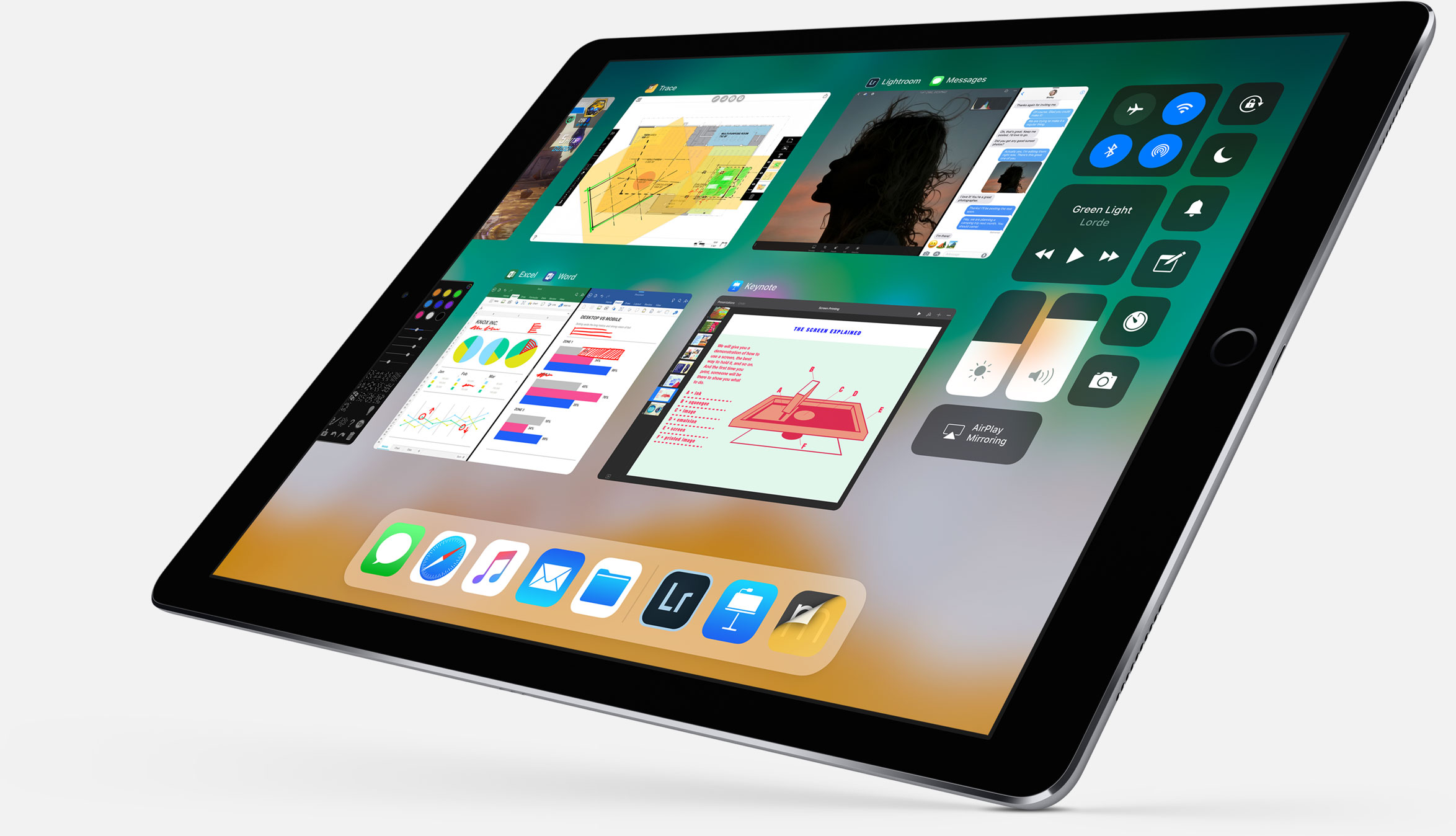
iOS 11 offers more customization for Control Center than ever, allowing you to make it your own by disabling toggles you rarely use. If puts frequently used controls all on one page, many of which can be expanded to reveal additional options when pressed with 3D Touch.

For instance, you can press the Home toggle lightly to bring up your HomeKit scenes, press the Now Playing toggle with 3D Touch to expand media controls, press the Apple TV Remote toggle to navigate your Apple TV or type some text into it, and much, much more.

So far, so great. But what if your device lacks 3D Touch?

Unlike prior iOS editions that didn't provide a fallback mechanism for 3D Touch interactions on non-3D Touch devices, iOS 11 allows you to use all of the features the redesigned Control Center has to offer without having to own a 3D Touch device.

Our resident video editor Andrew O'Hara details how iOS 11's Control Center works on devices that don't include 3D Touch features, like iPads and iPhone 6 and older models.

https://www.youtube.com/watch?v=cpSoo5_TqIQ

Subscribe to iDownloadBlog on YouTube.

Continue reading for step-by-step instructions on using Control Center without 3D Touch

How to use Control Center without 3D Touch

1) Access Control Center by swiping up from the bottom of the screen

TIP: Enable Access Within Apps in Settings → Control Center to have your device respond to that gesture when you're using an app.

2) Tap and hold on the control to expand it.

In Andrew's example, he long-taps the Brightness toggle to access controls for turning Night Shift on or off. You can long-tap other Control Center items that are expandable. For example, long-tapping the Volume control enlarges the slider as if you pressed it with 3D Touch.

iPad lacks Taptic Engine so you won't feel haptic feedback when long-tapping.

That's it, boys and girls, now you know how to interact with Control Center on iOS 11 without actuating having to have a 3D Touch device. This tip should be especially useful for iPad owners as Apple's tablets lacks 3D Touch features.

TUTORIAL: How to force-quite iPad apps on iOS 11

Don't forget you can selectively enable or disable nearly two-dozen different toggles and change the order in which they appear in Control Center under Settings → Control Center → Customize Controls, including new system toggles and features like Screen Recording, Voice Memos, Low Power Mode, Apple TV Remote, Accessibility Shortcuts and more.

To lear more about iOS 11's Control Center, watch another walkthrough video below.

https://www.youtube.com/watch?v=UGWjmt6UXJI

Aside from drag and drop, iOS 11 brings five different types of tap gestures, including a longer tap to move multiple apps on the Home screen, a special half-long tap to pull up an extra Dock menu and a long-tap in the notifications overlay to access additional options.

Need help? Ask iDB!

If you like this how-to, pass it along to your support folks and leave a comment below.

Got stuck? Not sure how to do certain things on your Apple device? Let us know via help@iDownloadBlog.com and a future tutorial might provide a solution.

Submit your how-to suggestions via tips@iDownloadBlog.com.

How to stop iCloud Photo Library from eating into your iPhone’s cellular data plan

iCloud Photo Library is an optional feature on iPhone, iPad, iPod touch and Mac that uploads every photo and video you take or import to iCloud and keeps everything synchronized across all your Apple gear. I've been using it for years and it really “just works”.

On iOS 10 and earlier, Photos syncs with iCloud each time your device connects to Wi-Fi and the battery is charged. On iOS 11 and later, Photos can also use your iPhone's cellular data connection to sync and update the image library.

Do you take many photos on the go? Are you on a metered rather than an unlimited plan? Then you don't need me to tell you that you must ensure you're not wasting huge amounts of cellular data to this feature.

Here's how to stop the Photos app from eating into your iPhone's cellular data plan.

Before we get to it, keep in mind the following:

iOS 10 and earlier—Your Photos library syncs with iCloud each time your device connects to Wi-Fi and the battery is charged. iOS 11 or later—You decide if Photos syncs with iCloud via cellular or Wi-Fi only.

In other words, you should double-check that cellular updates for iCloud Photo Library are turned off only if you're on iOS 11 or later. Folks on older iOS editions needn't do that because Photos syncs with iCloud only when their iPhone is connected to power and Wi-Fi.

How to stop iCloud Photo Library on iPhone from using cellular data

12-megapixel images and 4K videos captured on your iPhone take up quite a bit of storage space. For most people, there's no point allowing iOS to gobble up cellular data just to keep the image library synchronized with iCloud at all times.

Thankfully, you can prevent this from happening, and here's how:

1) Launch the Settings app on your iPhone or cellular iPad.

2) Tap Photos in the list.

3) Tap Cellular Data.

4) Slide the button labeled Cellular Data to the OFF position.

This device will no longer use your carrier's cellular data for updating the Photos library. Any changes to your image library will automatically upload to iCloud as soon as the device connects to power and Wi-Fi.

TIP: If you really need Photos to be in perfect sync with iCloud at all times, even on the go, via cellular and Wi-Fi, be sure to slide the toggle labeled Unlimited Updates to the ON position.

The feature's description says “unlimited updates may cause you to excess your quota“.

Need help? Ask iDB!

If you like this how-to, pass it along to your support folks and leave a comment below.

Got stuck? Not sure how to do certain things on your Apple device? Let us know via help@iDownloadBlog.com and a future tutorial might provide a solution.

Submit your how-to suggestions via tips@iDownloadBlog.com.

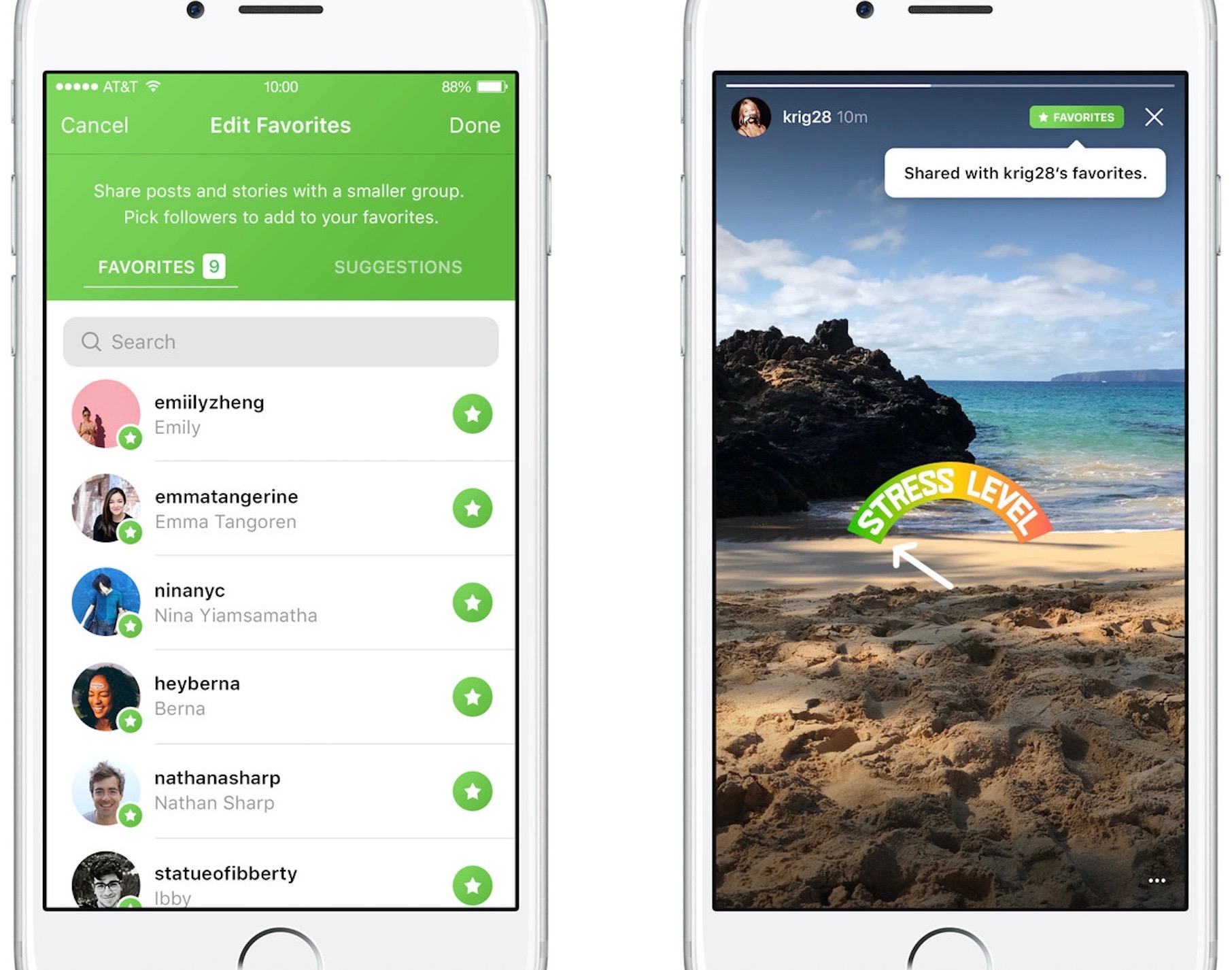
Instagram launches stickers for Independence Day and Canada Day

Instagram during the weekend launched stickers in its mobile app for iPhone and iPad which are dedicated to the 4th of July holiday and Canada Day celebrations across North America.

Instagram users in the United States can celebrate Independence Day by posting a Story adorned with one of the stickers in the app's new star-spangled sticker pack, ranging from backyard BBQs to fireworks at night.

Canadians get a sticker to celebrate Canada Day, available in both English and French.

The sticker was designed by Jenn Kitagawa, a multidisciplinary artist and illustrator who grew up in the prairies of Alberta and currently lives in Toronto.

Instagram is available at no charge on App Store.

Apple (again) reminds developers that iOS 11 won’t run 32-bit apps

Following the iOS 11 public beta release, Apple has reminded developers that iOS 11 will be 64-bit only. The notice posted yesterday on Apple's Dev Center cautions that all 32-bit apps previously installed on users’ devices will not launch after they upgrade to iOS 11.

“As a reminder, new iOS apps and updates submitted to the App Store must support 64-bit,” reads the notice. Apple recommends that developers who haven’t updated their apps to support 64-bit submit an update “so your users can continue to run your apps on iOS 11”.

TUTORIAL: How to identify 32-bit apps installed on your iPhone and iPad

Because iOS 11 is 64-bit only and doesn't support legacy 32-bit apps, users should experience a bit faster performance and fewer crashes. That's because iOS 11 will never need to load 32-bit frameworks, libraries and the kernel alongside their 64-bit counterparts needed to support legacy apps, which effectively strains the RAM and other resources.

https://www.youtube.com/watch?v=-hoPcMPvL88

Subscribe to iDownloadBlog on YouTube.

Apple’s Clips app already requires a 64-bit iOS device and iOS 11's new Files app is optimized for 64-bit computing, too. Starting with iOS 10.3, Apple began naming and shaming legacy apps via a new App Compatibility section in Settings → General → About → Applications.

The new advisory regarding 32-bit apps was posted just a day after the company invited developers to update their product pages on App Store for iOS 11's much-improved, thoroughly redesigned App Store.

iOS 11 will be in the hands of “hundreds of millions of customers” this fall.

Instagram unveils offensive comment filter, anti-spam tool in 9 languages

Instagram today announced some much-needed new tools to help users of its mobile app enjoy the service without toxic comments and spam. One is a new filter designed to block certain offensive comments and the other is basically a spam filter supporting nine languages.

Instagram claims that the pair of newly announced tools at their users' disposal will help keep the service a safe place for self-expression and inclusive communities.

Clamping down on toxic comments is now easier with the comment filter that automatically blocks certain offensive comments on your published posts, as well as in live video.

The new offensive comment filter is in addition to Instagram's existing arsenal of tools, like comment reporting, account blocking and so forth. To access this automatic filter, tap Instagram's “...” menu from your profile, then tap the new Comments option.

“We’ll launch this comment filter in English first, but will offer it in more languages over time,” notes the Facebook-owned company. The filter is optional and can be turned off at any time.

To help fight spam, Instagram is rolling out another new filter. Powered by machine learning, it looks for any obvious spam in comments and blocks it from your posts and live videos.

According to Instagram:

Our team has been training our systems for some time to recognize certain types of offensive and spammy comments so you never have to see them. The tools will improve over time, enabling the community’s experience of sharing to improve as well. We hope to make these filters available in more languages as our algorithms improve.

At launch, this dedicated filter will remove spam written in a total of nine languages—English, Spanish, Portuguese, Arabic, French, German, Russian, Japanese and Chinese—with additional language support to be implemented in the future.

Instagram is available free of charge via App Store.

Facebook brings animated reactions, filters, masks and effects to Messenger calls

As part of celebrating its two billion monthly active users milestone, Facebook on Monday unveiled new video chat features for its mobile Messenger app, such as the beautifully animated reactions, interactive filters, masks and effects. “Video chats with your friends and family in Messenger just got a whole lot more fun,” said the firm.

You can use these new video features in one-on-one video calls, as well as in your group video conversations. The new capabilities let you easily share your emotions during a video call with one of the five Facebook reactions, alter your appearance (how about making your friend laugh with a bear mask?) by taking advantage of the many built-in filters and much more.

I like how reactions animate onto the screen and then disappear.

Many reactions have different versions, depending on whether your face is on or off the screen. For instance, tap the love reaction when the camera is facing you, then tap it again when the camera is facing outward to see the difference.

A variety of in-call filters are now available to Messenger users, ranging from subtle lighting tweaks to color changes, like black and white, red or yellow. Each one has a live preview so you can test it on yourself before letting others see it. Many new masks are available for video calls, too, including some with hidden effects that react to your facial movements.

From the Facebook blog:

We have also added animated effects, like falling hearts and twinkling stars, to give your video chats expressive flair. Check out what happens when you wave your arm in front of the camera while using one of those effects! Unlike reactions, masks and effects stay on the screen for the duration of the video chat (or until you take them off or switch to another one).

One of the best new in-call video features is the screenshotting ability.

During an one-on-one or group video call with one or more friends, tap the camera icon at the bottom to take a screenshot of your time together and share it with other friends via Messenger Day or other social media accounts

The image of your video conversation will be saved to your iPhone's Camera roll. Plus, you can quickly send the screenshot to the person or group that you’re video chatting with.

Check out the new Messenger video features in Facebook's video embedded below.

Earlier today, Microsoft started rolling out a much redesigned Skype for iPhone with a Snapchat-like Stories feature, dubbed Highlights.

Moreover, Skype for iPhone now lets you talk to Cortana and other chat bots, as well as post message and in-call reactions by adding huge emoticons, live text and photos with drawings to an overlay that appears on top of the call.

Facebook Messenger is available free on App Store.

Skype for iPhone gains chat bots, its version of Stories, message & in-call reactions and more

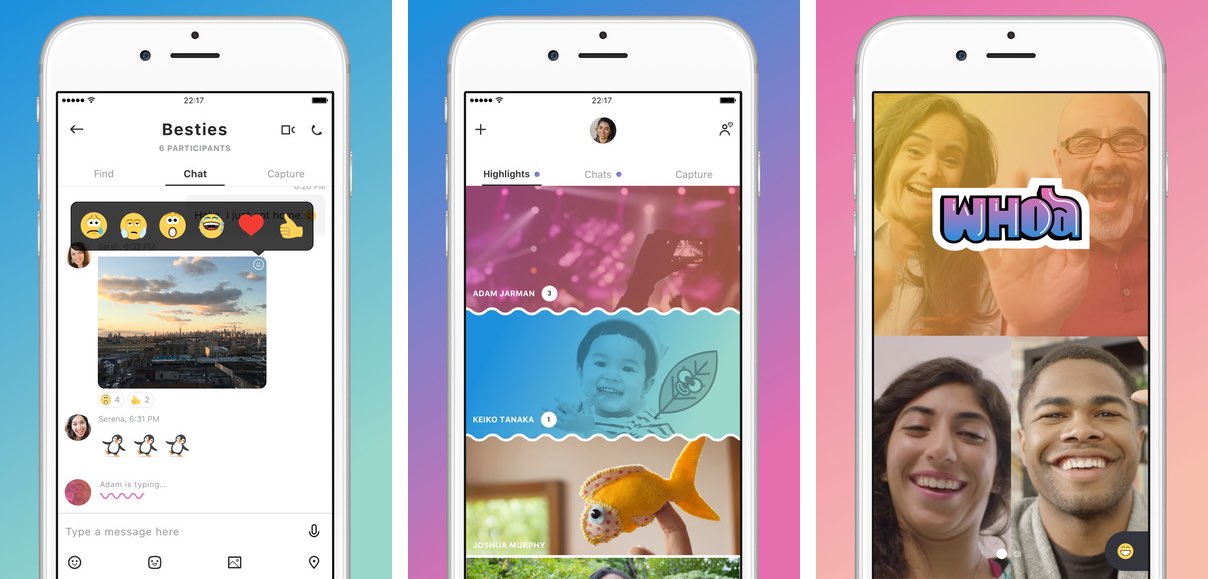
Following a preview at the start of June, Microsoft today began rolling out a redesigned Skype for iPhone app with a refined user interface and new capabilities such as chat bots, a Snapchat-like Highlights feature, message and in-call reactions, easier photo capture and more.

Aside from Microsoft's own smart assistant Cortana, other chat bots now available or coming soon to Skype for iPhone include Gfycat, Giphy, MSN Weather, Bing, Polls, Expedia, Stubhub, BigOven, YouTube and Upworthy.

With in-call reactions, users can add live emoticons, live text and even real-time photos to an overlay that appears on their video and voice calls. Similarly, message reactions let you inform your chat participants how you feel by adding expressive reactions to your chats.

The new Home screen launches with your chat view, but you can now swipe left to get to the Skype camera or swipe right to show your Highlights. Speaking of which, Highlights is a new Snapchat-like feature that lets you share your day-to-day with friends and family on Skype while keeping up with what they are up to.

Your highlight is basically a collection of photos and videos that you can decorate with emojis and text. Only people who follow you on Skype can see your highlights.

You can also respond to others' highlights by reacting with emoticons or even use them as a conversation starter. Unlike Snapchat, your published highlights remain live for a full week.

It remains to be seen if Highlights gains any traction given that every major chat app now has a similar feature of its own. Between Snapchat Stories, Facebook and Instagram Stories, I'm not sure I have the time to update Skype Highlights for my contacts on a daily basis.

https://www.youtube.com/watch?v=qItfRVJFljM

Microsoft readily admits that Highlights is a Snapchat clone.

“There’s a new medium that has risen,” Amritansh Raghav, Corporate Vice President of Skype, said recently of Stories in a comment to TechCrunch. “When you think about this new way of interacting, we want that to be available also in this app.”

The new features are available in Skype for iPhone, but not in Skype for iPad. Skype for Mac and Windows computers will receive the new capabilities within the next few months.

According to Microsoft, a future version of Skype will integrate gaming features into video calls and users will have the ability to synchronize and watch streaming videos together.

Visit skype.com/new to learn more about the app's latest feature additions.

Skype for iPhone and Skype for iPad are available free on App Store.

You can now edit text files right from Dropbox app

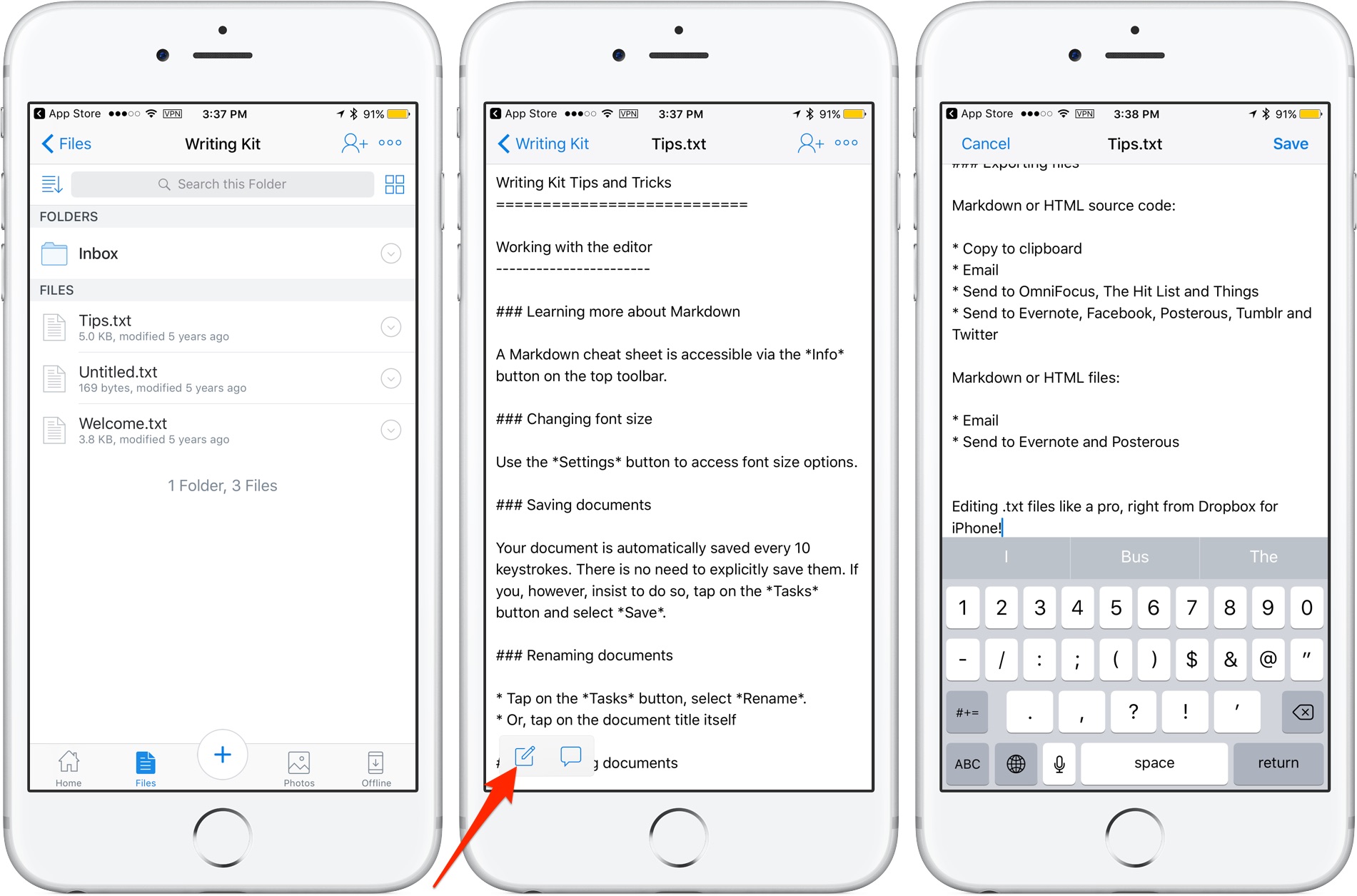
Cloud storage provider Dropbox today updated its app on App Store with the ability to edit text files right from the mobile app. Now when you browse the files in your Dropbox, simply view any text file then tap a new Edit icon to enter the app's new built-in text editor.

When done editing, tap Save to save the changes directly to the text file in your Dropbox. No more emailing the file back and forth. The bast part is, no longer do you need to use a third-party editor just to make a few quick changes to a text file saved in your Dropbox.

Aside from the built-in text editor, Dropbox for iOS version 54.2 has gained a new auto-capture function. When scanning documents, simply focus on the document and this feature will take a picture automatically.

Dropbox for iOS is a free download via App Store.

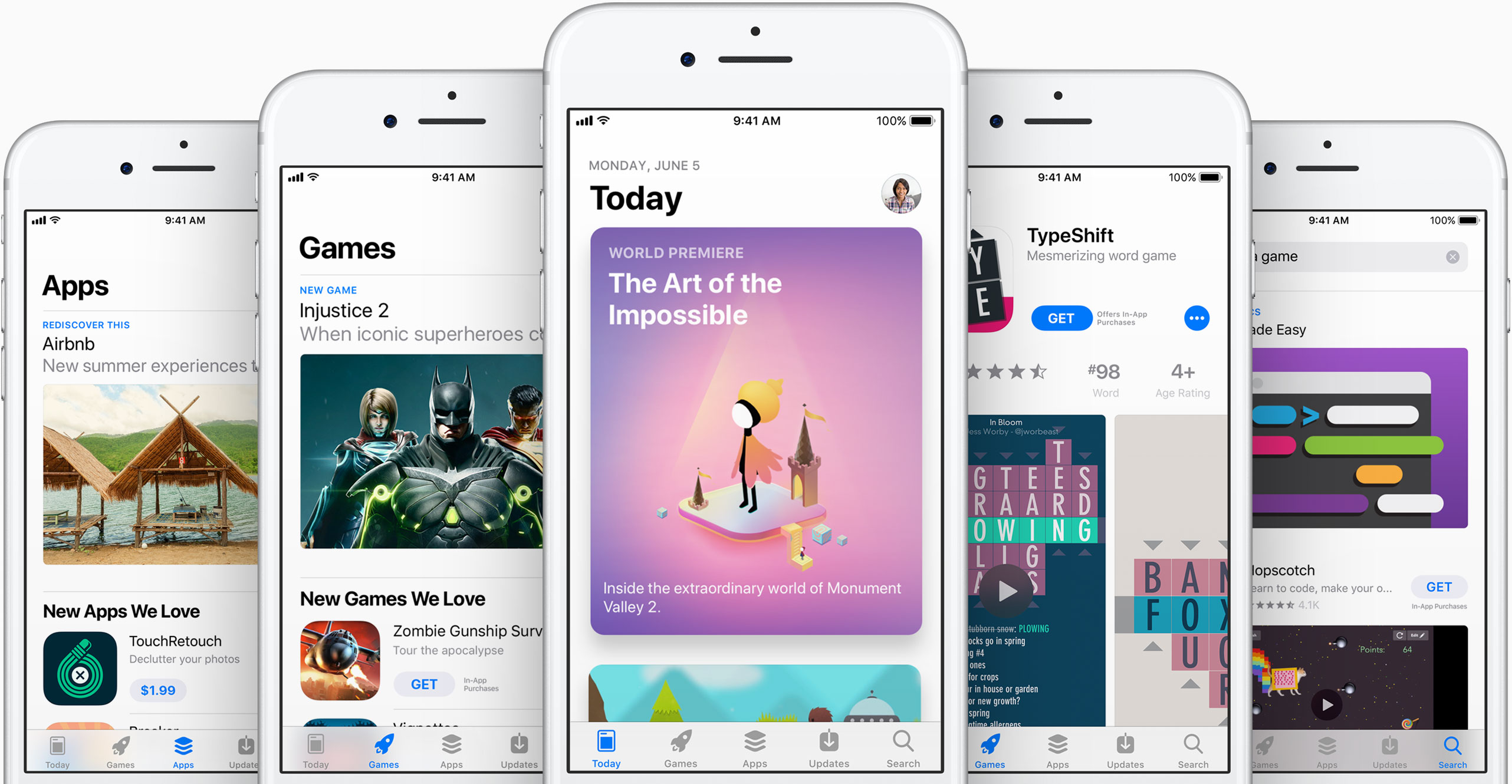
Apple asks developers to update their pages for iOS 11’s all-new App Store

Apple on Tuesday invited its registered developers and members of the Apple Developer Program to update their product pages for iOS 11's much redesigned App Store.

Specifically, developers can showcase their content with subtitles, promotional text, additional app previews that they can localize and up to 20 promoted In-App Purchases that users can buy on App Store, even if they haven't downloaded an app that offers them.

A dedicated section on Apple's portal for developers offers useful resources for making the most of the new product pages. Like before, new metadata is entered in iTunes Connect.

“Metadata you provide in iTunes Connect is shared across App Store on iOS 11 and iOS 10.3 and earlier, so you only need one version of product page elements, such as app name, icon, screenshots and keywords,” notes Apple.

iOS 11's App Store features competently revamped product pages while providing dedicated Apps and Games tabs along with a new Today tab with original stories, editorial, tips, how-tos, interviews and more, updated daily, in a blog-like format.

https://www.youtube.com/watch?v=-hoPcMPvL88

Subscribe to iDownloadBlog on YouTube.

The App Store redesign lets developers spotlight apps with more engaging content, putting the most important information front and center for the customer making a download decision.

Developers can now submit up to three video app previews and five screenshots, which can now be localized so a user in any country can have a customized version of the video.

Accolades including Editors’ Choice and chart position are now highlighted by App Store, as are In-App Purchases and customer ratings and reviews.

The new App Store is now available as a preview to users of the iOS 11 public beta. Once iOS 11 launches for public consumption this fall, the redesigned App Store will be in the hands of hundreds of millions of users around the world.

App Store customers have now downloaded more than 180 billion apps and Apple has paid out over $70 billion to developers since the store launched in 2008, making it the most vibrant software marketplace in the world, according to the Cupertino giant.

How to stop Safari from caching Reading List via cellular connections

Safari has a built-in Reading List feature for saving webpages you'd like to revisit later. It's like bookmarks, but with full offline support. That is, any webpage saved in your Reading List prompt Safari to download and cache its text, images, layout and other assets on your device so that it can be read at any time, even without an Internet connection.

And with iCloud syncing, a webpage added to Reading List on one device gets individually cached across all your other devices, too. Caching webpages isn't the smartest idea if you're on a metered cellular plan, especially if you frequently use Reading List on the go.

Thankfully, iOS lets you decide whether or not Reading List items should be downloaded when your iPhone is connected to the Internet through your carrier's cellular data network.

About Safari Reading List

Reading List made its debut with the release of OS X Lion and iOS 5 in 2011.

The feature received offline support the following year in OS X Mountain Lion and iOS 6. Reading List is unavailable on a device unless Safari syncing is turned on in Settings → iCloud on iOS or in the iCloud preference pane in System Preferences on macOS.

Don't confuse Reading List with Safari's regular bookmarking feature, which simply stores a webpage URL rather than download and cache its full contents, like Reading List does.

Due to the fact that a vast majority of websites take advantage of high-resolution image assets, your offline Reading List cache can eat up a significant amount of on-device storage.

And because Safari syncs your Reading List, bookmarks and other data via iCloud, adding a webpage to Reading List on your iPad prompts your iPhone to  download it, and vice versa.

Thankfully, you can revert this behavior with a few taps, here's how.

How to stop Reading List caching via cellular

Safari on iPhone and iPad defaults to caching all Reading List items for offline access, whether you're connected to the network via Wi-Fi or through your carrier's cellular data network.

To tell Safari to cache your Reading List items for offline access only when your iPhone or cellular-enable iPad is connected to a Wi-Fi network, do the following:

1) Open Settings on your iPhone or cellular iPad.

2) Tap Safari.

3) Scroll to the bottom of the Safari settings screen, then slide the switch Use Cellular Data underneath the Reading List headline to the OFF position.

This will stop Reading List items from being downloaded through this device's cellular connection. You must do this on every iPhone and cellular iPad using the same Apple ID.

With cellular updates turned off, any webpages you add to your Reading List in the future will still show up in Safari's Reading List menu but they'll only get cached via Wi-Fi.

Deleting offline Reading List cache

To free up storage space taken up by Safari's offline Reading List cache, go to Settings → General → iCloud & Storage Usage, then tap Manage Storage under the Storage headline.

Find and tap Safari in the list of apps, swipe left over Offline Reading List, then hit Delete.

Wiping the cache clean won’t remove any items from your Reading List in iCloud.

You will still be able to open any webpage from your Reading List like you normally would, but your device will need to be connected to the Internet to display a non-cached item.

And one last tip before we sign off—knowing your Reading List is archived automatically in iCloud, you are actually able to easily restore it from an earlier version at any time.

Need help? Ask iDB!

If you like this how-to, pass it along to your support folks and leave a comment below.

Got stuck? Not sure how to do certain things on your Apple device? Let us know via help@iDownloadBlog.com and a future tutorial might provide a solution.

Submit your how-to suggestions via tips@iDownloadBlog.com.