Find out how to check the amount of storage space taken up by each app and its data on your iPhone or iPad.
How to see the total space an iOS app takes on iPhone or iPad

Find out how to check the amount of storage space taken up by each app and its data on your iPhone or iPad.
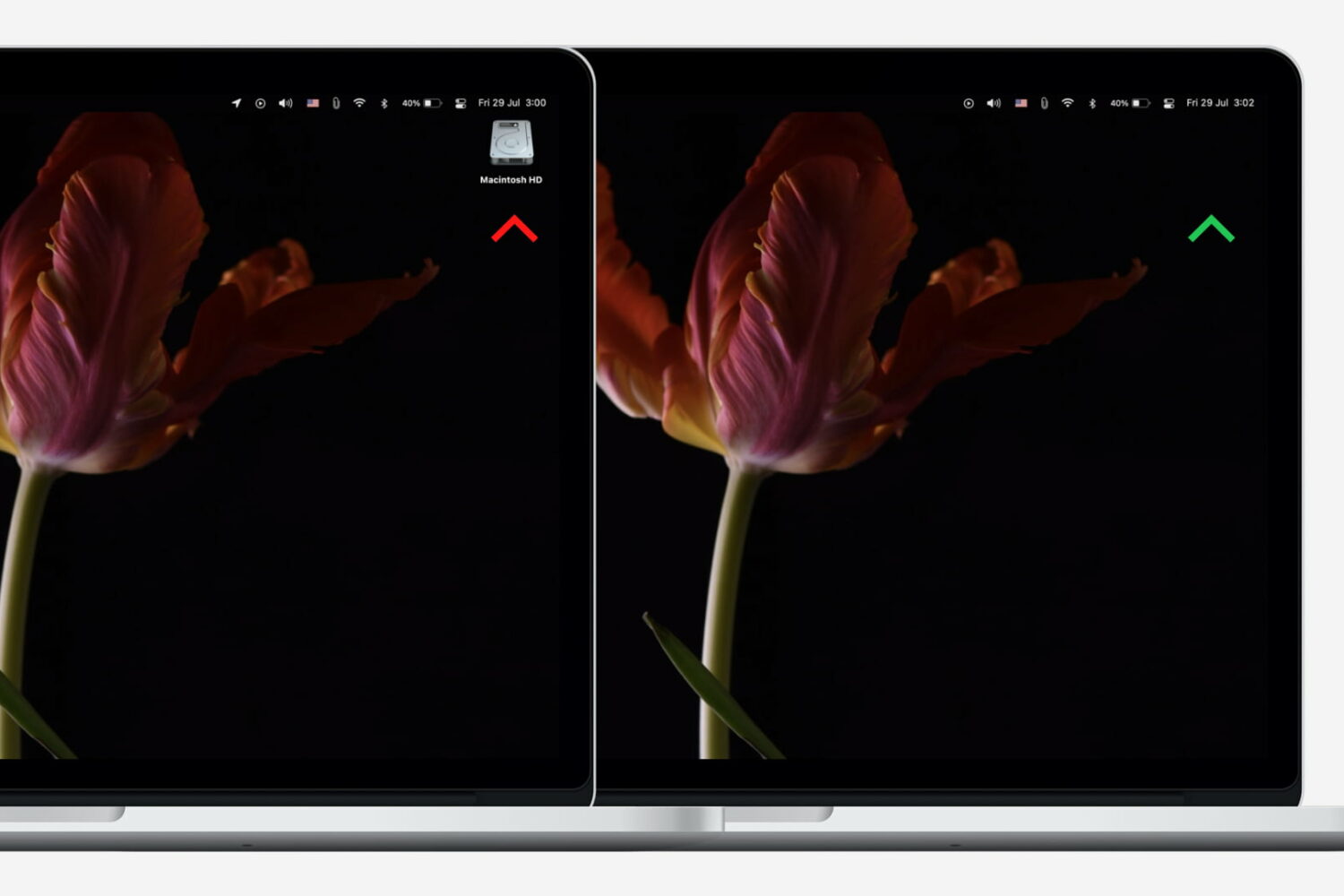
Neat freaks like me like to keep the desktop of their computers free of any clutter. That includes files, folders, and of course, the Macintosh HD icon. As a matter of fact, removing the Macintosh HD icon from the desktop is one of the first few things I do when setting up a new Mac.
Although pretty simple to do, hiding that icon is not very obvious to less tech-savvy people. So in this post, I will describe how to remove the Macintosh HD or the hard disk/SSD icon from the desktop on your Mac.

Learn how to free up storage space on your Mac by deleting unneeded email attachments in Apple Mail like PDF documents, images, videos, and other large files.

In this brief tutorial, we’ll show you how to see the current firmware version of your Apple Pencil using the Settings app on your iPad.
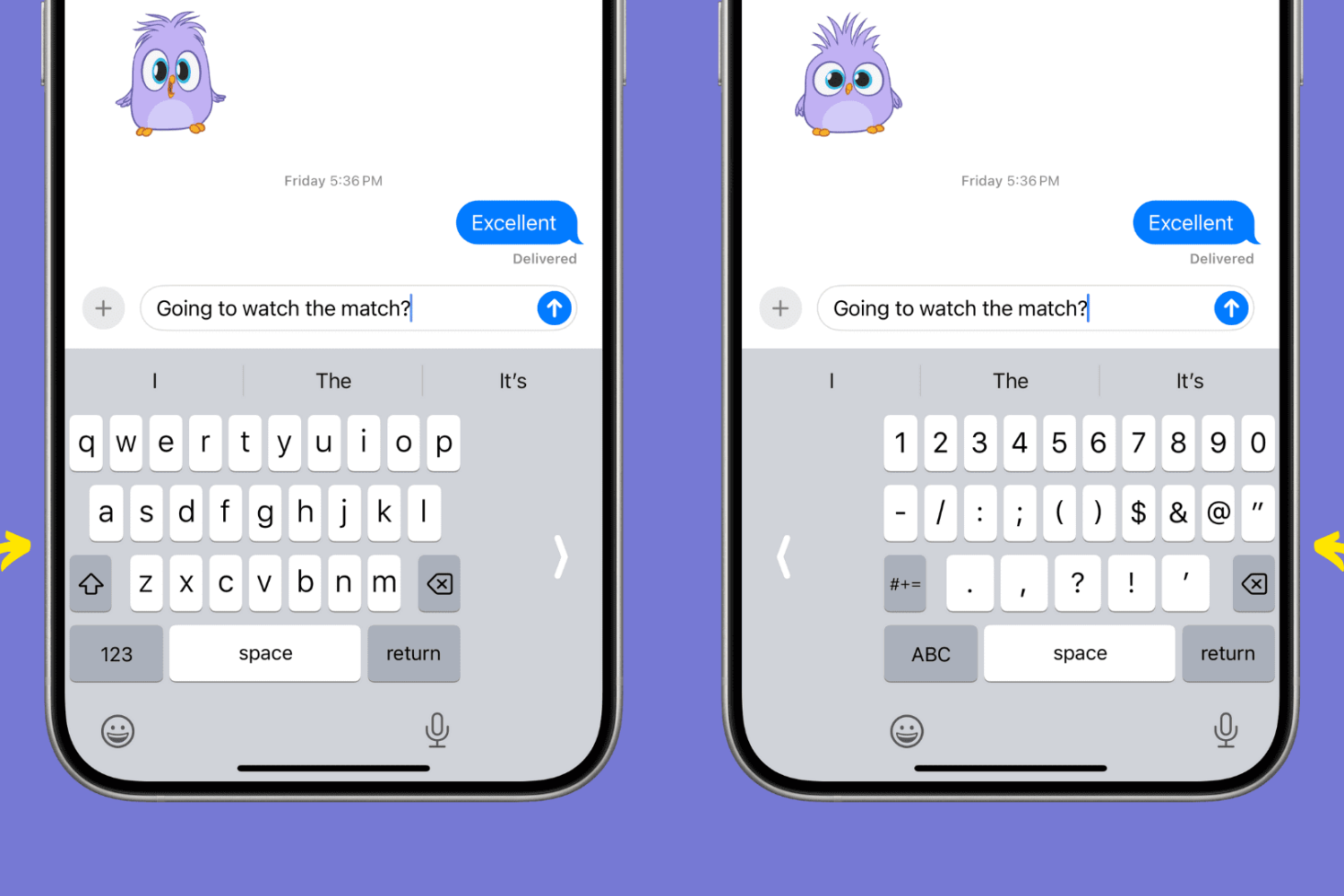
Learn about this quick tip that shrinks the iPhone keyboard onto the left or right side, making it easy to type while holding your phone with one hand.

In this tutorial, we will show you how to use the Segments feature of the Apple Watch Workout app to divide your active session into multiple splits.
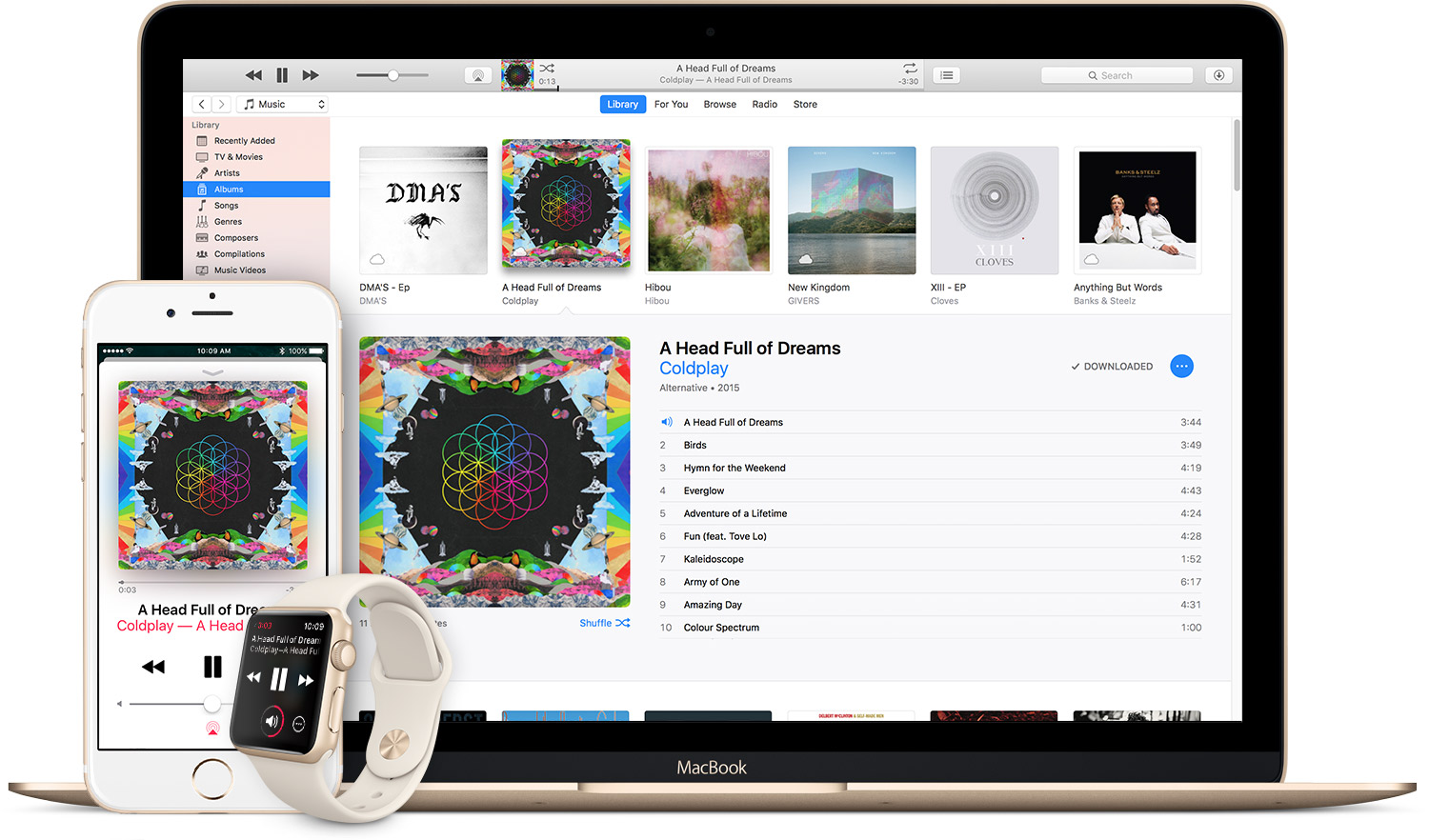
Do you use Apple Music on a regular basis and foresee continuing to do so? Are you paying your membership month-to-month? If so, how would you like to get full twelve months of uninterrupted Apple Music experience for the price of ten?
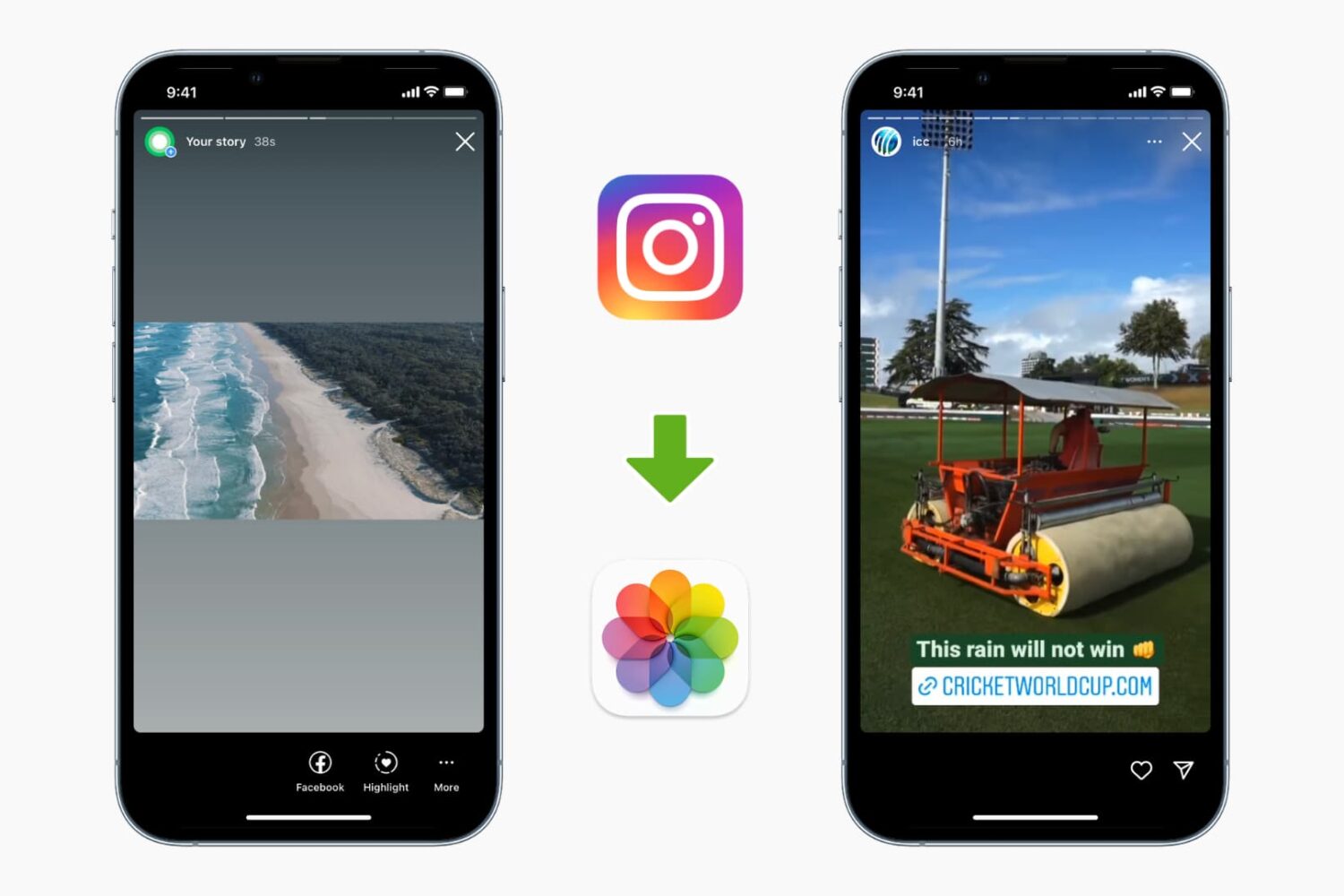
While the Instagram app allows downloading your stories, it doesn't let you download other people's stories. But there are ways to do it. This tutorial shows you how to download and save Instagram Stories to your iPhone's Photos app.
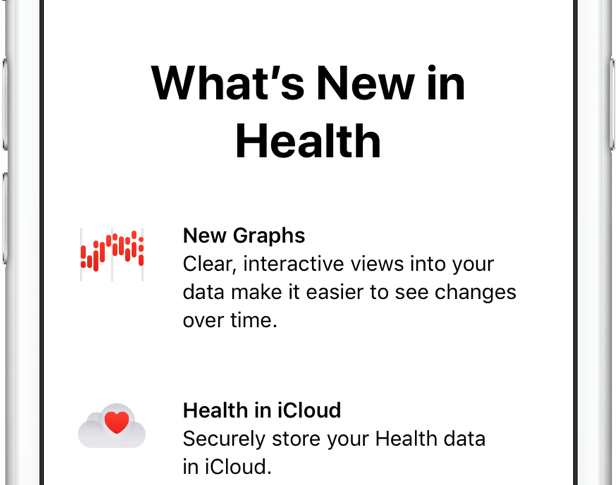
Carrying over the complete Health database from your old to a new iPhone used to require restoring the new phone from an iCloud backup or an encrypted backup created in iTunes.

Learn how to stop the App Store on your iPhone or iPad from auto-playing videos to save cellular data or keep things still if you have motion sickness.
If you're like me, you'll often be messing around in Terminal and find you can't remember (or don't know) the correct syntax and options for a command you're trying to issue.
You could look it up online and search through all the slightly different answers for different Unix-based systems, or you could use macOS' built in manual pages to get your answer. This guide will show you how.

Since iOS 7.1, Apple's mobile operating system has included a feature that allows you to manually adjust the display's white point to your liking. A white point, also known as reference white or target white, defines the color white in reproduction.
Lowering the white point makes bright colors on your iPhone, iPad or iPod touch's screen more intense. Conversely, increasing the white point reduces the intensity of bright colors, thereby helping extend the run time of your iPhone or iPad.
The ability to manually adjust the white point so that it matches a white surface in your room is particularly handy for owners of devices that lack Apple's True Tone display technology.
How to adjust the intensity of bright colors on iPhone and iPad1) Launch the Settings app on your device.
2) Tap Accessibility.
3) Tap Display & Text Size underneath the Vision heading.
4) Slide the button labeled Reduce White Point to the ON position.
5) Now drag the slider underneath the button to the right to make bright colors less intense or move it to the left to lower the white point, which will make bright colors more intense.
Reducing the intensity of the screen's battery-hogging backlight by increasing the white point is one of the nearly dozen proven ways to save battery life on iPhone and iPad.
TIP: To get to this feature faster, set it as a triple-click Home button action in Settings → General → Accessibility → Accessibility Shortcut.
Again, don't confuse Reduce White Point with the True Tone feature.
True Tone ≠ Reduce White PointWhat exactly is the difference between True Tone and Reduce White Point?
True Tone is Apple's display technology currently found on iPad Pro models which changes the white point of the display on the fly while simultaneously adjusting brightness in order to compensate for the lighting in the environment
The Reduce White Point option does not take advantage of the ambient light sensors in your device like True Tone does. As a result, you cannot tell your device to adjust the white point of its display dynamically to match the current lighting conditions in a room.
Put simply, should lighting conditions change you'll need to repeat these steps to manually recalibrate the intensity of bright colors for the current ambient lighting.
Have you ever wanted to set the screen brightness on your iOS device below the normal threshold? If so, the Low Light filter in your Zoom accessibility settings is your friend.
Need help? Ask iDB!If you like this how-to, pass it along to your support folks and leave a comment below.
Got stuck? Not sure how to do certain things on your Apple device? Let us know via help@iDownloadBlog.com and a future tutorial might provide a solution.
Submit your how-to suggestions via tips@iDownloadBlog.com.