Tutorial

Learn how to master your Apple devices with our comprehensive tutorials. From iPhone and iPad to Mac, Apple Watch, AirPods, and more, our expert guides will help you unlock the full potential of your Apple products. Discover new features, tips, and tricks each day to enhance your user experience.

How to Update Your iPhone to iOS 4.1 Without Updating the Baseband

iOS 4.1 came out a couple days ago, and with it came a new baseband update, going from version 01.59.00 to 02.10.04. The baseband is a critical part of the iPhone unlock and UltraSn0w isn't currently compatible with baseband 02.10.04.

Many people are eager to update to iOS 4.1 and try the new features that come with it. Obviously if you rely on a jailbreak/unlock, you should hold on to it. If you don't care about unlocking options at the time but you think you might in the near future, then updating to iOS 4.1 while preserving your baseband is your best bet...

How to Downgrade iPhone iOS 4.1

iOS 4.1 is now available for download, and I'm pretty sure some of you will "accidentally" update to 4.1 and will want to downgrade back to iOS 4.0.1, which is the latest jailbreakable and unlockable iOS (at least at the time I'm writing this).

This simple guide and tutorial will show you how to downgrade your iPhone iOS 4.1 to iOS 4.0.2, or 4.0.1, or iOS 4, or any earlier version. The steps are the same no matter what iOS you want to downgrade to.

How to Copy Your Contacts From Your iPhone to a SIM Card

If for one reason or another you want to copy your iPhone contacts from your phone to your SIM card, you're pretty much screwed because Apple doesn't let you do that easily.

When there's a will, there's a jailbreak app! It's called SIManager and it will help you move your contacts from iPhone to SIM.

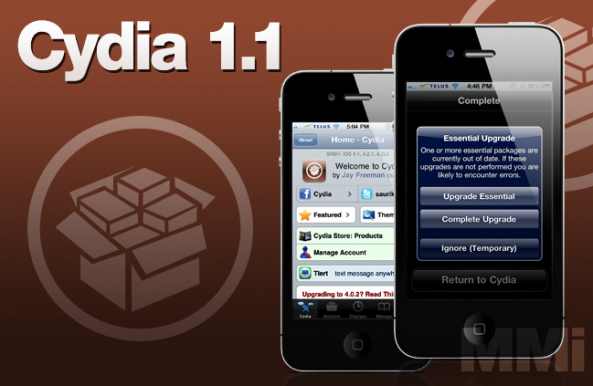
SIManager is available on Cydia for free from the iSpazio repo. Simply download the app and launch it to get started...

How to Watch Apple’s Special Event Live on Windows

Yesterday we told you that Apple will be streaming their special event live but unfortunately, not all systems are supported. For example, if you are on Windows, you cannot watch the event.

There is always a workaround for everything though. Mac Rumors figured out a way to bypass the restrictions and play the video on any platform.

How to Wirelessly Back Up Your iPhone Photos

Depending on how you charge your iPhone you may or may not regularly backup your photos. Having to perform a hard reset could erase priceless pictures if you happen to charge your phone the old fashioned way via wall connector.

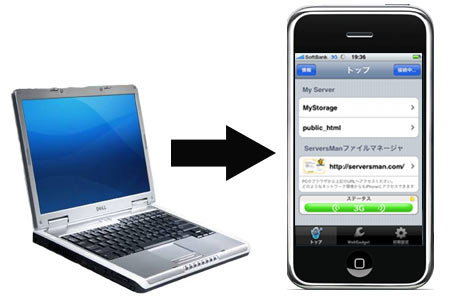
That problem is now gone thanks to an article by LifeHacker that shows you how to wirelessly sync your photos. The only catch is that you'll need a jailbroken iPhone, which shouldn't be an issue for most of you...

How to Create Free Ringtones for Your iPhone

You either love custom ringtones or you invariably loathe them. You can put me down in the latter category. Nevertheless there are many who love hearing a portion of their favorite jam when someone calls, or assigning certain songs that fit the personality of a specific contact in their address book. If you fit into the group that loves custom alerts, you're in luck.

How to Install Android on Your iPhone 2G or 3G with iPhoDroid

Android on the iPhone is more of a "project" than anything else. It's buggy, unstable, and doesn't even bring all the features needed to fully use the iPhone. So why in the hell would you install Android on your iPhone? Just for the heck of it, of course! Thanks to Sergio McFly, this is now easily possible.

iPhoDroid 1shot is probably the easiest way to install Android on your iPhone 2G or iPhone 3G. It doesn't require any file editing or anything that might scared the least technically advanced of us. Without further ado, here are the instructions to set up Android on your iPhone. As usual, proceed at your own risks...

Step 1: Make sure your iPhone is jailbroken and Cydia is up to date. If it's not jailbroken, do so by using JailbreakMe.

Step 2: Download the latest version of iPhoDroid 1 shot from here. The download link is at the very bottom left of the page.

Step 3: Make sure your iPhone is connected to your computer via the USB cable. Launch iPhoDroid and click "shoot".

Step 4: iPhoDroid will extract the touch driver and transfer the cache/system/data folders to your iPhone.

Step 5: iPhoDroid will now place your iPhone in recovery mode.

Step 6: After that, you will get the OpeniBoot splash page with different options (Apple, Android, Install, Uninstall). Use the volume buttons to highlight the "Install" option, then tap the Home button to select it.

Step 7: Some code will then be running on your screen. Once done, your iPhone will reboot in the Android OS.

Done! You can now enjoy your crippled iPhone running Android.

If you're one of the few courageous men out there to try this hack, please let us know how it's working for you by leaving a comment below.

[iClarified]

How to Downgrade iPhone 4.0.2 to 4.0.1

This step by step guide will show you how to downgrade your iPhone iOS 4.0.2 to iOS 4.0.1. These steps are pretty simple but there is one major requirement: you must have your SHSH files saved on Saurik's server. There is absolutely no way around it. If you don't have your SHSH, you won't be able to downgrade your iPhone.

In this tutorial, we will see how to downgrade the iPhone from 4.0.2 to 4.0.1 but the steps are the same if you want to downgrade to iOS 4 or even 3.1.3.

There are several methods used to downgrade the iPhone. We will learn the method that uses TinyUmbrella. No file editing will be necessary.

How to Downgrade from iOS 4.0.2 to 4.0.1

Step 1: Let's download your SHSH blobs from Saurik's server to your computer. To do so, download TinyUmbrella and plug your iPhone in. Select the "Advanced Options" box. Also select the firmware version to which you wish to downgrade. Finally, select "Cydia" under "Request From". Then hit "Save My SHSH". This will grab your SHSH files from Saurik's servers and save them on your computer.

Step 2: Download the firmware to which you wish to downgrade to from our iPhone downloads section. Save it to your desktop.

Step 3: Put your iPhone in DFU Mode. To do so, launch iTunes and plug your iPhone in. Press and hold the Home and Power button together for 10 seconds. After 10 seconds, release the Power button while still holding the Home button until iTunes pops up and says it has found an iPhone in recovery Mode.

Step 4: Run TinyUmbrellaand click the "Display SHSHs" button to make sure your SHSH blobs were downloaded to your computer. Once done, click "Start TSS Server".

Step 5: Now we're going to restore to the firmware you want. To do so, launch iTunes and plug your iPhone in. Hold to SHIFT key (Windows only) or ALT/Option key (Mac only) while clicking on Restore. Make sure you hold the key while clicking Restore. A window will open. Simply select the firmware you downloaded in step 2.

Step 6: Your iPhone will start the restore process. You will most likely get several errors (error 1011, 1013, and 1015) but that's ok, don't worry about those.

Step 7: Finally, we need to get your iPhone out of recovery mode. To do so, simply click "Kick Device Out of Recovery" in TinyUmbrella.

Done!

You should now be back on a previous iOS, giving you the ability to jailbreak and unlock.

Jailbreak & Unlock iOS 4.0.2 on iPhone 3G

Those of you who own an iPhone 3G or an iPod Touch 2G (non-MC model) can jailbreak/unlock iOS 4.0.2. To jailbreak your iPhone 3G 4.0.2, you will have to use RedSn0w 0.9.5b5-5.

How to Jailbreak iPhone 3G iOS 4.0.2

Step 1: Make sure you have the latest version of iTunes installed (iTunes 9.2).

Step 2: Download iOS 4 (not iOS 4.0.2) for iPhone 3G to your desktop from our iPhone downloads section.

Step 3: Update your iPhone to iOS 4.0.2 via iTunes.

Step 4: Download the latest version of RedSn0w from here.

Step 5: Point RedSn0w to the iOS 4 (not 4.0.2) you downloaded in step 2.

Step 6: Select “Install Cydia”.

Step 7: Follow the onscreen instructions.

Step 8: Let RedSn0w do the hard work for you. Once jailbroken, your iPhone will reboot.

How to Unlock iPhone 3G iOS 4.0.2

Since iOS 4.0.2 didn't update the iPhone baseband, you can still use UltraSn0w to unlock your iPhone.

Step 1: Jailbreak your iPhone using the method described above.

Step 2: Go to Cydia and search for UltraSn0w. If it’s not there, you might have to add the following repo: repo666.ultrasn0w.com

Step 3: Install UltraSn0w.

Step 4: Reboot your iPhone.

Tell us how it goes for you by leaving a comment below.

[Thanks Bruce for the tip]

How to Unlock iPhone 4 iOS 4.0.1 with UltraSn0w

This guide and tutorial will show you how to unlock your iPhone 4 running iOS 4.0.1 using UltraSnow 1.0-1. This method will not only work with the iPhone 4 but also with older models. UltraSnow 1.0-1 will unlock:

The iPhone 3G, iPhone 3GS, and iPhone 4 Basebands 01.59.00, 04.26.08, 05.11.07, 05.12.01 and 05.13.04

Note that UltraSn0w will work no matter what your iPhone model number is.

In order for UltraSn0w to work, your iPhone must be activated. If it isn't, follow these instructions to activate your iPhone without the original SIM card.

Step 1: Jailbreak your iPhone using JailbreakMe.

Step 2: Go to Cydia and search for UltraSn0w. If it's not there, you might have to add the following repo: repo666.ultrasn0w.com

Step 3: Install UltraSn0w.

Step 4: Reboot your iPhone.

Done! Your iPhone should be unlocked. You can now pop in any SIM card. If you unlocked an iPhone 4, you might have to trim the new SIM so it fits in the tray.

Because the iPhone doesn't support T-Mobile's 3G frequencies, T-Mobile users in the US should turn off 3G in Settings > General > Network.

How to Watch Netflix Movies on Your iPhone 4

A few weeks ago we learned how to watch Netflix on a jailbroken iPhone. Unfortunately this hack doesn't work for the iPhone 4 but some smart guy over at ModMyI figured out how to tweak it so you can watch Netflix on an iPhone 4.

UPDATE: This post is outdated. Netflix now has its official iPhone app in the App Store. Click here for more info.

Step 1: Download the Netflix app for iPad to iTunes.

Step 2: Right click on the Netflix app you just downloaded and select 'Show in Windows Explorer' if you're on a PC, or 'Show in Finder' if you're on a Mac.

Step 3: Rename Netflix 1.0.4.ipa to Netflix 1.0.4.zip and extract the zip file to your desktop.

Step 4: Look for the Payload folder inside the extracted folder. In there you will find the Netflix.app folder.

Step 5: SSH into your iPhone and copy the Netflix.app folder to /private/var/stash/Applications/.

Step 6: Change the permission on the Netflix.app folder to 755.

Step 7: Reboot your iPhone.

Step 8: Now go to the App Store from your iPhone and download Perfect Browser. Open the app, go to the settings and select Safari iPad under Desktop Rendering.

Step 9: Still in Perfect Browser, navigate to Netflix.com, login, and find a movie to watch instantly. Perfect Browser will close and QuickTime will start playing your movie.

Done. That wasn't too hard, was it?

[ModMyI]