Mac

Stay up-to-date on the latest Mac news, and tutorials. Get expert tips and tricks to optimize your Mac’s performance and learn about the latest Apple products and software updates. Discover the best Mac apps and accessories to enhance your user experience.

Fantastical for Mac gains attachment and travel time support, time to leave alerts & more

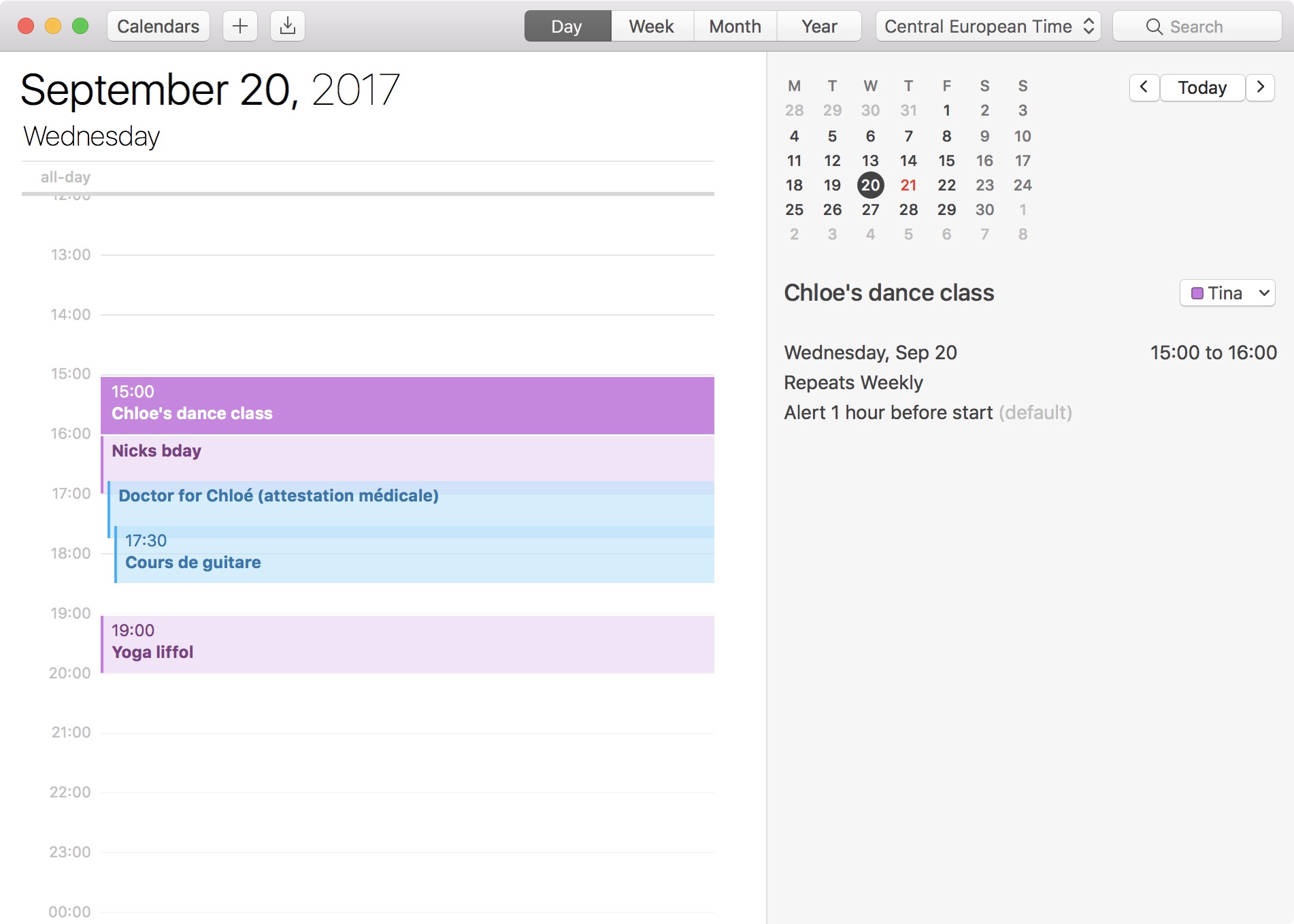
Developer FlexiBits today released a major update to the Mac edition of its award-winning calendar application, Fantastical, that you may be familiar with.

Version 2.4 brings a host of improvements, including new features like time to leave alerts, attachment support for iCloud and Exchange calendar events, undo/redo and more.

You can now view, create, and edit attachments on iCloud and Exchange (or view them on Google Calendar). With this feature, you can attach things like images, videos, Keynote presentations and other files to your calendar events.

The feature works on other CalDAV servers that support managed attachments.

https://www.youtube.com/watch?v=s2lJ5p8hd8A

Another new feature, aptly named Travel Time, allows customers to receive notifications when they need to leave to help ensure they reach an event on time. You can even define your own travel time so you can plan how long it will take to reach an event.

https://www.youtube.com/watch?v=_tVOwXgnipE

Fantastical 2.4 also improves invitation support for Google Calendar and Exchange with response messages, invitation guest count for Google, the ability to forward Exchange invitations and the option to respond to Exchange invitations without sending a reply.

TUTORIAL: How to create app-specific passwords for Fantastical and other apps

The app includes a bunch of refinements and under-the-hood fixes, like full undo/redo support for adding, editing, and deleting events and reminders, the ability to combine identical events that are on multiple calendars, to mention a few.

There's also a new More link in the Month view to show additional events and reminders, Facebook push updates are now instantaneous while new options in preferences at long last permit you to customize the number of weeks per month.

Have a look at everything new in Fantastical 2.4 for Mac.

https://www.youtube.com/watch?v=GZm3PWDBh5k

Last but not least, you can now forward invitations to other people on Exchange accounts, see the year of the anniversary for contacts and respond to an Exchange invitation without sending a message to the sender by clicking and holding the Accept, Decline or Maybe buttons.

Fantastical requires macOS El Capitan 10.11 or later.

Current users can get the update for free via the Mac App Store's Updates tab or through the in-app updater if the app was purchased directly from the Flexibits Store.

Fantastical 2.4 for Mac is $49.99 on Mac App Store.

A three-week trial is available via the Flexibits website.

Apple unveils 2017 Back to School deals: free Beats with select iPad Pro & Mac purchases

Apple on Wednesday announced its 2017 Back to School promotion for customers in the United States and Canada. Students, teachers and university staff members will get a free Beats Solo3 wireless headphones when they purchase an eligible Mac with education pricing, including the MacBook, MacBook Pro, MacBook Air, iMac and Mac Pro models.

If you opt for a 10.5-inch or 12.9-inch iPad Pro, Apple will treat you to a free BeatsX wireless earphones or you can pay $50 extra to get a Powerbeats3 in-ear headphones or $150 extra for the Solo3 on-ear wireless headphones.

The Solo3 headphones are a great choice because they contain Apple's W1 chip for more reliable connections, better sound quality and longer battery life compared to Solo2.

The 2017 Back to School deals area available to students enrolled in college, parents, teachers and faculty members. Verification is required at checkout.

Apple also recommends Back to School accessories such as AirPods, Apple TV and more.

Plus, students can take advantage of existing Apple Music deal with a monthly subscription available to eligible students half price at just five bucks per month, or sixty bucks per year.

The Back to School promotion for customers in Australia, New Zealand and Japan went live back in January. It offered an Apple Store credit in exchange for a qualified iMac, Mac Pro, MacBook/Air/Pro or iPad Pro purchase made from February 7 to March 16.

Every Mac wallpaper since OS X Cheetah 10.0

Journalist Stephen Hackett and French designer @forgottentowel have created an awesome compilation of every new wallpaper that appeared in macOS editions since OS X Cheetah 10.0, the first major version of Apple's desktop operating system released sixteen years ago in 2001.

Older ones back from the day when computers didn't have Retina screens were upscaled for the glorious 5K resolution. You can view and download them individually from the 512 Pixels website, as well as learn a little bit of history behind each wallpaper.

The first two releases of Mac OS X shared the same wallpaper: the sweeping blue arcs and curves, which helped set the tone of the new Aqua interface.

It wasn't until OS X Leopard 10.5 that Apple changed the theme of the default OS X wallpaper from the blue-themed trails streaking across the screen to various space nebulas.

“It ushered in the 'space era' of OS X wallpapers, which was used heavily in the new Time Machine interface as well,” Hackett wrote. The space theme for Mac wallpapers had continued for a few years until OS X Mavericks 10.9, which marked the beginning of Apple’s naming scheme for Mac releases based on California locations.

With OS X Yosemite 10.10 and its flattened user interface, Apple began shipping new default wallpapers based on images of mountains. Subsequent OS X releases, including the latest macOS High Sierra, each shipped with their own mountain-themed wallpapers.

What's your favorite macOS wallpaper of all time?

macOS High Sierra 10.13 developer beta 3 rolling out on Mac App Store

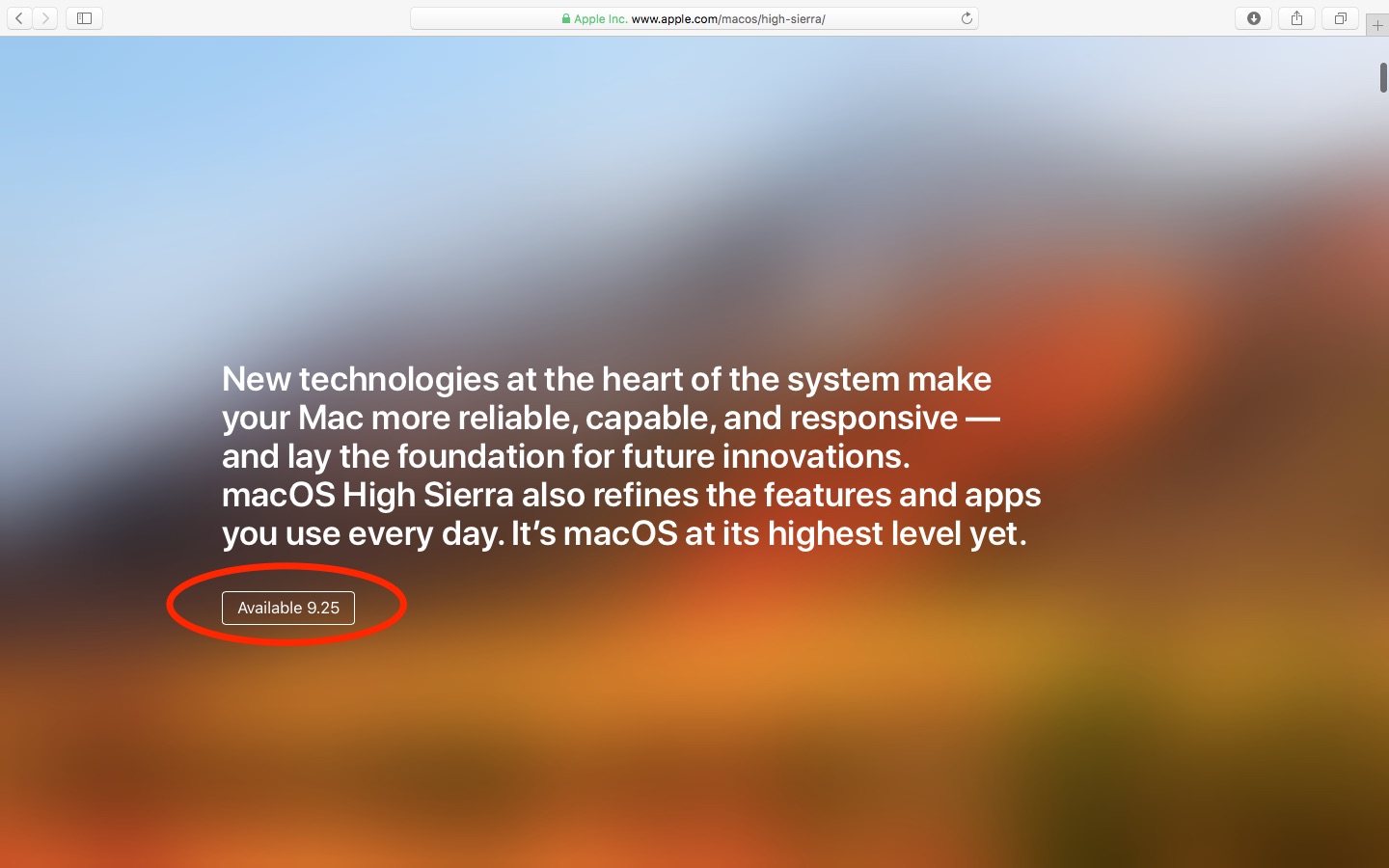
Apple today released a third beta of macOS High Sierra 10.13 for Mac systems. macOS High Sierra 10.13 beta 3 (build number 17A306f) is now available to Apple's registered developers and members of the Apple Developer Program on any supported Mac via the Mac App Store's Updates tab.

The full macOS High Sierra 10.13 beta 3 installer can be downloaded from Apple's Dev Center portal. Once installed, subsequent betas will be available through the Software Update mechanism in Mac App Store.

A developer-only preview of High Sierra was released at WWDC in June, followed by a second beta on June 21 and the public beta on June 29. The first public beta of High Sierra has the same features as developer-only macOS High Sierra beta 2.

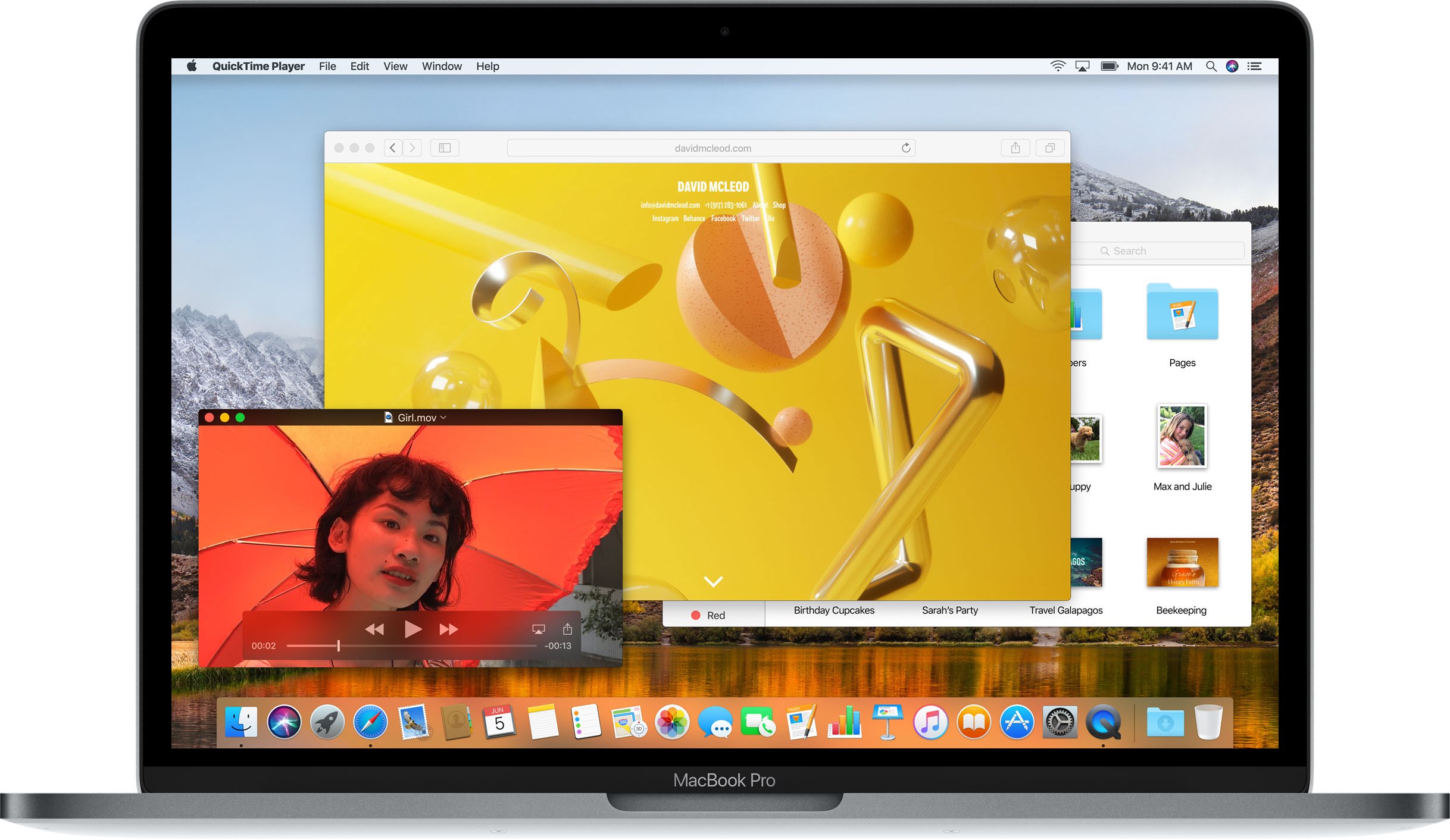
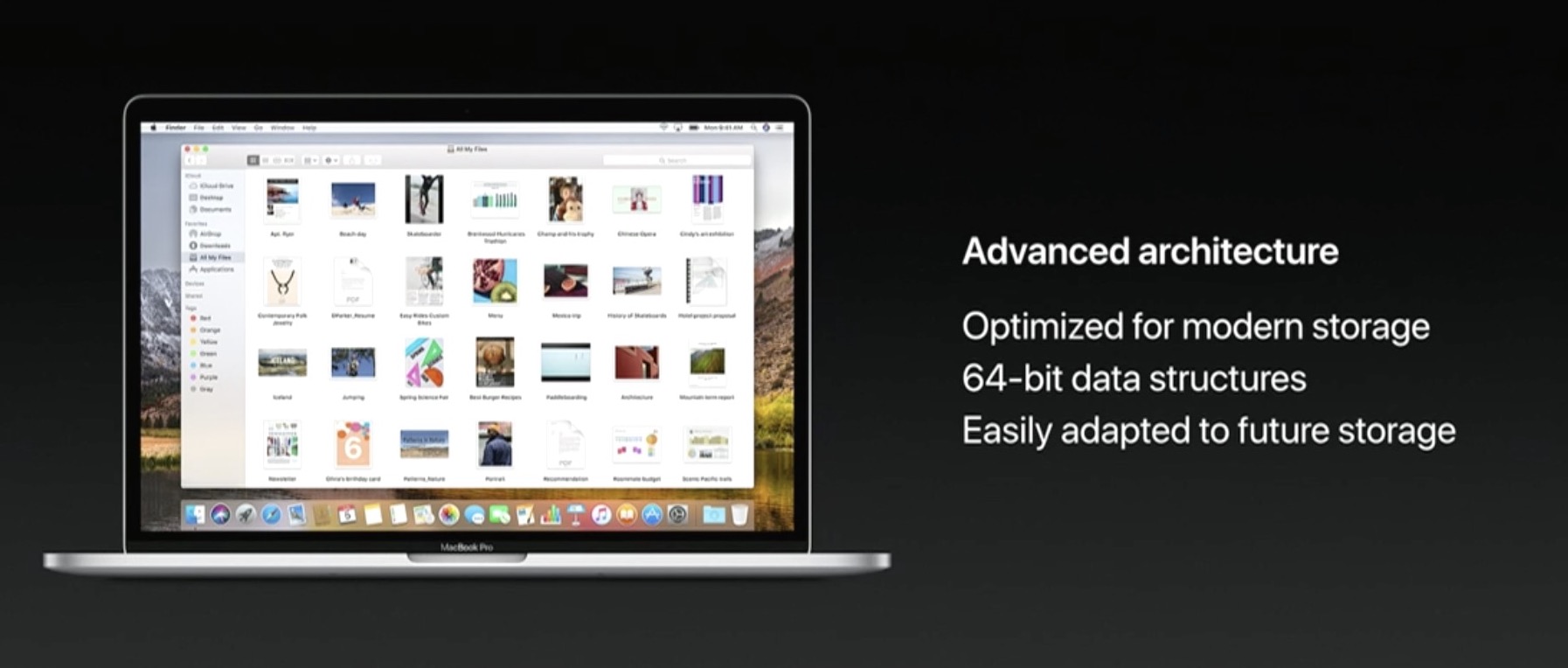
macOS High Sierra includes Apple's File System, official support for High Efficiency Video Codec (HEVC), also known as H.265, an updated version of Metal with support for VR applications and external GPU enclosures, Safari 11 with new anti-tracking features, support for flight status information in Spotlight, more natural voices for Siri and more.

Stock apps including FaceTime, Messages and Notes have received a few refinements, too.

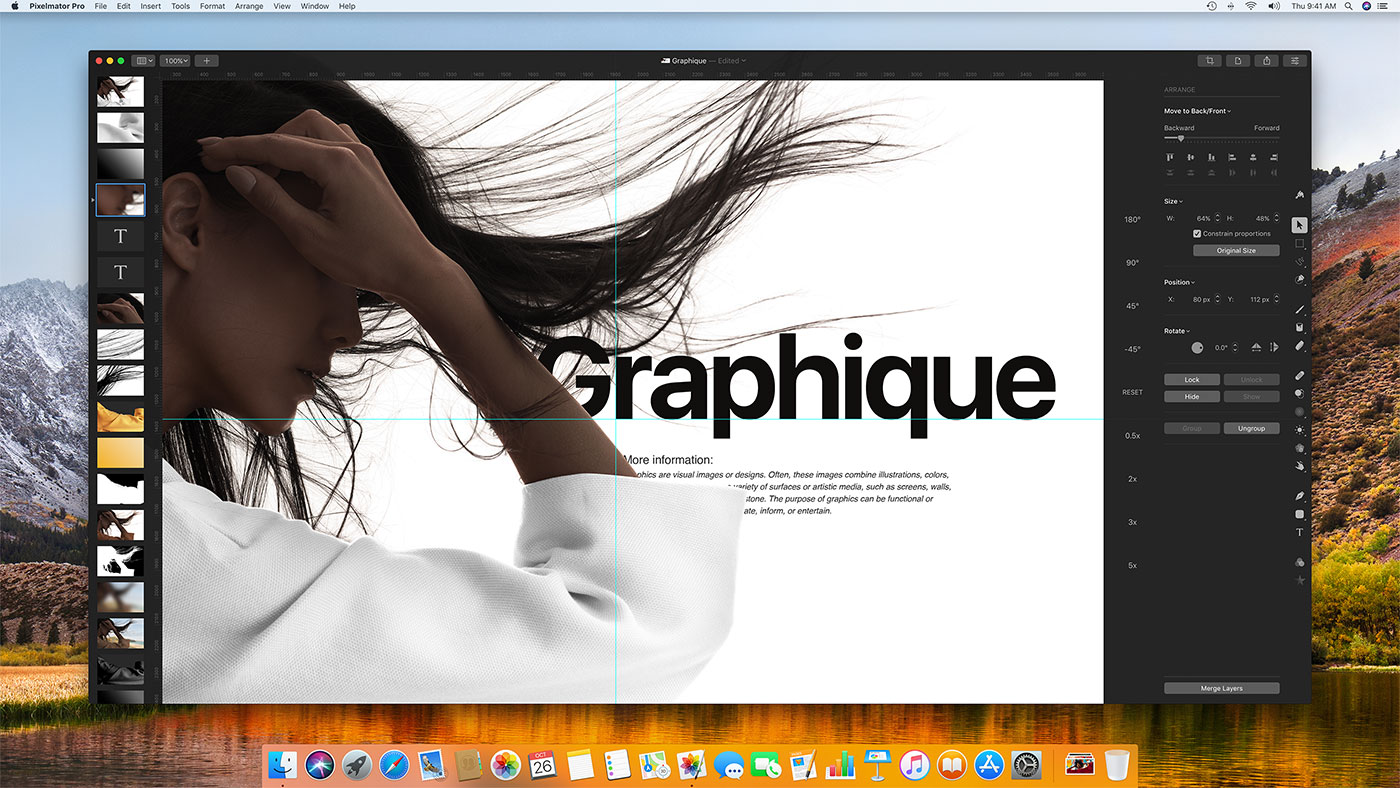
High Sierra also introduces new core storage, video, and graphics technology, as well as an enhanced Photos app with a new sidebar, curve-based editing and support for third-party apps like Pixelmator and Photoshop.

TUTORIAL: How to unenroll from Apple's Beta Software Program

macOS High Sierra will release for public consumption this fall across supported Mac models.

If you have managed to spot new user features in macOS High Sierra beta 3, tell us on Twitter or via email at tips@iDownloadBlog.com. You can also post your findings in the comments section and we’ll make sure to update the article with new information as it becomes available.

Apple isn’t paying bug hunters nearly enough for iPhone exploits

According to a report from Motherboard, iPhone, iPad and Mac bugs are too valuable to report to Apple, which leads to sky-high prices for iOS and macOS exploits on the grey market.

“For now, security researchers who have been invited by Apple to submit high-value bugs through the program prefer to keep the bugs for themselves,” reads the article. All of the eight bug hunters that the publication interviewed said they have yet to report a bug to Apple.

According to Nikias Bassen, a security researcher for the company Zimperium, and who joined Apple's program last year:

People can get more cash if they sell their bugs to others. If you're just doing it for the money, you're not going to give bugs to Apple directly.

Apple's bug-bounty initiative debuted at the Black Hat conference in August 2016.

The program offers between $25,000 and $200,000 for an iOS or macOS exploit, depending on where it is and what it does. For now, the initiative is invite-only.

As The Loop's Dave Mark put it, the question here is, are the bugs valuable enough for Apple to raise their bounties to compete with the grey market?

macOS Sierra 10.12.6 beta 6 now available for developer testing

Aside from releasing a sixth developer beta of iOS 10.3.3 for iPhone, iPad and iPod touch, Apple today seeded a sixth beta of the forthcoming macOS Sierra 10.12.6 software update.

macOS Sierra 10.12.6 beta 6 has a build number 16G24b.

It can be downloaded and installed on a compatible Mac using the Software Update mechanism through the Mac App Store's Updates tab. Only Apple's registered developers and members of the paid Apple Developer Program are allowed to beta-test macOS Sierra 10.12.6.

The new beta arrived nearly ten days following macOS Sierra 10.12.6 beta 5.

Like with iOS 10.3.3, users won't see any important outward-facing changes in macOS Sierra 10.12.6 when it releases for public consumption. This is a point release that will fix bugs and improve the security and performance of your Mac.

Apple is currently testing macOS High Sierra with its developers ahead of its release in the fall.

Apple launches macOS High Sierra public beta

Three days after it launched public betas of iOS 11 and tvOS 11, Apple on Thursday released the macOS High Sierra public beta. This means that anyone can now take this pre-release version of Apple's latest and greatest desktop operating system for a spin, including those who are not registered developers.

Needless to say, you're wholeheartedly recommended to perform a full backup of your Mac before installing the public beta, just in case something goes wrong.

Better yet, install it on a separate partition on your Mac's startup disk or to an external drive. To get the beta, you must enroll in Apple's Beta Software Program with your Apple ID at beta.apple.com. Then, click the link “Enroll Your Devices” and follow the instructions.

You may want to check out the official macOS High Sierra system requirements before proceeding with the installation of the public beta on your system.

You'll need to download the macOS Public Beta Access Utility, which will change your Mac App Store settings in System Preferences so that your Mac can receive beta software updates.

As a last step, launch Mac App Store on your computer, find the macOS public beta, then click the Get button to install the public beta on your computer.

Because your Mac is enrolled in the beta program, you will receive a notification whenever a subsequent update is available and can install it from Mac App Store's Updates pane.

Will you be testing High Sierra and what's your strategy and approach to installing a beta OS on your computer? Also, what are your favorite features in High Sierra so far?

Let us know by posting a comment below!

How to stop iCloud Photo Library from eating into your iPhone’s cellular data plan

iCloud Photo Library is an optional feature on iPhone, iPad, iPod touch and Mac that uploads every photo and video you take or import to iCloud and keeps everything synchronized across all your Apple gear. I've been using it for years and it really “just works”.

On iOS 10 and earlier, Photos syncs with iCloud each time your device connects to Wi-Fi and the battery is charged. On iOS 11 and later, Photos can also use your iPhone's cellular data connection to sync and update the image library.

Do you take many photos on the go? Are you on a metered rather than an unlimited plan? Then you don't need me to tell you that you must ensure you're not wasting huge amounts of cellular data to this feature.

Here's how to stop the Photos app from eating into your iPhone's cellular data plan.

Before we get to it, keep in mind the following:

iOS 10 and earlier—Your Photos library syncs with iCloud each time your device connects to Wi-Fi and the battery is charged. iOS 11 or later—You decide if Photos syncs with iCloud via cellular or Wi-Fi only.

In other words, you should double-check that cellular updates for iCloud Photo Library are turned off only if you're on iOS 11 or later. Folks on older iOS editions needn't do that because Photos syncs with iCloud only when their iPhone is connected to power and Wi-Fi.

How to stop iCloud Photo Library on iPhone from using cellular data

12-megapixel images and 4K videos captured on your iPhone take up quite a bit of storage space. For most people, there's no point allowing iOS to gobble up cellular data just to keep the image library synchronized with iCloud at all times.

Thankfully, you can prevent this from happening, and here's how:

1) Launch the Settings app on your iPhone or cellular iPad.

2) Tap Photos in the list.

3) Tap Cellular Data.

4) Slide the button labeled Cellular Data to the OFF position.

This device will no longer use your carrier's cellular data for updating the Photos library. Any changes to your image library will automatically upload to iCloud as soon as the device connects to power and Wi-Fi.

TIP: If you really need Photos to be in perfect sync with iCloud at all times, even on the go, via cellular and Wi-Fi, be sure to slide the toggle labeled Unlimited Updates to the ON position.

The feature's description says “unlimited updates may cause you to excess your quota“.

Need help? Ask iDB!

If you like this how-to, pass it along to your support folks and leave a comment below.

Got stuck? Not sure how to do certain things on your Apple device? Let us know via help@iDownloadBlog.com and a future tutorial might provide a solution.

Submit your how-to suggestions via tips@iDownloadBlog.com.

High Sierra will be last macOS release to support 32-bit apps “without compromise”, says Apple

We know that iOS 11 marks the end of the road for legacy 32-bit apps and now we're learning about Apple's new 64-bit requirement for Mac apps.

In an advisory on Dev Center yesterday, the Cupertino giant announced that macOS High Sierra will be the last macOS release to support 32-bit apps “without compromise.”

Apple originally said at the Worldwide Developers Conference that macOS apps submitted to Mac App Store must support 64-bit computing starting January 2018. The new advisory states that Mac app updates and existing apps must support 64-bit starting June 2018.

“If you distribute your apps outside Mac App Store, we highly recommend distributing 64-bit binaries to make sure your users can continue to run your apps on future versions of macOS,” reads Apple's note to developers.

In a separate notice, the company reminded developers to submit updates to their 32-bit apps because iOS 11 is 64-bit only. ”Support for 32-bit apps is not available in iOS 11 and all 32-bit apps previously installed on a user’s device will not launch,” reads the note.

Two days ago, Apple asked developers to update their product pages for iOS 11’s redesigned App Store.

Apple launches public betas of iOS 11 and tvOS 11

Following the June 5 release of developer-only previews of Apple's four main software platforms at the Worldwide Developers Conference, the Cupertino giant today released first public betas of iOS 11 and tvOS 11.

You must enroll in the official Apple Public Beta Software Program (available at no charge) and download a special configuration profile via the website beta.apple.com to your iPhone, iPad, or the fourth-generation Apple TV.

Sign in with your Apple ID through the website to get started. iOS 11 public beta has the same features as iOS 11 beta 2. The same goes for the tvOS 11 public betas.

After installing a configuration profile (click “Enroll Your Devices”), restart your iPhone, iPad, iPod touch or the fourth-generation Apple TV, then and use the built-in Software Update mechanism in the Settings app to download and install the public beta.

watchOS betas are not available to the general public.

https://www.youtube.com/watch?v=TZ5pwZMPRxI

Subscribe to iDownloadBlog on YouTube.

“If you were testing a prior operating system, please re-enroll your device to start testing the next release,” the company notes.

TUTORIAL: How to unenroll from Apple Beta Software Program

Be sure the check out the official system requirements for iOS 11 before installing their public betas. tvOS 11 requires a fourth-generation Apple TV.

Will you be taking iOS 11 and tvOS 11 for a spin, do you think? If so, what features are you looking forward to the most, and why?

Tell us in comments!