Control Center

A hands-on look at iOS 7 on the iPad

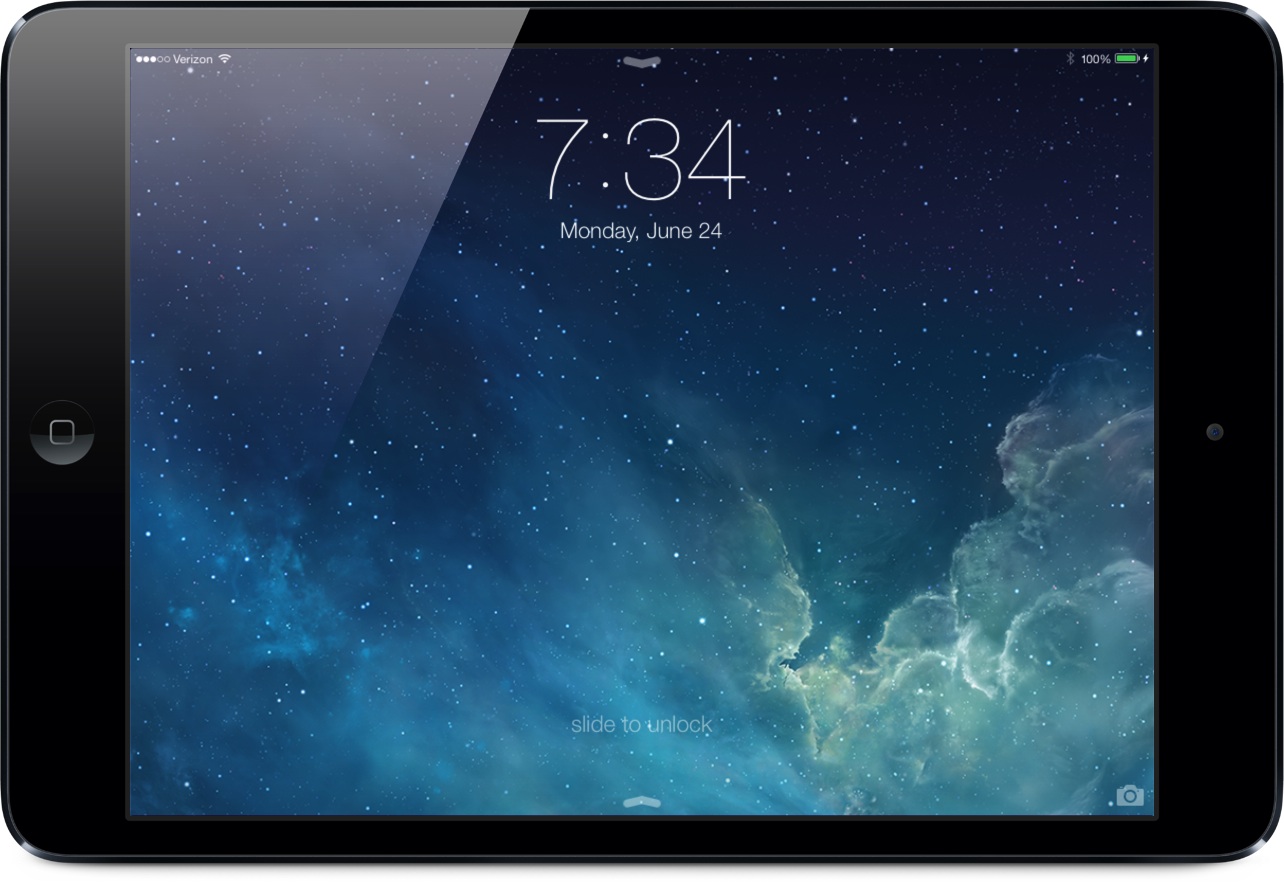
iOS 7 beta 2 is the first iOS 7 to feature support for Apple's iconic tablet, and we've got a hands-on demonstration of how it looks and feels. The first word that came to my mind when I initially fired up iOS 7 on the iPad was “modern.” The iPad feels more spacious, and lightweight with iOS 7 installed. Whereas iOS 6 felt heavy and weighed down by skeuomorphism, iOS 7 feels light free.

I think you're going to like the way that iOS 7 looks and performs on the iPad. Check out our full video demonstration inside...
iOS 7: the Lock screen

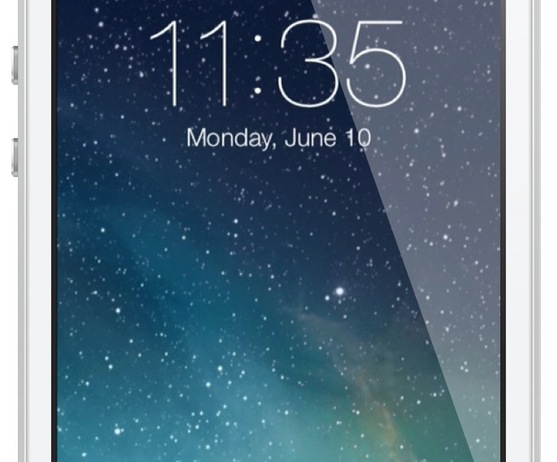
The iOS 7 Lock screen is another significant departure from its predecessors when it comes to looks. The overall functionality remains similar, but it's a whole new ball game when it comes to visuals.

First and foremost, the font for the clock and the date has been replaced with a thinner variety of font. You'll also notice that the clock, status bar, and slide to unlock backgrounds have been nixed for a cleaner look that doesn't obscure the Lock screen wallpaper.

Take a look inside as I go hands-on with the new iOS 7 Lock screen, including demonstrations on how to enable or disable the new and improved Notification Center, and the new Control Center options.

iOS 7 brings brand new Control Center with toggles

Now that Apple has formally announced a Jony Ive-ified iOS 7 ("it's like having a new phone, but one you already know how to use," said Tim Cook), executives here on stage at San Francisco's Moscone West are telegraphing the key features of iOS 7. One of such handy additions is an all-new Control Center. So, what does it do?