Need to add an extra partition to a hard drive or SSD? We'll show you how to create a disk partition on your Mac using the built-in Disk Utility app.
How to create a disk partition on Mac
Need to add an extra partition to a hard drive or SSD? We'll show you how to create a disk partition on your Mac using the built-in Disk Utility app.
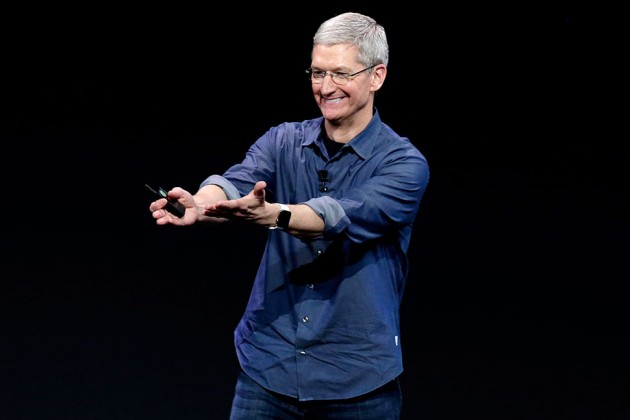
Apple's chief executive Tim Cook was spotted around Apple's campus wearing a non-invasive glucose tracker prototype on his body, CNBC said Thursday. A mystery device was connected to his Apple Watch. He's been test-driving this rumored accessory to understand how his blood sugar responds to factors like food and exercise, according to the report.
This is yet another hint at Apple's interest in non-invasive and continuous glucose monitoring, an effort described as a holy grail for treating diabetes and life sciences.
“A source said that Cook was wearing a prototype glucose-tracker on Apple Watch, which points to future applications that would make the device a must have for millions of people with diabetes—or at risk for the disease,” reads the report.
The news adds context to Cook's comment made in February at the University of Glasgow, where he received an honorary degree. “I've been wearing a continuous glucose monitor for a few weeks,” he told a roomful of students. “I just took it off before coming on this trip.”
While Cook did not say if the medical device he had been wearing was an Apple prototype, this now seems perfectly plausible. Companies like Medtronic and Dexcom sell iPhone-connected health accessories for tracking blood sugar levels, invasively.
Cook also spoke about the struggles faced by people with diabetes:
It's mentally anguishing to stick yourself many times a day to check your blood sugar. There is lots of hope out there that if someone has constant knowledge of what they're eating, they can instantly know what causes the response... and that they can adjust well before they become diabetic.
CNBC reported a month ago that Apple had hired a small group of dedicated biomedical engineers to develop advanced sensors that would monitor blood sugar levels non-invasively.
This team is allegedly working from a nondescript office in Palo Alto, miles from Apple’s corporate headquarters, reporting directly to Johny Srouji, Senior Vice President of Hardware Technologies who joined Apple back in 2008.
Apple's non-invasive diabetes treatment technology may not require all-new Apple Watch hardware with additional sensors. According to BGR, Apple is working on smart bands for Apple Watch that would contain sensors for measuring blood sugar levels non-invasively.
This may actually be a good idea because each Apple Watch features a diagnostic port with six pins, meaning Apple could simply release smart bands for existing Apple Watch models as there's already a path for data flow between the watch and the smart band.
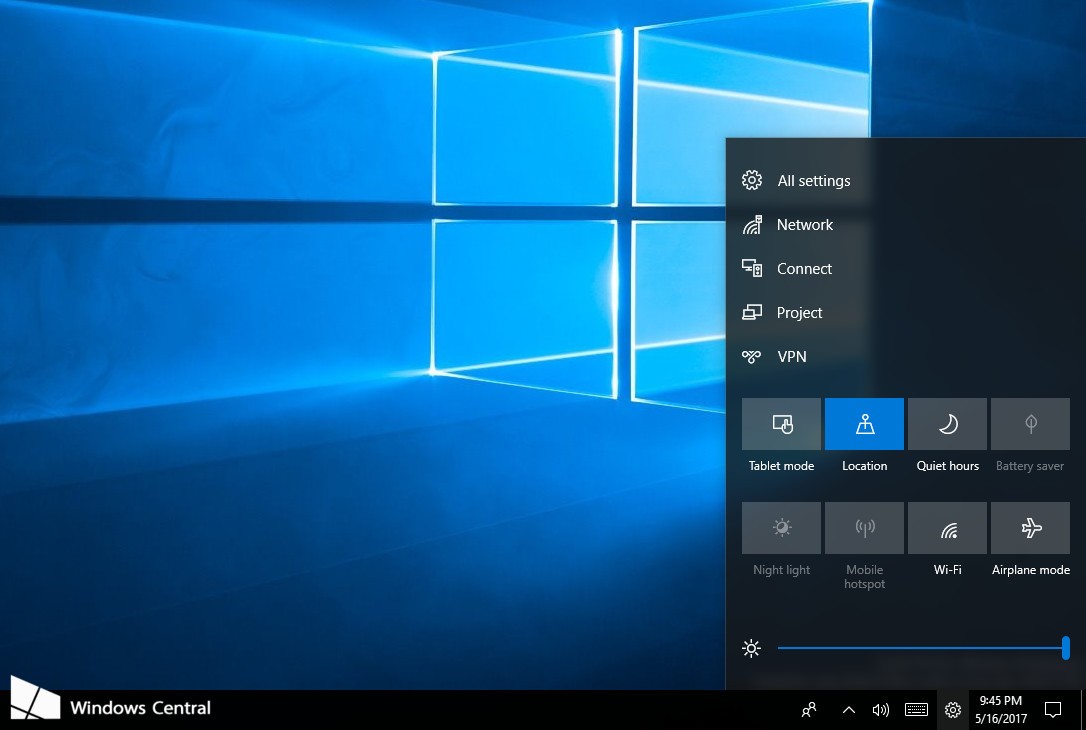
Microsoft accidentally leaked a new Control Center feature understood to be coming to Windows 10 this fall. A screenshot from an internal build of the software (Windows 10 build 16199 for PC) reveals a new settings cog icon in the system tray.
The icon is not present in the latest Insider Preview builds.
Microsoft removed the screenshot from its Windows Blog, but not before Windows Central was able to grab a copy of it. Clicking the settings cog icon pulls up an overlay, called Control Center, that houses all of the Quick Actions available in Windows' Action Center today.
You can quickly enable or disable Wi-Fi, activate battery saver mode and more. A few additional toggles, such as a brightness slider, are present as well. Plus, Control Center houses useful shortcuts to full settings menus for things like networking, Control Panel and more.
Here's an excerpt from the Windows Central article:
Sources say that moving Quick Actions to Control Center means they will no longer be present in Notification Center, as having them in both locations would be confusing. It appears Microsoft will be turning Action Center into a pure notification center with the Fall Creators Update, moving out all the Quick Action stuff into Control Center instead.
Unlike Control Center in iOS, its Windows counterpart is fully customizable.
You can change what shows up there and even reorganize some of the settings to your liking, unlike Apple's implementation which doesn't let iPhone or iPad owners add or remove toggles in Control Center or customize existing ones to their liking (unless they jailbreak).
https://www.youtube.com/watch?v=HZkC43771r4
Subscribe to iDownloadBlog on YouTube
One interesting change that iOS 10 brought to Control Center is the ability to access Quick Actions on devices with 3D Touch by pressing the Flashlight, Clock, Timer or Camera icon at the bottom of the Control Center interface.
Control Center, along with other improvements, should be part of Windows 10’s Fall Creators Update. Apple will be previewing its own OS updates next month and it'll be interesting seeing if the Cupertino company is planning on porting iOS's Control Center feature to macOS.

German developer Cultured Code on Thursday released Things 3, a major new iteration of its powerful personal task manager for iPhone, Apple Watch, iPad and Mac. Things 3 brings out a beautiful timeless new design with delightful interactions and animations. Aside from the new look and feel, the refreshed app is packed to the gills with a host of new features.
Released as three separate apps (they've kept the current pricing), Things 3 is Cultured Code's first paid update for existing users since versions 1.0.
Here's what developers had to say about the app's gorgeous new UI:
The all-new Things comes with an all-new design. It's not just how it looks—but also how it works, and how it feels. The interactions are delightful. The animations are smooth. The content is more structured. The concepts are clearer.
Open a to-do and you'll immediately get a sense of how the new apps feel.
Nicely animated transitions expand the selected to-do into an empty white piece of paper. You can add additional details to your to-do, neatly tucked away in the corner until you need them.
“There are no distractions here, it’s just you and your thoughts,” said developers.
The choice is yours: you can create either a simple to-do that looks like text on a piece of paper or opt for a richer to-do which may include additional details such as tags, checklists (a new feature for to-dos in Things 3), a start date, a deadline and so forth.
Speaking of to-dos, Things 3 introduces an all-new Magic Plus Button.
Found in the corner of the screen, you can tap it to quickly add a new to-do or actually drag the button to a particular list in order to generate a to-do in a specific location. Plus, managing to-dos is now way easier than before with expanded support for gestures, like dragging and dropping, swiping, tapping to expand and more.
Seasoned Things users will be delighted to know that developers have implemented one of the most-requested features: time-based reminders. For those to-dos you absolutely cannot miss, adding a reminder will give you peace of mind.
While scheduling a to-do in Jump Start, click Add Reminder and set the time. There are three ways to set the time: manually, using the app's natural language parser (just type “Wed 8pm” or some such, and you're all set) or you can speak to Siri (“Remind me to call Seb at 5am.”)
Watch the promotional video for Things 3.
https://www.youtube.com/watch?v=2R6o5t0VK_A
Things 3 now supports headings to break up complex projects into sections.
And with the app's Magic Plus Button, you can create and place headings in new projects like a pro. The app's cleaner design extends to your Today and Upcoming sections which now combine calendar events and to-dos into one unified view with a timeline at the top, giving an outline of your schedule.
A new This Evening section is your at-a-glance overview of any to-dos that you won’t get to until later in the day, like things you can only do when you get home. The This Evening section is a handy way to keep these to-dos separate from the rest, in their own discrete list.
And to help you find a needle in the haystack, Things 3 now includes a Quick Find feature.
Just pull down on any list to reveal search, which can now find content across the entire app. Quick Find also includes handy shortcuts to your to-dos, lists, tags and more.
Type Travel, another new feature in Things 3, lets you navigation to any project, area or to-do in the app. On iPad, you can now swipe away the sidebar and focus on just the current list you’re working on, both in portrait and landscape orientations.
On your Mac, Things now has a Slim Mode which cuts out distractions so you can focus on the task at hand. To enter this mode, collapse the sidebar with a two-finger swipe. Slim Mode is especially great when you’re working in macOS's Split View multitasking mode.
You can even open multiple windows in Slim Mode and drag and drop items between them.
https://culturedcode.cachefly.net/things/videos/2017-05-03-allnewthings-when/video.mp4
Developers have completely rewritten core layers of the apps, which are now shared between macOS and iOS for increased reliability. The Apple Watch app has been updated as well (it now shows checklists and headings), there's a new structure for Areas in the iOS app and you can now import data from Wunderlist or OmniFocus into Things 3.
And with TouchBar support, owners of the new MacBook Pro can take advantage of convenient access to the app's most-used commands.
Things is fully integrated with all the latest iOS technologies: Apple Watch, Calendars, Siri, Reminders, Today Widget, Quick Actions, Action Extension, Handoff and Notifications.
The apps all stay updated via Things Cloud, which is the push sync service that Cultured Code custom-built for the app. Unfortunately, iCloud syncing is not supported in Things.
For the complete overview of what's new in the app, visit the official Things website.
Things 3 for iPhone and Apple Watch is $9.99 on App Store.
Things 3 for iPad is $19.99 on App Store.
Things 3 for Mac is $49.99 on Mac App Store.
To celebrate the launch of Things 3, all apps are 20 percent off until next Thursday, May 25.
A 14-day trial of Things for Mac is available via the Cultured Code website.
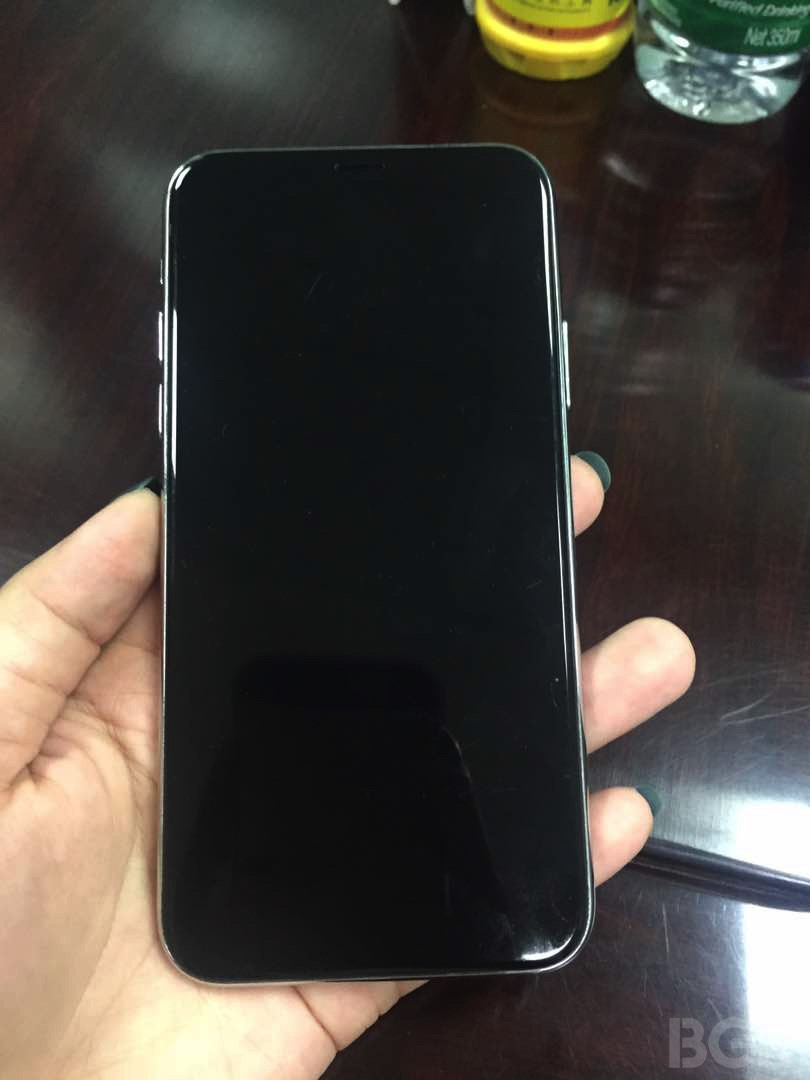
The design of iPhone 8 has seemingly been finalized and BGR has now obtained the first photos of a poorly built iPhone 8 mockup which it says is “believed to feature Apple’s final design.” It was likely built using claimed schematics that were leaked from Asian factories in the past few weeks. Some of these schematics have been debunked as fake so take BGR's report with a few pinches of salt.
The cheap-looking mockup appears to suggests that Apple has managed to integrate a Touch ID sensor into the display assembly because there isn't any indication of a fingerprint scanner on the back of the phone.
Assuming the mockup does in fact approximates iPhone 8's design closely, iPhone 8 should feature a full-screen face and a “glass sandwich” design where it would have 2.5D glass panels on the front and back that curve slightly at their edges, sandwiched between a polished stainless steel frame that's rounded as well.
At the bottom, we still see Lightning I/O rather than USB-C.
The Mute switch and the Volume Up and Down buttons are on the left side of the device. The Power button and a SIM tray are on the right side. The Power button does not appear to be elongated like with some earlier mockups.
A 3.5mm headphone jack is nowhere to be seen.
The back of the mockup shows a vertically aligned dual-camera system with an LED flash and a microphone built directly into an oversized bump. Even if this mockup has been built to closely match genuine iPhone 8 manufacturing drawings, there's no telling if it represents the actual device that Apple is expected to ship come this fall.
The Cupertino giant is said to be testing nearly a dozen iPhone prototypes.
Aside from iPhone 8, Apple should release the iterative iPhone 7s and iPhone 7s Plus smartphones with screens based on the traditional LCD technology.
All 2017 iPhones should feature wireless charging, according to analysts.
To help with the wireless charging feature, iPhone 7s and iPhone 7s Plus are expected to switch from the aluminum rear side to the back made from glass.
What do you think, guys?
Is Apple trolling us all? Could this particular iPhone 8 mockup represent the real deal?
Let us know by leaving a comment below!

Google has updated its imagery on Earth and Maps services so you can now tour Apple's massive new headquarters in glorious 3D graphics. However, Google's data appears to be out of date as the Apple Park imagery shows the site in an earlier state, with the main ring-shaped building still being worked on and Steve Jobs Theater in its early stages of development.
According to the Google Maps team, they refresh 3D images of major landmarks and metropolitan areas at least once per year. As the screenshots attest, Google's data still shows the whole mountain of dirt which has since been reduced substantially as Apple is re-using the earth for landscaping, as evidenced by the latest drone flyovers.
To tour Apple Park in 3D on Google Maps, go to maps.google.com or fire up the Google Maps app on your iPhone or iPad, and search for “Apple Park Visitor Centre”. Now zoom all the way in, switch to Satellite view and click the “3D” icon in the lower-right corner of the interface.
You can now drag the view around, Control-click to rotate and more.
The best way to experience Apple Park headquarters in either 2D or 3D is definitely the recently overhauled Google Earth web app, but you'll need Chrome to use it.
Apple in March 2017 added 3D images of Apple Park to its own Maps service, including support for related details, descriptions and searchable geolocation tags.
Thanks, Carlos!

Game developers FoxNext Games and Jam City (via its game studio TinyCo) announced today that Futurama: Worlds of Tomorrow for iPhone and iPad will arrive sometime in early summer.
The new game will blend simulation, combat, galactic exploration and choose-your-own-adventure mechanics together to bring the escapades of the Planet Express crew to life. In his February interview with USA Today, Matt Goering said that the game will contain some entirely new episodes of the show.
“Oh, you guys wanna do a game? That’s fine,” he said. “But we’re gonna sneak some more Futurama episodes in there on whatever device people are gonna be using.”
The game features two main settings: New New York, which focuses on simulation and character progression gameplay, and Space Adventures, in which players explore and battle their way through planets, nebulas and other weird stuff across the Futurama universe.
Futurama: Worlds of Tomorrow is being developed in partnership with Futurama and The Simpsons creator Matt Groening and his Curiosity Company, along with executive producer David X. Cohen and original Futurama writers.
“Jam City is working with the writers, animators, and cast to produce even more original animation that will have fans waving their tentacles in the air,” according to developers.
The official teaser trailer embedded below is the first new animation from the Futurama universe since the show's original TV run ended in 2013.
“I'm proud to say that Futurama lives! In mobile-video-game teaser trailer form, anyway,” said the series' creator Matt Groening. “If you squint, it's kind of like a little episode!”
https://www.youtube.com/watch?v=k2Izx4MQCwQ
“Working on this new Futurama animation has been a thrilling adventure,” said David X. Cohen.
“I finally understand how Neil Armstrong must have felt when he first landed on the lunar surface, watched some funny cartoons on the control screen, and did whatever else was on his schedule that day,” he added, jokingly.
In the New New York setting, your main focus will be on rescuing characters, collecting special items and materials, expanding your characters' capabilities by leveling them up and crafting ability-defining character outfits and tackling story-driven quests.
According to developers, events that occur in New New York will often move the game's overarching narrative forward, by allowing players to assemble a crew of their favorite Futurama characters and take to the stars for Space Adventures.
“While traversing the depths of space, players will fight alien enemies in retro arcade-style combat, rendered in beautiful 16-bit graphics, and explore strange lands in which their choices determine their fate,” they said.
Futurama: Worlds of Tomorrow will arrive sometime in early summer to iPhone, iPad, Android and Amazon devices. More information on the game will be released in the near future and we'll be making sure to keep you in the loop.
You can pre-register at youwillplayfuturama.com to receive a special in-game gift when you start playing. More original Futurama animation is coming too, so stay tuned.

It’s only two more weeks until WWDC '17, which means crunch time for experts and armchair analysts alike. A popular topic of gossip around this time of the year relates to one of Apple's less pompous devices, one that’s been marketed for years as our low-key living room hub, as Siri on the couch and more recently as the silent orchestrator of our smart home.
Fittingly, chatter of that kind is indeed coming to a head again, yet before you rub your eyes and wonder how you could have missed the news of a 5th generation Apple TV, this time the similar sounding rumors swirl around a brand new device, the alleged Siri speaker. My cheap attempt at having you mix up the two devices for a brief moment there admittedly wasn’t a real zinger, however it does typify a potentially sticky situation for Apple: at least on grounds of what we presume to know, we - the customers - would be forgiven for mistaking the two on the fly.
If we indulge in a sketchy juxtaposition of each devices’ (purported) capabilities, it quickly begs the question of what we have been overlooking so far. It is declaredly fishy to make inferences about a device that is all but fictitious to this date, nevertheless there are pieces of information we can glean from competitors' devices like Amazon’s Alexa, as well as telling interview snippets straight from the horse's mouth. Does that make a comparison of the Siri speaker and Apple TV less premature or ill-founded? Probably not, but jotting down what we (think to) know does become insightful when we try to ascertain the spaces the two products are likely going to occupy in the customers’ minds and households. What's the insight? Well, they could have a hell of a lot in common.
Always provided we don’t fail to understand the alleged Siri speaker correctly, the large overlap in features is on all accounts eye-catching. Both devices fundamentally vie for a central spot in your home, both offer to AirPlay (most of) your media, both boast Siri and HomeKit integration. The putative fork in the road is that unlike Apple TV’s focus on visual media, Siri speaker’s backbone will reportedly be advanced Siri capabilities and the simple fact that it will serve as a standalone speaker with formidable acoustic performance.
All these things considered though, is this going to be a unique enough selling proposition? It is clear that no product in Apple's line-up sits as brazenly in the spot of the new arrival as Apple TV does. If this was a game of musical chairs, and the music stopped playing on June 5, Apple TV would be defiantly hogging the one spot designated for the shiny new speaker. Naturally, this opens the door for product cannibalization in either direction, and that's where things get juicy. The implications for both products and their strategies mid to long term are plentiful. In my book, there's three possible outcomes to speak of: the two product lines (keep) selling like hot cakes, them selling like damp and cold cakes, or the two lines merging into one. The determinant? The speaker’s x-factor, or lack thereof.
Which cake are you going to sell, Apple? Option 1The most lucrative (and arguably still most probable) outcome in this tale of two devices is for Apple to quietly have a Siri speaker killer feature up their sleeve. It goes without saying that we’re dealing with hypotheticals and it could plainly be the case that we don’t know jack. In order to establish and sustain strong sales for both Apple TV and the new assistant, the latter would have to come up with some seriously innovative ideas; ideas that make the device indispensable to your household, without raining on your Apple TV’s parade.
What could that look like? In one of our previous podcast episodes of Let's Talk iOS, we have speculated about built-in security features, but realistically your guess is as good as ours. Two distinct devices with two distinct purposes would entail little overlap, and in turn minimal cannibalization.
Option 2The cold cake theory is that analysts have indeed pretty much figured out the device prior to release and there is no blind spot on our radar. In other words, the overlap is real. Such being the case, potential customers would in all likelihood wind up pitting the two devices against each other and ultimately picking the one that comes closest to fitting their needs.
This route would most definitely spell product cannibalization, since only the hardcore would entertain both devices at home, plus the mere existence of Apple TV could already hamper the launch success of the Siri speaker. By the same token, current Apple TV owners could be swayed towards a more mobile AirPlay station and the existing customer base would effectively be split in halves. Before they know it, both devices could be relegated back to the company’s ominous ‘hobby’ status.
Option 3Lastly, the new Siri speaker could (organically or forcibly) usurp the role of Apple TV at some point down the line. Once launched, the people will vote with their wallets and it is not a stretch to imagine a smarter, more capable home hub by Apple outsell and eventually dwarf Apple TV. If a chunk of Apple TV owners in addition migrated to the Siri speaker, the product line itself would barely be feasible for much longer.
As a result, Apple could easily equip the more potent Siri speaker with streaming functionalities as soon as the tide has turned in the device’s favor. Customers would no longer have to weigh up two similar-but-different products, but rather purchase the same one and thereafter decide the role it will play in their household. Coffee table device or television box, whatever they see fit.
What's your take?One way or another, the reported new arrival is going to make massive waves at and after WWDC 17. Are we witnessing the quiet axing of Apple TV or not? What's Apple's secret ingredient for the Siri speaker going to look like? Not much longer until we will know, so place your bet in the comments now!
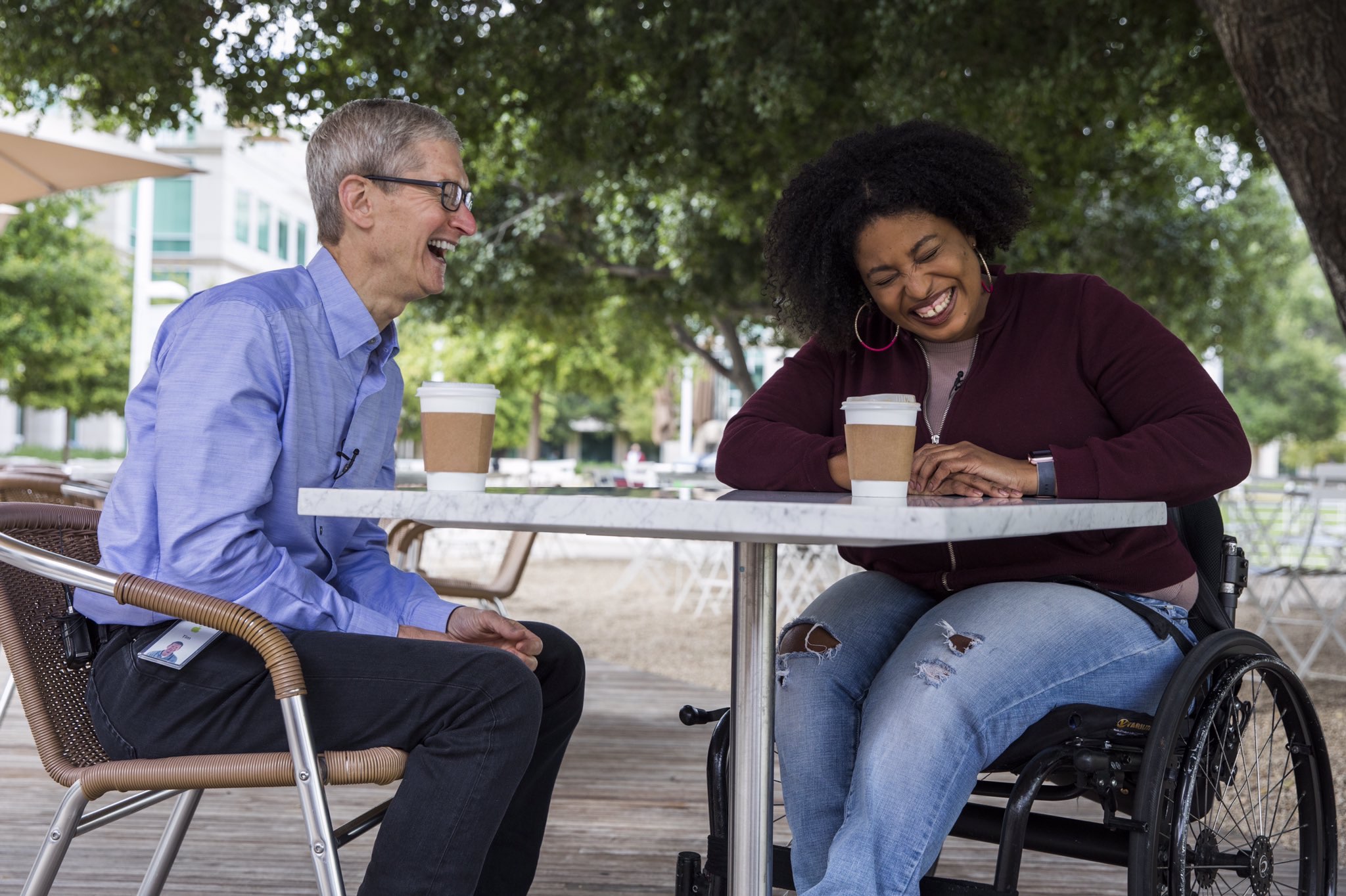
Apple CEO Tim Cook sat down with three YouTubers who are Accessibility evangelists to discuss the importance of the assistive technologies built into the company's iOS, macOS, tvOS and watchOS platforms.
James Rath, a legally blind filmmaker; Tatiana Lee, a model, actress and lifestyle blogger; and Rikki Poynter, a North Carolina-based writer and deaf awareness activist, all published their video interviews with Apple's chief on their respective YouTube channels on Wednesday.
James Rath interviewhttps://www.youtube.com/watch?v=kXy8KcONTSs
Rikki Poynter interviewhttps://www.youtube.com/watch?v=t6_iOVSavdE
Cook explained to Poyter what Apple is all about when it comes to Accessibility:
Apple is founded on giving people power to create things, to do things that they couldn't do without those tools. And we've always viewed accessibility as a human right. And so just like human rights are for everyone, we want our products to be accessible for everyone.
He added that accessibility should be a basic human right:
It's a basic core value of Apple. We don't make products for a particular group of people. We make products for everybody.
We feel very strongly that everyone deserves an equal opportunity and equal access. So we don't look at this thing from a return on investment point of view—I've been asked that before. The answer is no, I've never looked at that. We don't care about that.
A lot of these Accessibility features, everyone can use. With HomeKit, I use HomeKit every day and control my house with my voice.
“It’s a basic core value of Apple,” said Cook.
Tatiana Lee interviewhttps://www.youtube.com/watch?v=58ZZFUDIM0g
Lee's whole video was shot with her iPhone 7 and edited using Apple's new app Clips.
Cook did the interviews to honor Global Accessibility Awareness Day, an initiative that promotes inclusion when it comes to creating products, content and experiences for everyone.
The company is currently highlighting apps on App Store that implement Accessibility features.
Lastly, Apple posted seven inspiring videos showcasing how people with disabilities are using assistive technologies built into iPhone, iPad and Mac. For the full overview of the extensive assistive features built into Apple products, check out its dedicated Accessibility webpage.
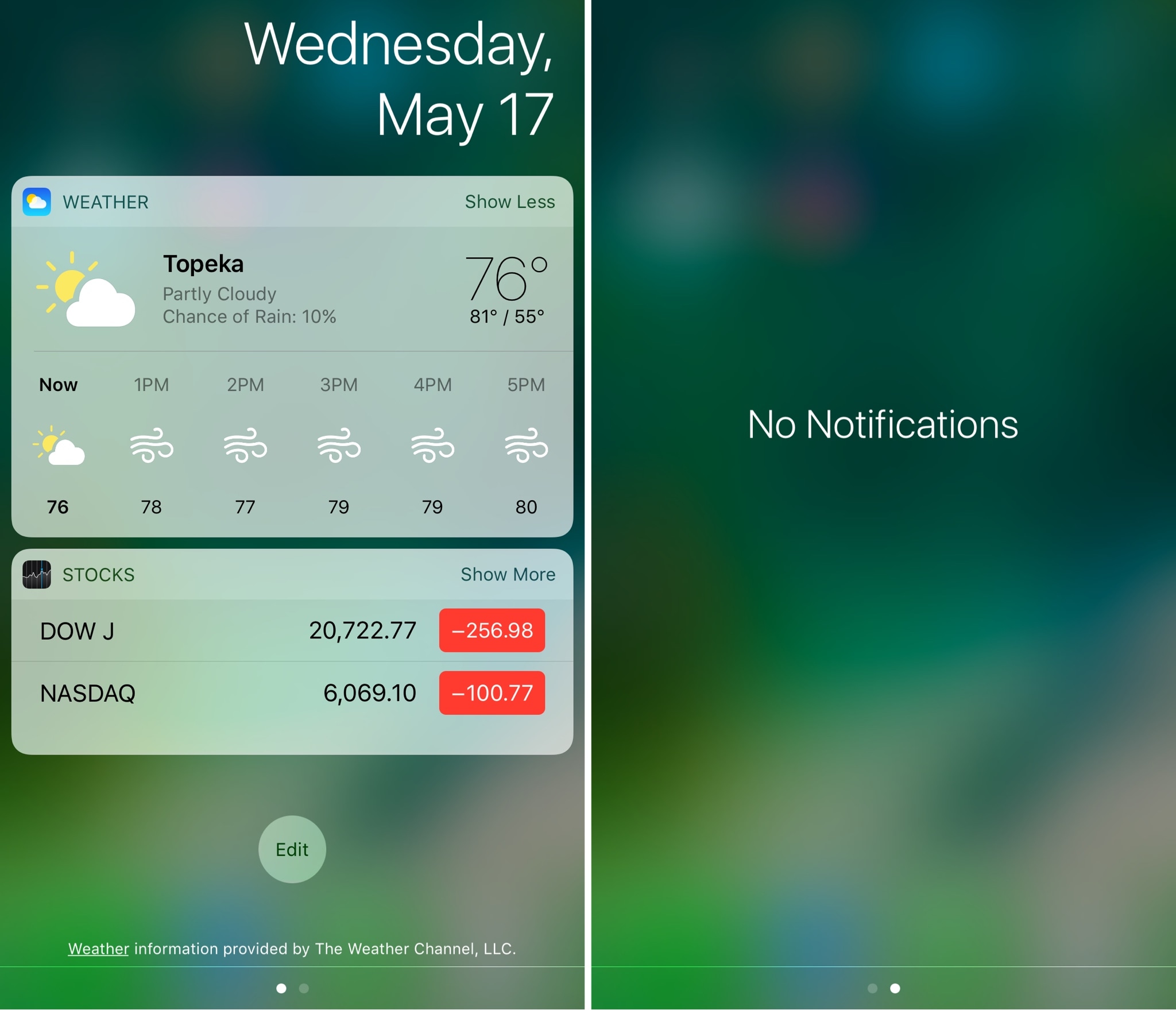
Every department of iOS has its quirks that some users wished could look or behave a little bit differently. Sometimes those wishes can come true, as long as you're jailbroken.
If you feel this way about Notification Center, then a new free jailbreak tweak dubbed Lace by iOS developer Andreas Henriksson might be worth looking into.
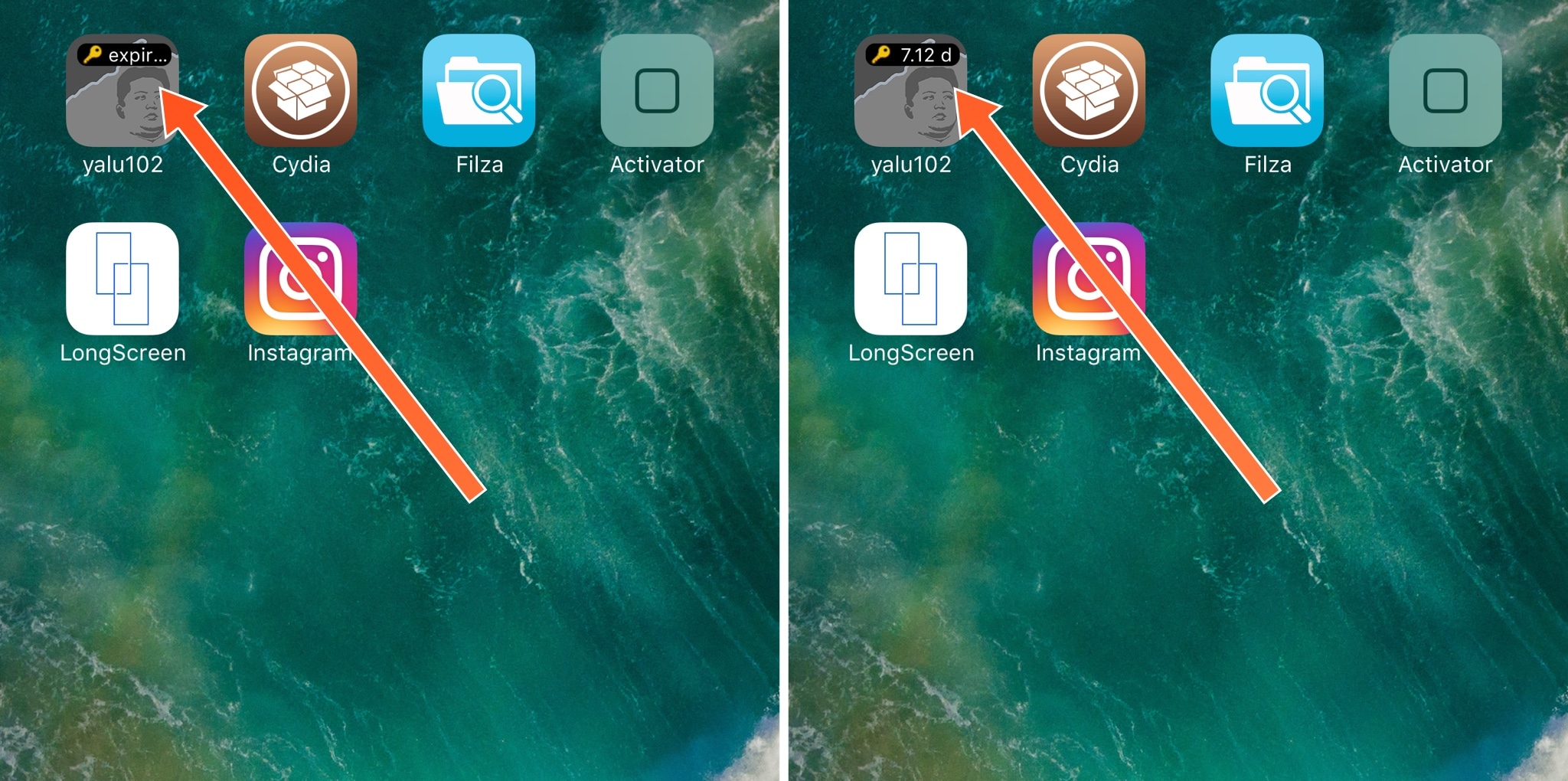
The Yalu iOS 10 jailbreak, just like the iOS 9.3.3 jailbreak before it, is a semi-untethered jailbreak. This means you must re-sign the jailbreak app after 7 days with Cydia Impactor in order to keep your jailbreak app functioning after a reboot.
A new free jailbreak tweak called IconCert by iOS developer faz helps you keep better track of your Yalu app’s signing status so you can take the proper action to re-sign it accordingly.

If you’re interested in spicing up the look of Notification Center a bit, then you might like a new free jailbreak tweak called NCWallCustomizer by iOS developer iKilledAppl3.
This tweak lets you change the Notification Center wallpaper by using any image file you have in your Photo Library.