Learn how to enable end-to-end encrypted backups for WhatsApp to boost your security and keep your chat logs and media backups stored privately in the cloud.
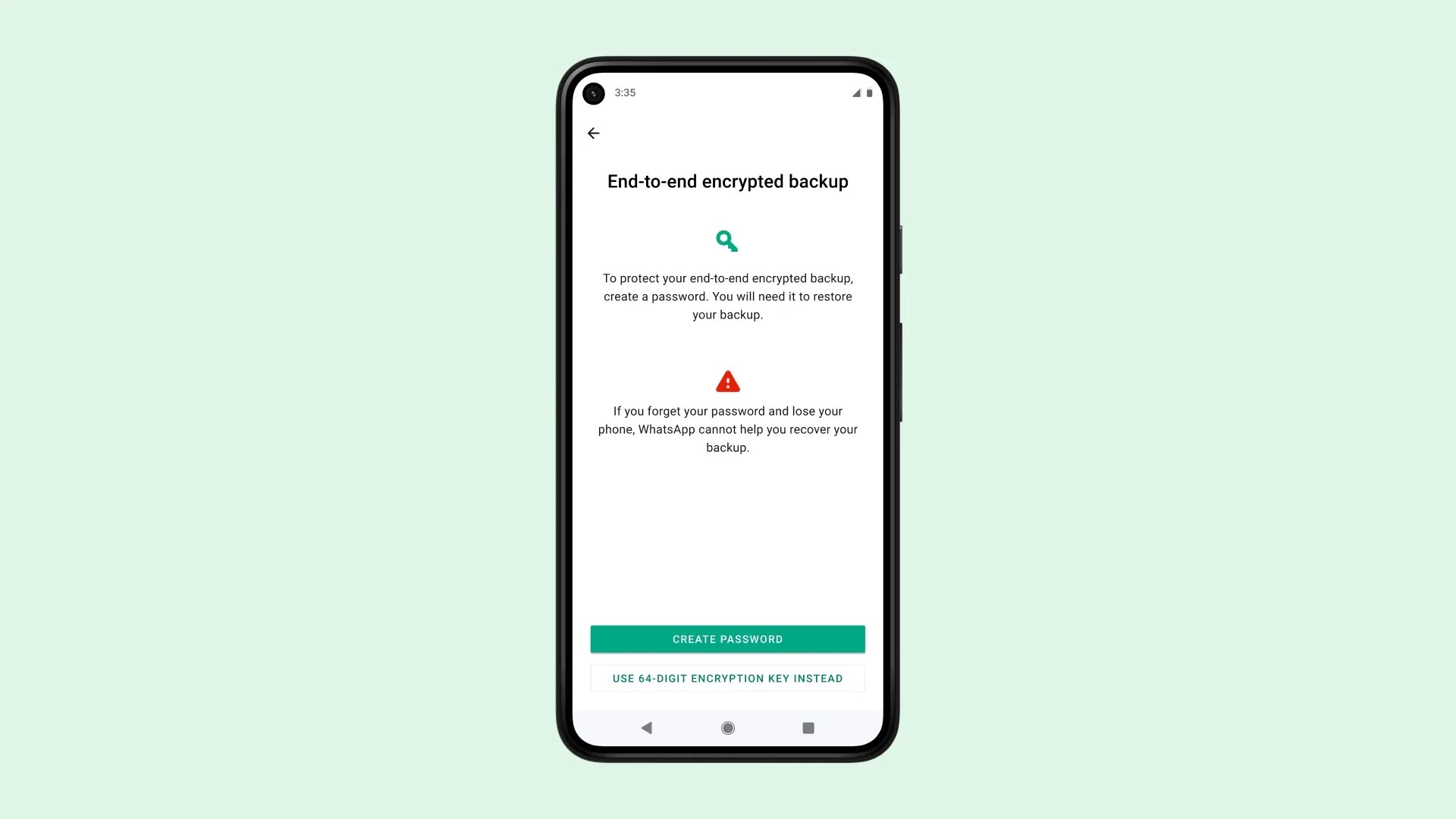
WhatsApp has supported backing up your chat archive to iCloud or Google Drive for quite some time. By default, your backups are stored in the cloud unencrypted. With a valid subpoena, a government agency could get access to an unencrypted backup file stored on Apple’s servers and comb through your WhatsApp chats.
What end-to-end encryption for backups does is add an optional layer of security to protect your chat history and media stored on Google Drive or iCloud with end-to-end encryption.
End-to-end encryption ensures only you and the person you’re communicating with can read or listen to what is sent, and nobody in between, not even WhatsApp. With end-to-end encrypted backup, you can also add that same layer of protection to your backup on iCloud or Google Drive.
You can secure your backup files in three ways:
- Encryption password: An encryption password of your choice must contain at least 6 characters and 1 letter. This password is separate from your device passcode and your other passwords.
- Encryption key: Instead of using a password, you can create a 64-bit encryption key.
- Passkey: Your passkey (like Face ID or fingerprint) will be saved to your phone’s password manager, like the Apple Passwords app.
Be sure to store your password or encryption key in a safe place because WhatsApp cannot reset your password or help restore your backup.
How to fully encrypt your WhatsApp backups
To turn on end-to-end encrypted backups on WhatsApp, go to your chat backup in settings and slide the “End-to-end encrypted backup” switch to the ON position. This will secure and encrypt WhatsApp backups on your device, in transit, and on servers.
1) Open WhatsApp and tap You at the bottom.
2) Go to Chats > Chat backup.

3) Tap End-to-end encryption. You now have three options. Select one and follow along. I have chosen to use my own custom password to lock my WhatsApp backup.

- Use passkey: Your passkey will be saved to the password manager, and you must have access to it in the future to decrypt your backup.

- More options > Create password: This lets you create your own encryption password. Save it manually to your password manager or a locked note.

- More options > Use 64-digit encryption key instead: Have WhatsApp generate your long encryption key. Make sure you save it somewhere safe.

As the encryption process takes place in the background, you can continue using WhatsApp and your iPhone. The operation can drain the battery, so connect your iPhone to power. With the process finished, you’ll have an end-to-end encrypted backup in iCloud. You don’t need to do anything from this point onward, as future backups will be automatically end-to-end encrypted.
Important: After you turn on end-to-end encrypted backup on WhatsApp, your WhatsApp chat history is excluded from your full device backup. However, in case you are unsure, you can easily exclude WhatsApp from being a part of iCloud backups.
Turn off encrypted backups on WhatsApp
Return to the Chat backup screen and tap End-to-end encryption, followed by tap Turn off. Then, enter your custom encryption password or key and tap Next. From now on, your WhatsApp chat history and media backup will be stored unencrypted on your device, while being transferred through the network as well as stored on servers.

Can’t remember your backup password?
That’s why we told you to write down your backup password! WhatsApp cannot reset your password, nor can it help restore your backups. But as it turns out, you’re allowed to change the password for encrypted WhatsApp backups or even turn the feature off — even if you cannot remember your encryption password or key.
1) Go to the Chat backup screen in WhatsApp, tap End-to-end encryption, and choose Change password.
2) Tap “I forgot my password” and then authorize yourself using Face ID, Touch ID, or your iPhone passcode. You can now create a new password for your encrypted backups.

Again, write that password down now!
I forgot my backup password and lost my phone!
This is the worst-case scenario. Unfortunately, there’s nothing you can do if you find yourself in this situation. You must either know your password, key, or passkey to restore WhatsApp from a backup. WhatsApp explicitly warns that “If you can’t remember your password and don’t have access to your WhatsApp chats, you won’t be able to access your backup.”
How many password attempts do I have?
Don’t panic, and don’t try out different password combinations, or you may get locked out temporarily. WhatsApp says that if you attempt to enter your encryption password or key a total of five times, you’ll need to wait before trying again.
More on WhatsApp: