Learn how to filter your YouTube subscriptions in the iPhone or Android app to quickly find what interests you and cut down on your backlog of unwatched videos.

You probably don’t have enough time to watch every single video in your YouTube Subscription feed. In order to make your backlog less intimidating and help you catch up with your favorite video creators, Google lets you filter YouTube subscriptions via a Topics option available in the native YouTube app.
Filter your YouTube subscriptions
1) Launch the YouTube app on your iPhone, iPad, or Android phone and go to the Subscriptions tab.
2) Tap one of the filters in a carousel below the top row of followed channels to have the app show a chronological list of subscribed videos that match that filter.
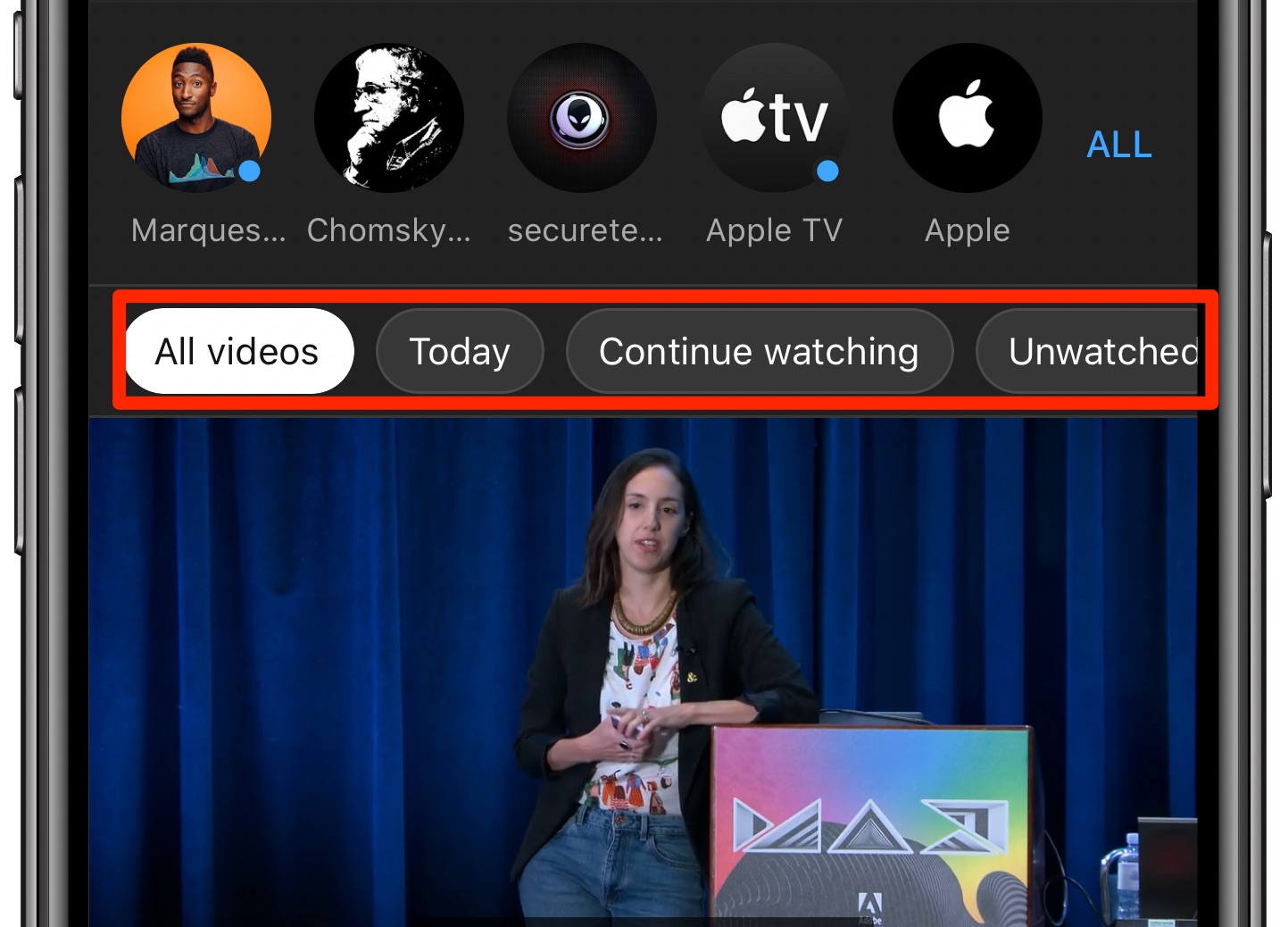
The following topic-based filters are available:
- All: Shows all subscribed videos in reverse chronological order, from latest to oldest.
- Today: Shows only videos published within the past 24 hours.
- Shorts: Displays only the short-form videos.
- Live: Show livestream videos and YouTube Premieres.
- Podcasts: Catch up on talk show videos.
- Posts: This shows you short Twitter-like community posts from subscribed channels.
- Continue Watching: This filter only shows you videos that you previously started watching but haven’t finished yet.
- Unwatched: This will only show subscribed videos that you haven’t yet watched.
The Today option is cool for those times when you’d like to catch up with the most recent videos from your favorite YouTube creators without having to watch all unwatched videos.
Watch the animation below to see this feature in action.
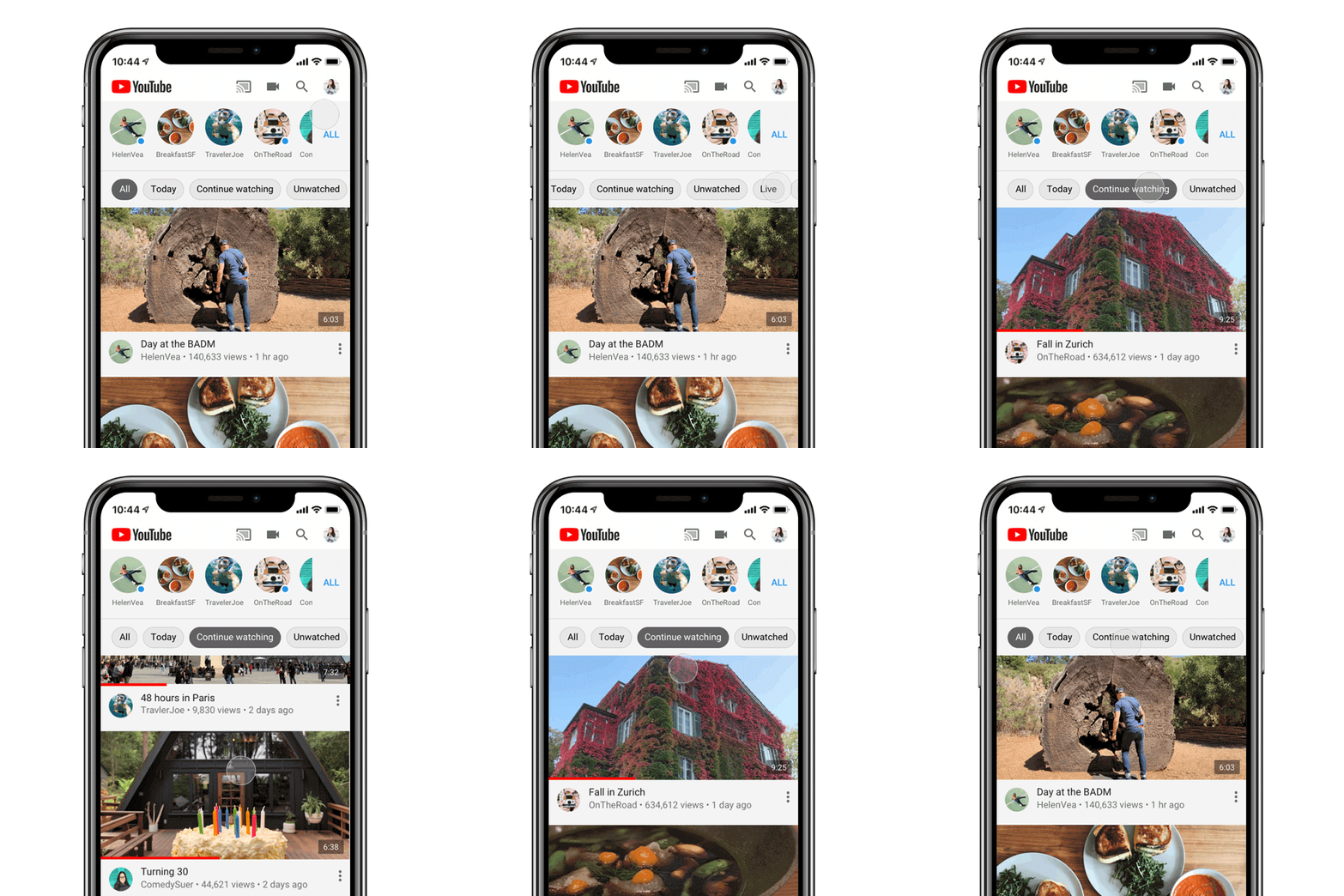
If you don’t use filters, the app will continue to display content from the Subscriptions tab in reverse chronological order, which is basically the same as the “All” topic option.
Videos, posts, or both?
As we mentioned earlier in this tutorial, Posts is the only filter that displays community posts that creators can optionally share with their followers. You can optionally choose which content types you’d like to see in your Subscriptions feed at any time, though.
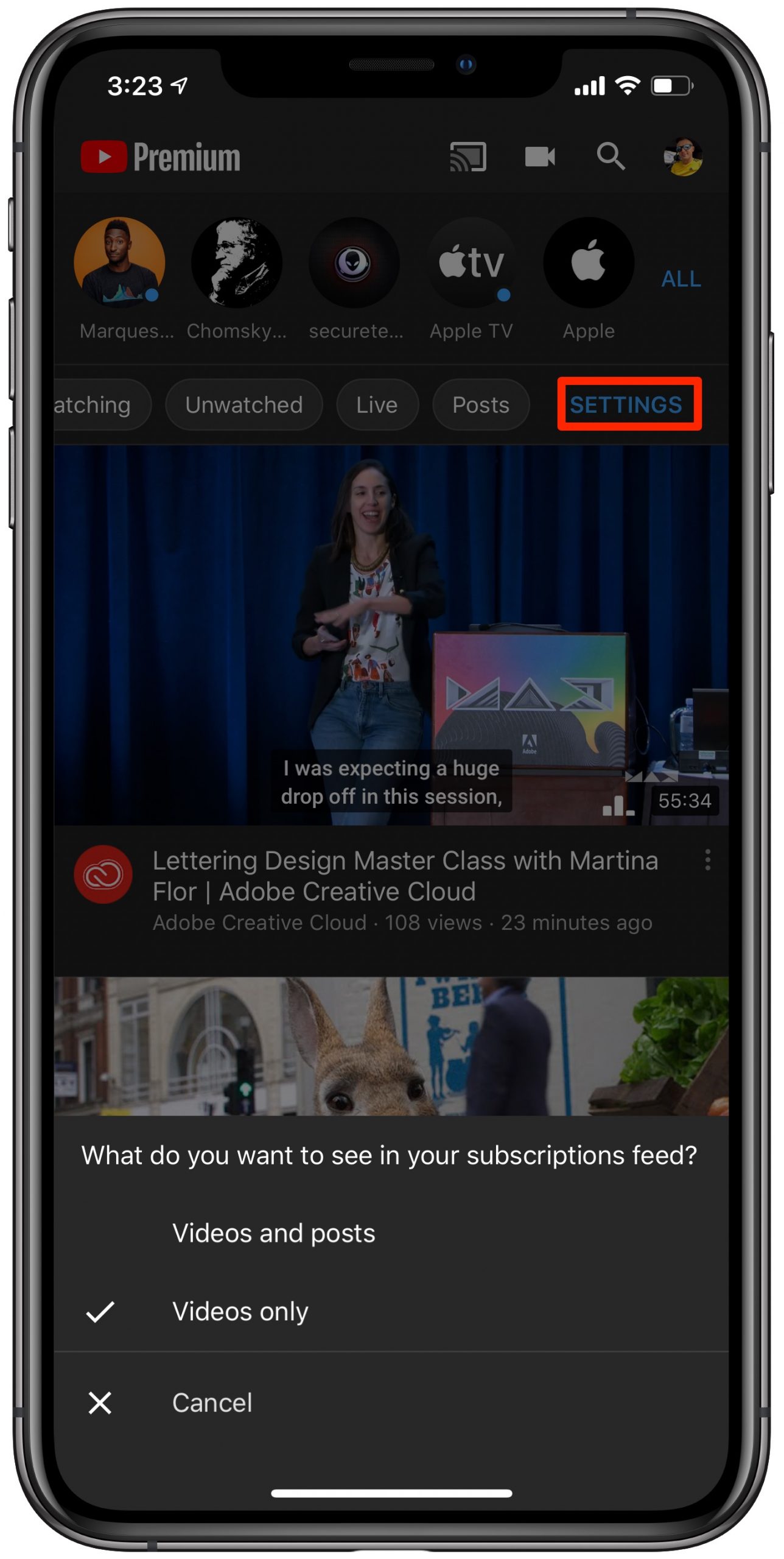
To change what’s shown in the Subscriptions feed, tap the rightmost Settings option in the carousel and choose how the content in the Subscriptions feed should be listed:
- Videos and posts: Both videos and community posts are shown in the feed.
- Videos only: Exclude community posts and only show videos in the feed.
By default, the Subscription feed only displays videos.
According to Google, these handy filters aren’t mandatory at all.
“During our testing, we saw that these topics encouraged more subscribers to come to their subs feed daily to look for new updates,” the search giant noted in a support document. At the time of this writing, the available filters were limited to but a handful of topics. That said, Google is probably going to add additional options in the future via updates to the app.
Do you primarily discover fun videos to watch through the Subscriptions tab in the YouTube app?
Check out next: How to watch YouTube together with your friends remotely using SharePlay