Learn how to adjust the left and right earbud volume balance on your iPhone, iPad, Mac, and Apple Watch to listen to music, videos, and podcasts as per your preference.
My reason for having to adjust the audio balance came in the form of a fateful rendezvous between my AirPods and the washing machine. Not to flog a dead horse, but when I recovered my wireless earbuds from the pants that had just been treated to an hour of thorough hot washing, I quickly had the unsettling hunch that the fresh and clean look of my AirPods had come at a high cost.
An impromptu test immediately confirmed that worry, as the right AirPod had taken a beating and no longer emitted noise at the same volume levels as the left pod.
Thankfully, Apple has long given us control over the stereo balance on our devices, providing a software workaround for faulty hardware or a vital accessibility feature, depending on your motivation to tinker with the sound output.
Keep in mind that changes to the balance will naturally affect all headphones connected to your device, not just the one currently paired or plugged in. Alas, this could mean having to switch the balance around at times when alternating between earbuds, but this should be a small price to pay in exchange for the chance to rehabilitate a loved but long-lost device.
Faulty earbuds, hearing impairment, or one ear that appreciates Psy’s Gangnam Style slightly more than the other, here is how to modulate the stereo balance of your favorite headphones on iOS, macOS, and watchOS by adjusting the left and right audio balance.
On iPhone and iPad
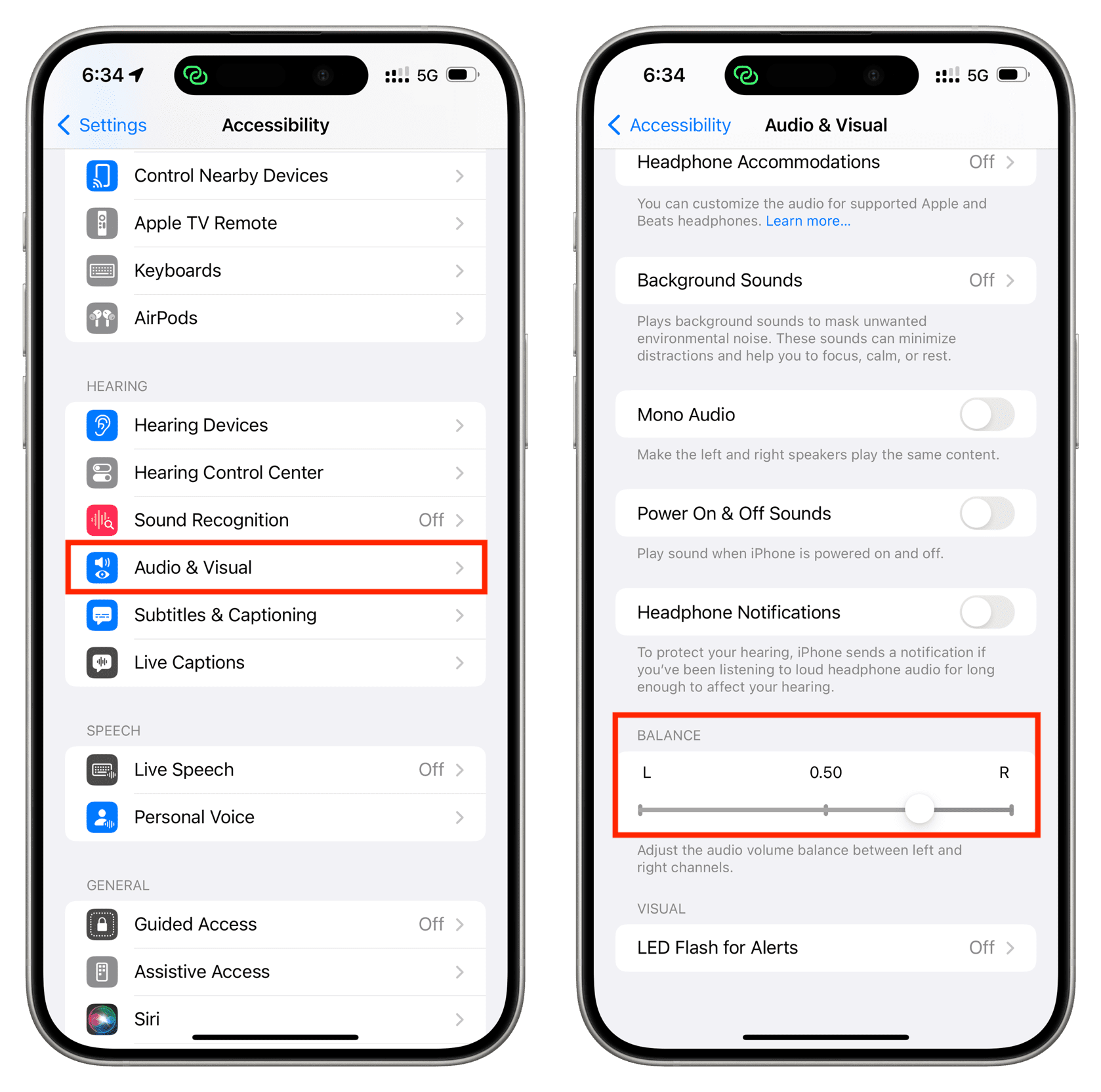
- Open the iOS Settings app and tap Accessibility.
- Select Audio & Visual from the Hearing section.
- The adjustable pin will sit comfortably in the center by default (0.00) under the Balance section. Scrub left (L) or right (R) on the scale to adjust the audio mix between the left and right channels.
On Mac
- Open System Settings and select Sound from the left sidebar.
- Select your AirPods or other sound device under the Output heading.
- Drag the slider in the Balance section towards the Left and Right positions.

On Apple Watch
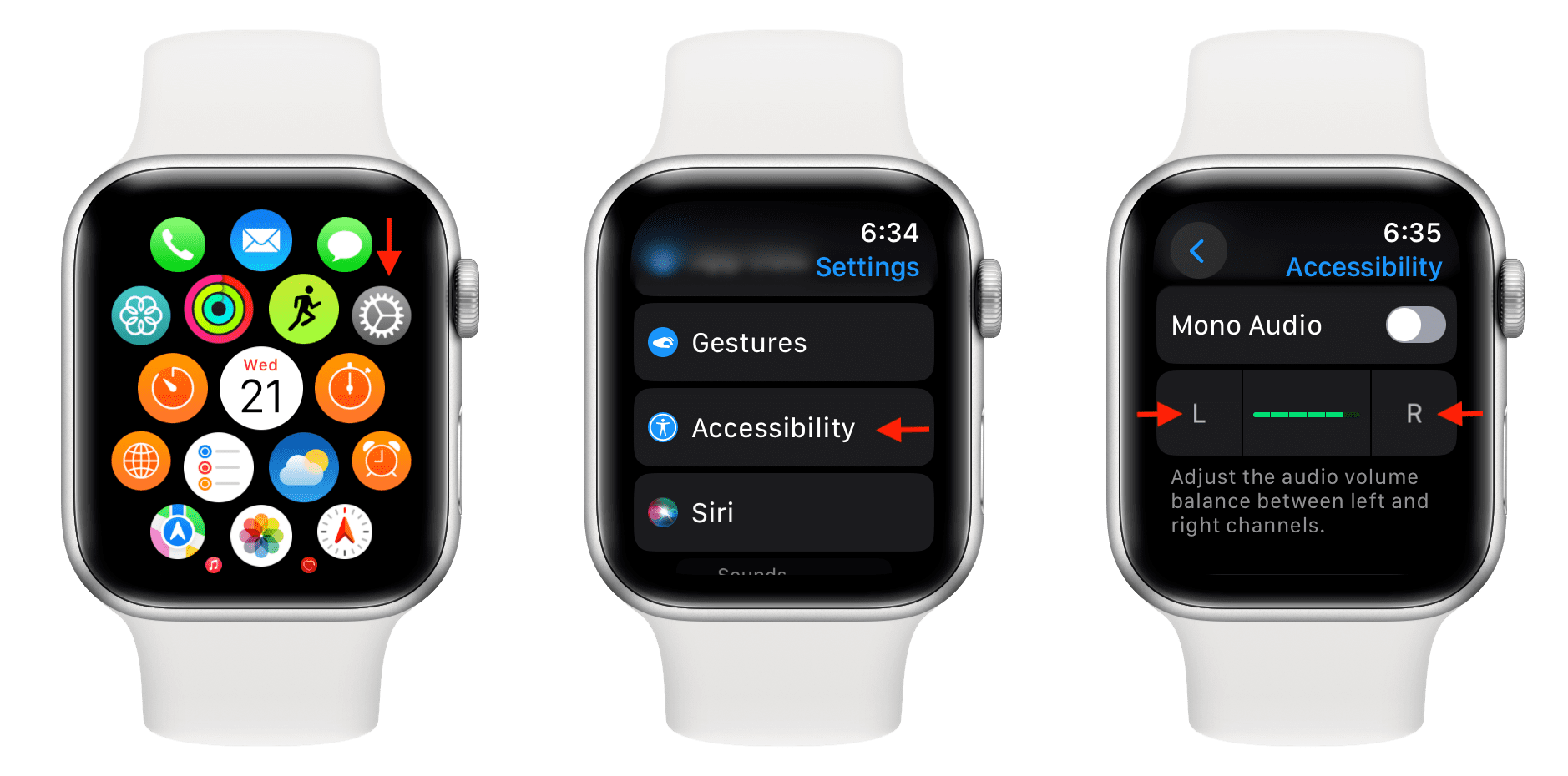
You can change this setting directly from your wrist or using the companion Watch app. As soon as the Apple Watch audio balance is altered, Bluetooth earbuds connected directly to your Apple Watch will be impacted by the updated setting.
- Open the Settings app on your Apple Watch.
- Go to Accessibility.
- Scroll down and tap L (light) or R (right) to adjust it accordingly.
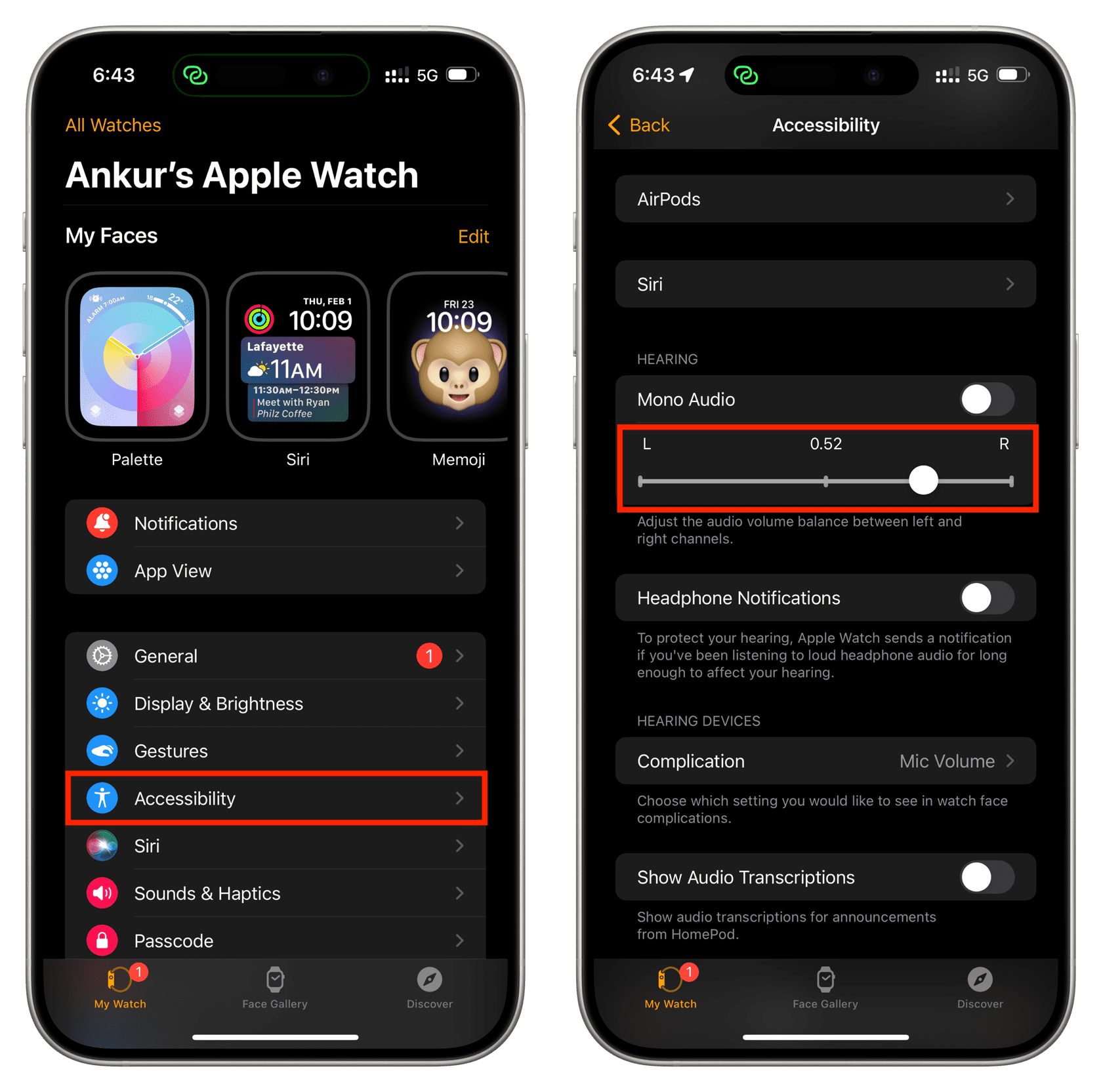
If you don’t like navigating on the tiny screen, you can adjust this setting from your iPhone:
- Open the Watch app and tap Accessibility from the My Watch section.
- Scroll down to the Hearing section and adjust the audio volume balance between the left (L) and right (R) channels.
On a related note: