Apps

The World’s Biggest iPhone

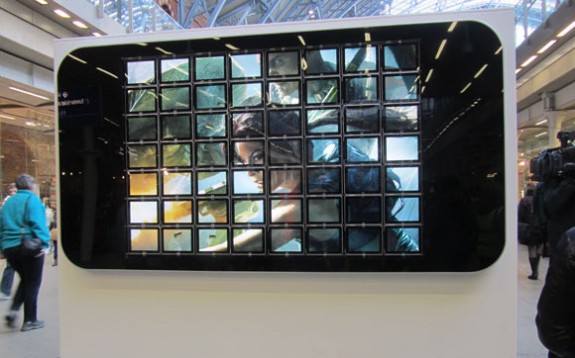
This is the world's biggest iPhone. This giant iPhone is composed of 56 iPads and is located in the heart of London's famous St. Pancras International Train Station.

This giant device does not serve much of a practical purpose, it serves as a promotional stunt for the new iOS game, "Lara Croft and the Guardian of Light." It's a shame though, I wouldn't mind having this massive iPhone hanging on my bedroom wall.

Promo images for the new Lara Croft game run on this giant display (I guess it's actually 56 smaller displays) for anyone walking by to see. But don't get too excited, you probably can't play Angry Birds on it...

VLC for iPhone Released

VLC media player was just updated as a universal app for iPhone and iPad in the App Store. The popular, open source, cross platform media player has been a favorite on Windows, OS X and Linux for years.

Awhile back, VLC released an iPad app in the App Store, and surprisingly the app was approved. VLC for iPhone allows you to play nearly every kind of video format known to man. The app clearly duplicates (and in my opinion, makes better) the video playback functionality of the the native iPod app. So, it's interesting that Apple has finally approved it.

The developers of the VideoLAN player just got the VLC 1.1.0 update approved, which lets VLC run on the iPhone 4, iPhone 3GS, and recent iPod touch models. I downloaded the app, and I was impressed.

Mover+ Transfers Videos, Photos, Contacts and More Between iPhones Over The Air

Last week I told you about myPhoneDesktop, an application that can send images, URLs, phone numbers and text wirelessly to your iPhone from a desktop computer. Today I want to briefly introduce a somewhat similar app called Mover+.

Mover+ is an application that lets you transfer videos, photos, contacts, web bookmarks and text clippings from an iPhone to another, or from an iPhone to an iPad, all this over the air.

If for example you shoot a video at a dinner party with friends, instead of showing the video on the tiny iPhone screen, you can just move it to your iPad for everyone to watch it on a larger screen.

In order for this to work, you have to have Mover+ installed and running on both devices. Put what you want to send on the Mover table, connect via wifi or Bluetooth, and flick it offscreen where you want it to go!

You can download Mover+ from the App Store for $1.99.

FullForce Forces Your iPhone Apps to Display in Full Screen Mode on iPad

A few days ago I shared with you a hack to make your iPhone apps run in full screen mode on your iPad. This hack requires a few steps that might scare away those of you who don't feel like playing with the core files of applications.

Lucky for us, one of my favorite jailbreak developer, Ryan Petrich, created FullForce, an application that "force selects applications to show in full screen iPad mode, even if the developer hasn't certified them as compatible".

The result? Even if an application like Facebook can't be properly displayed in full screen mode on your iPad, FullForce will work its magic and make the app fit the whole screen without pixelizing it.

You can download FullForce from Cydia for free. Once installed, go to the settings.app and in the FullForce options, select the applications you want to force.

Note that FullForce doesn't work with all applications. Just like the hack, text based apps such as Facebook and Tweetie work best in full screen mode.

FullForce is developed specifically for iPad so it can safely be added to the list of iPad compatible jailbrak apps.

List of Jailbreak Apps Compatible with the iPad

Spirit brought us the easiest and fastest jailbreak ever. Great! The only problem is that most of these jailbreak apps aren't compatible with the iPad just yet.

Some smart dude got the idea to create an editable list of jailbreak apps that work on the iPad. The list is on Google Docs so anyone can edit it. I'm not sure who started this but it sure is a good idea.

So far, about 70 apps have been tested, with more to come. You can find the list here. If you have tested a few jailbreak apps on your iPad, try to report the results by adding them to the list.

How to Turn Your iPhone Into An iPad Camera

It's too bad that a great device like the iPad doesn't have a camera. Fortunately, there's an app that will turn your iPhone into an iPad camera. It's not the perfect solution, but it should do the job...

All you need to use your iPhone as a camera for iPad is the Camera for iPad app. After installing the app on your iPad and iPhone, simply launch it on both devices and they will find each other via Bluetooth. Your iPad will then show what your iPhone camera is seeing.

Intuitive controls let you zoom with a pinch or rotate with a swipe. You can just tap the button to take a high resolution photo that is saved onto your iPad.

Camera for iPad isn't just for the iPad! You can connect an iPhone to an iPod Touch, or even connect one iPhone to another, and choose which is the sender and which is the receiver.

Camera for iPad is available from the App Store for $0.99. While I haven't personally tried the app, MichaelB who tipped me on this confirms it works like a charm.

What do you think?

My Thoughts On The iPad On Release Day

I'm usually up this early for work so it was no sweat for me to get up at 3:00 a.m. and have breakfast with a group of Twitter enthusiasts to get the new Apple iPad.  I was one of the few people in the group who was actually not sold on the iPad.  I have an iPhone.  Why do I need an iPad?  I listened to Steve Jobs and watched Apple's series of videos but nothing so far convinced me to buy one.  I knew I had to have it in my hands to know if I really could use one.  So, I tagged along.

Apple employees were willing to let me try the device even though I told them I had no intention of buying it.

Unfortunately the Wi-Fi at the Apple Store I was at in Hawaii was so flooded I couldn't use apps on the iPad that needed the internet and I couldn't browse Safari.  But, there was still plenty to check out.

I immediately wanted to try a racing game and the iPad I was using had Real Racing HD [iTunes link].  I actually didn't like Real Racing on the iPhone and preferred other racing apps like Asphalt 5.  I found the learning curve to be tougher.  But, on the iPad I quickly learned how to drive well.  I didn't even read the instructions so I didn't even use the brakes.  Plus, the more recent racing games are notorious for slow loading (especially on the iPhone 3G) but the iPad handled the game with ease.

Another highlight:  Pianist Pro [iTunes link].  I know how to play a variety of instruments including the piano.  And the iPhone has been almost worthless when it comes to simulating a real instrument.  But, Pianist Pro comes pretty darn close to at least a workable toy keyboard.  The touchscreen was sensitive enough to handle the chords and arpeggios I threw at it.  A drum machine is built-in.  There's a dual keyboard mode for playing both the left hand and the right hand notes.  The only real drawback to the app is that the white keys will only trigger when hit below the black keys making a chord like A-flat a little harder.  Pianists and keyboardists will know what I'm talking about.  If that can be fixed, it would be a near-perfect piano app for the iPad.

My favorite new native feature is the ability to use your photos as an animated picture frame when your iPad is locked.  It's called Picture Frame.  Use it and love it.

I'm definitely a lot more intrigued by the iPad now that I had a chance to have one in my hands.  If I do get one,  I'm more inclined to use the iPad at home and use my iPhone when I'm out on the road.  If I do get an iPad I would rather get the 3G version so when I go on trips I'll always have the internet.  Family that I visit in the continental U.S. doesn't have Wi-Fi.  I can just activate the unlimited 3G for that month since there is no contract required.

Leave a comment to let us know what you think about the iPad after trying it out.