App Updates

Instagram rolls out location and hashtag Stories in Explore tab

Photo-sharing service Instagram today announced that all-new location and hashtag-enabled Stories are now available through the app's Explore tab. These newly added Stories features require Instagram version 10.22 for iPhone and iPad, available at no charge via App Store.

“Now you can see what’s happening around you and find stories related to your interests,” says Instagram. Location-based Stories appear in a new Story ring at the top of Explore.

Additionally, you can now search for any location around the world.

When you search for a location, you'll see a Story ring for that place at the top of the location page. Location and hashtag-enabled Stories appear at the top of the Explore tab only if their creators have used location stickers or a new hashtag sticker.

“We’re also beginning to introduce hashtag stories on Explore to help you find Stories related to your interests,” added the company. “When you search for a hashtag, you may see a Story ring at the top of the page filled with Stories using that hashtag.”

If your location or hashtag-enabled Story was included in the larger Story on Instagram, you’ll see a line at the top of your Stories viewer list which tells you how many people saw your Story as part of the larger Story. To use a location or hashtag sticker without your Story appearing on the Explore tab, tap the “X” on your Stories viewer list.

Instagram's previous update brought out Snapchat-like face filters for your selfies, an eraser brush and a new hashtag sticker. Location stories on Explore are available on iOS and Android as part of Instagram version 10.22 in App Store and Google Play.

Hashtag stories will be rolling out over the coming weeks.

You can learn more about these features in Instagram's Help Center.

Instagram for iOS is a free download from App Store.

Duet Display brings even more desktop power to your iPad drawing experience

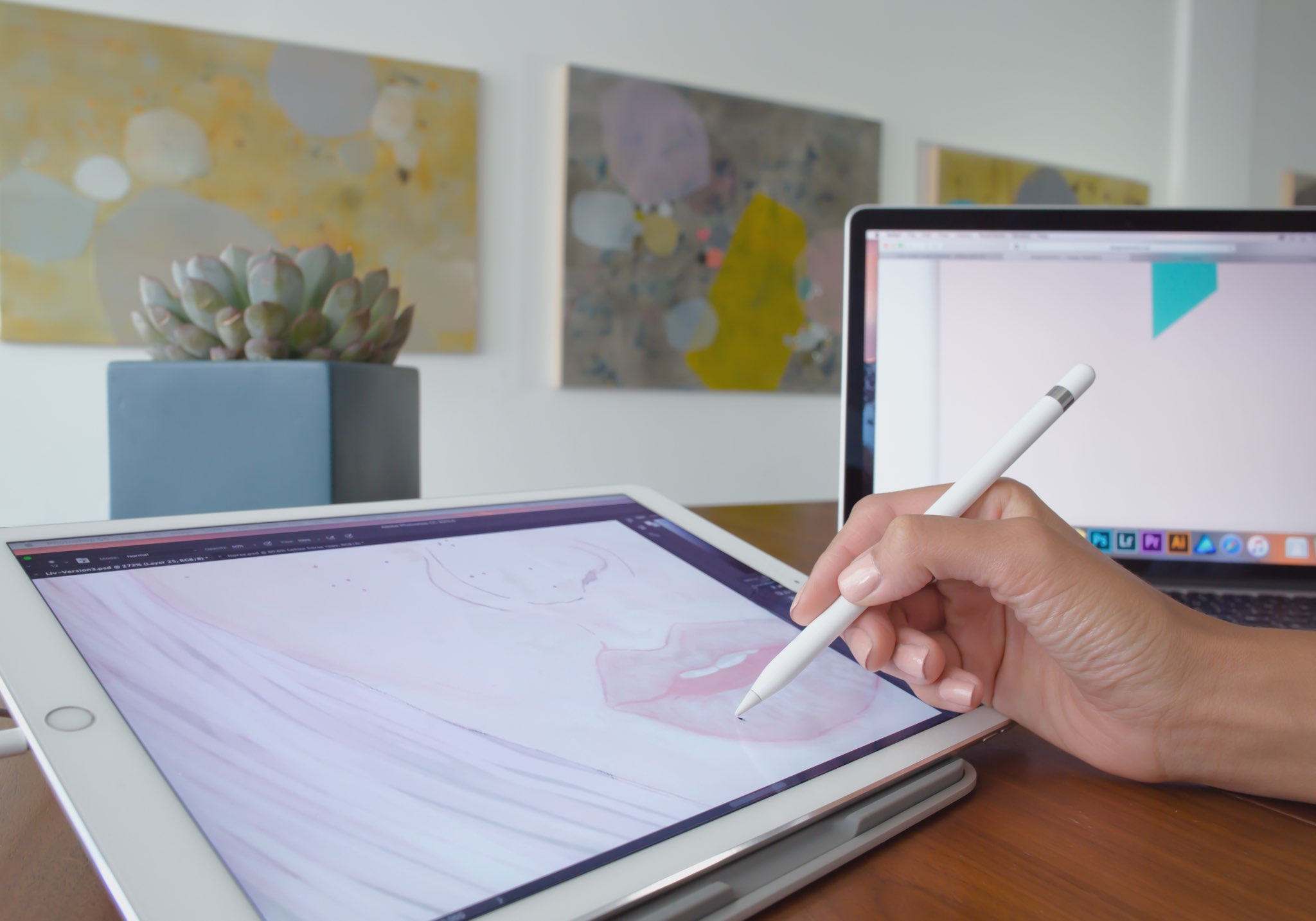
Duet Display, an app billed as the first solution to turn your Apple tablet into a second display and a high-performance drawing tablet for your Mac or Windows PC, was updated on App Store today with some new features.

The new Duet Display now lets you have the drawing experience on your iPad with the speedy rendering and sheer hardware power of a desktop.

The update brings out a number of enhancements and new customizations, including a customized pressure curve, advanced gesture support, a more fluid drawing experience, improved color quality and more.

Here are the key highlights in this release of Duet Display:

Customized pressure curve—You can now change the way macOS or Windows receives the data, allowing for a personalized drawing experience. Advanced gestures—We have added a lot of gestures to both standard and pro users. This should make drawing and using your iPad as the primary device much simpler. Line lead—To provide a faster drawing experience, we have spent some time making a line preview to predict where the Pencil is before macOS or Windows knows where it is. We plan to continue improving this to create an instant drawing experience. Touch Bar—We implemented Touch Bar support last Christmas. Pro users have really benefitted the most as they are using their iPad more than their computer, so it makes quick interactions much faster. We have improved the stability and speed of it, and many more apps support Touch Bar now. Improved color quality—We have improved rendering quality and speed for pro users under the Pixel Perfect setting, delivering a higher quality display in less time. We plan to continue improving performance as much as we can.

Duet Display works over a USB connection as wired connections are significantly faster and far more responsive than wireless solutions. The app's speedy rendering engine has a much lower latency than Apple's AirPlay technology.

Duet Display has proven to be very valuable to artists, designers and video editors as it essentially replaces a Wacom drawing tablet with your iPad Pro and Apple Pencil.

The app supports finger drawing, too.

Aside from drawing support, Duet Display can be used to turn your iPad into a second screen for your Mac or Windows PC. For instance, you could use your iPad Pro to keep tabs on your social media feeds while editing a document on your Mac's primary display.

The ability to turn a supported iOS device an external monitor for a Mac should be especially handy while you're traveling or if you cannot afford an eternal display for your computer.

Duet Display for iOS is a $19.99 value on App Store.

To celebrate today's update, the app is on sale today for $9.99.

A pro-level upgrade which unlocks the ability to use your Apple tablet as a drawing tablet for your computer costs an additional $19.99 per year as an in-app subscription.

Duet Display 2.0 for Mac or Windows is available directly from the official website.

YouTube TV app gains AirPlay support

Google today updated its official YouTube TV app with support for AirPlay, an Apple technology that lets you play video streamed from your iPhone or iPad on a TV set through your Apple TV.

“Announcing AirPlay! There are a few bug fixes and minor improvements in this thing, too. But mostly AirPlay,” reads the changelog for YouTube TV on App Store.

Prior to today's update, YouTube TV only supported broadcasting content from the app to a television set via Google's Chromecast HDMI dongle.

Google launched its new streaming television service back in April 2017.

In exchange for $35 per month, cord-cutters can enjoy live TV streaming from Fox, ABC, CBS, NBC and other popular cable networks along with content from an additional 39 local broadcast networks and channels, like ESPN.

Some sports channels like Fox Soccer Plus, as well as premium networks such as Showtime, are available for an additional monthly charge. DVR with unlimited storage is included in the subscription at no additional charge.

https://www.youtube.com/watch?v=qediav063xQ

YouTube TV can be used with up to six accounts in a single household without needing to share passwords between family members.

YouTube TV is separate from the YouTube Red service, which costs ten bucks per month.

YouTube TV is currently limited to select cities, like Chicago, Los Angeles, New York City, Philadelphia and the San Francisco Bay Area.

For more information, visit tv.youtube.com/tv/availability.

You can try YouTube TV free for 30 days by signing up at tv.youtube.com.

Microsoft refreshes OneNote apps with new design and accessibility features

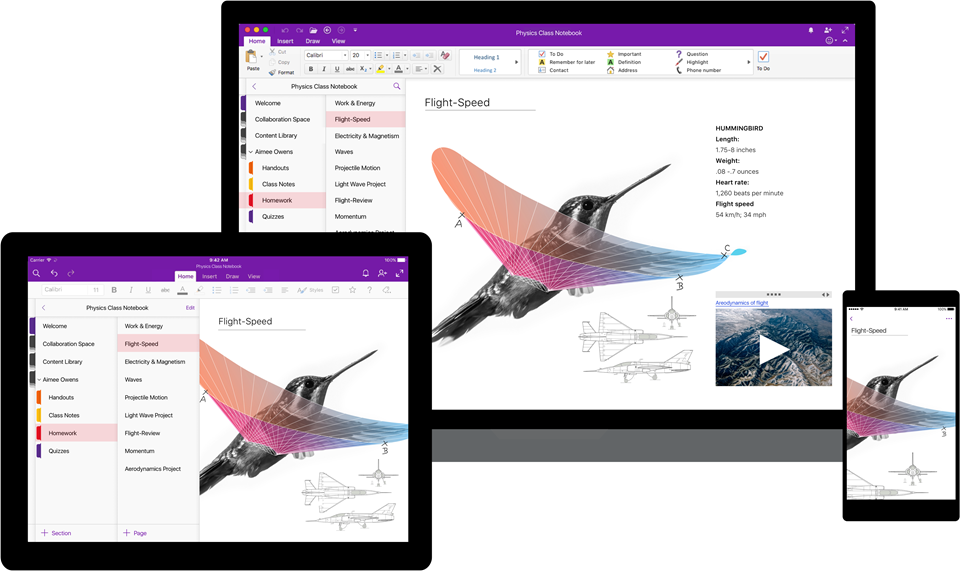
Software maker Microsoft on Friday rolled out new versions of its note-taking apps for iPhone, iPad, Apple Watch, Mac, Android, Windows 10 and the web. OneNote's interface has been tidied up and navigation improved in the latest release.

The app now includes new assistive features to help users with disabilities.


OneNote's revamped interface makes organizing your notes easier than before with an improved layout. You'll notice that the reworked interface puts your content front and center, with all of the notebooks, sections and pages moved to columns on the left side of the app.

This allows for efficient organization of your notebooks.

The company celebrated the redesigned OneNote launch with the following video.

https://www.youtube.com/watch?v=fmGVp76WyIU

The newly implemented accessibility features, available across iOS and macOS, let people with various disabilities efficiently navigate the app with screen readers, improved keyboard shortcuts and other assistive technologies.

And with the left-hand navigation controls, screen readers can easily navigate through the app.

OneNote is now available with a consistent experience across devices: with this update, says Microsoft, your experience will be the same regardless of what device you happen to be using.

The new redesign for OneNote is rolling out for Windows 10, Mac, iOS, Android and on the web over the coming weeks so check back later if it's not live yet.

OneNote for iPhone, iPad and Apple Watch is available free on App Store.

OneNote for Mac is available free on Mac App Store.

Things 3 is out with overhauled interface and multiple new features

German developer Cultured Code on Thursday released Things 3, a major new iteration of its powerful personal task manager for iPhone, Apple Watch, iPad and Mac. Things 3 brings out a beautiful timeless new design with delightful interactions and animations. Aside from the new look and feel, the refreshed app is packed to the gills with a host of new features.

Released as three separate apps (they've kept the current pricing), Things 3 is Cultured Code's first paid update for existing users since versions 1.0.

Here's what developers had to say about the app's gorgeous new UI:

The all-new Things comes with an all-new design. It's not just how it looks—but also how it works, and how it feels. The interactions are delightful. The animations are smooth. The content is more structured. The concepts are clearer.

Open a to-do and you'll immediately get a sense of how the new apps feel.

Nicely animated transitions expand the selected to-do into an empty white piece of paper. You can add additional details to your to-do, neatly tucked away in the corner until you need them.

“There are no distractions here, it’s just you and your thoughts,” said developers.

The choice is yours: you can create either a simple to-do that looks like text on a piece of paper or opt for a richer to-do which may include additional details such as tags, checklists (a new feature for to-dos in Things 3), a start date, a deadline and so forth.

Speaking of to-dos, Things 3 introduces an all-new Magic Plus Button.

Found in the corner of the screen, you can tap it to quickly add a new to-do or actually drag the button to a particular list in order to generate a to-do in a specific location. Plus, managing to-dos is now way easier than before with expanded support for gestures, like dragging and dropping, swiping, tapping to expand and more.

Seasoned Things users will be delighted to know that developers have implemented one of the most-requested features: time-based reminders. For those to-dos you absolutely cannot miss, adding a reminder will give you peace of mind.

While scheduling a to-do in Jump Start, click Add Reminder and set the time. There are three ways to set the time: manually, using the app's natural language parser (just type “Wed 8pm” or some such, and you're all set) or you can speak to Siri (“Remind me to call Seb at 5am.”)

Watch the promotional video for Things 3.

https://www.youtube.com/watch?v=2R6o5t0VK_A

Things 3 now supports headings to break up complex projects into sections.

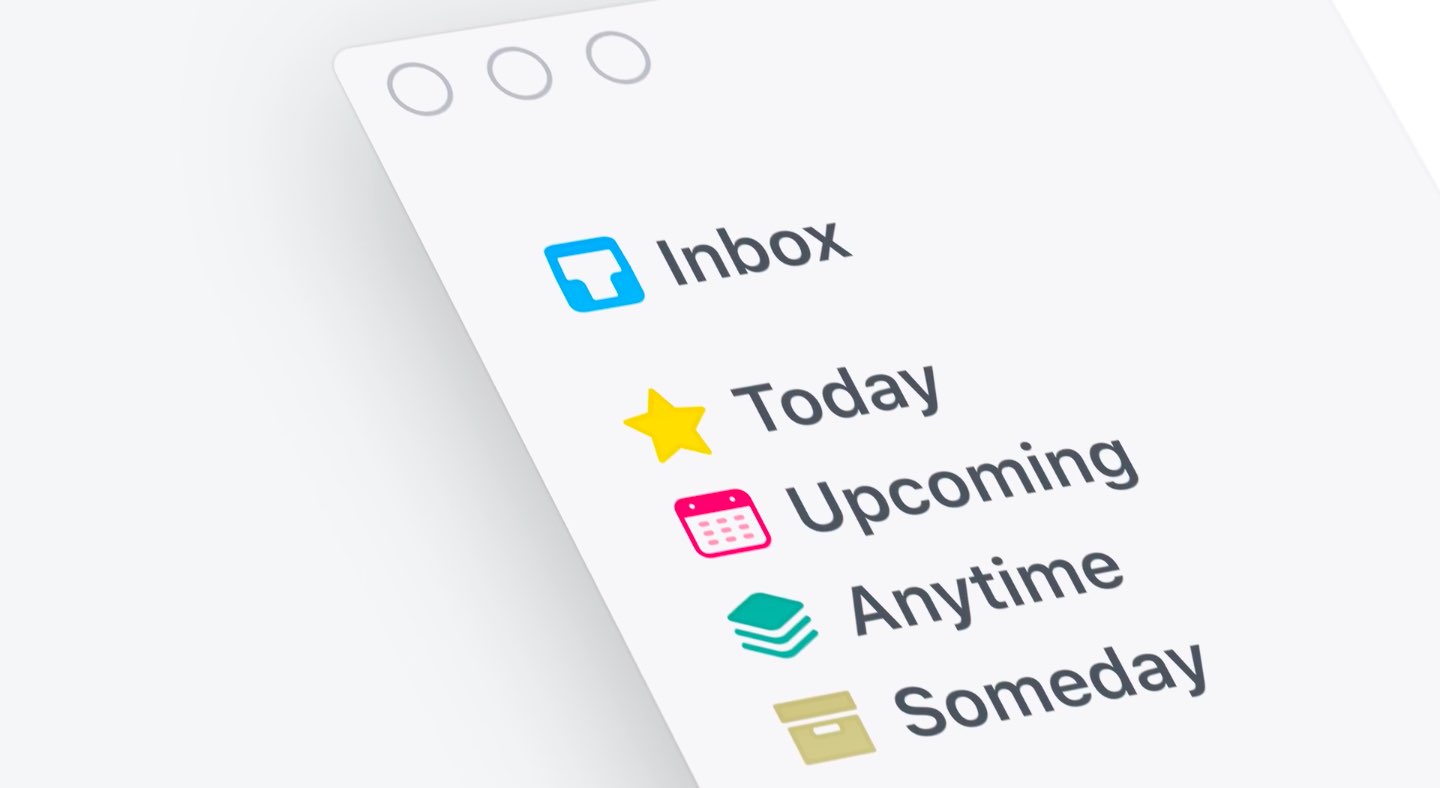
And with the app's Magic Plus Button, you can create and place headings in new projects like a pro. The app's cleaner design extends to your Today and Upcoming sections which now combine calendar events and to-dos into one unified view with a timeline at the top, giving an outline of your schedule.

A new This Evening section is your at-a-glance overview of any to-dos that you won’t get to until later in the day, like things you can only do when you get home. The This Evening section is a handy way to keep these to-dos separate from the rest, in their own discrete list.

And to help you find a needle in the haystack, Things 3 now includes a Quick Find feature.

Just pull down on any list to reveal search, which can now find content across the entire app. Quick Find also includes handy shortcuts to your to-dos, lists, tags and more.

Type Travel, another new feature in Things 3, lets you navigation to any project, area or to-do in the app. On iPad, you can now swipe away the sidebar and focus on just the current list you’re working on, both in portrait and landscape orientations.

On your Mac, Things now has a Slim Mode which cuts out distractions so you can focus on the task at hand. To enter this mode, collapse the sidebar with a two-finger swipe. Slim Mode is especially great when you’re working in macOS's Split View multitasking mode.

You can even open multiple windows in Slim Mode and drag and drop items between them.

https://culturedcode.cachefly.net/things/videos/2017-05-03-allnewthings-when/video.mp4

Developers have completely rewritten core layers of the apps, which are now shared between macOS and iOS for increased reliability. The Apple Watch app has been updated as well (it now shows checklists and headings), there's a new structure for Areas in the iOS app and you can now import data from Wunderlist or OmniFocus into Things 3.

And with TouchBar support, owners of the new MacBook Pro can take advantage of convenient access to the app's most-used commands.

Things is fully integrated with all the latest iOS technologies: Apple Watch, Calendars, Siri, Reminders, Today Widget, Quick Actions, Action Extension, Handoff and Notifications.

The apps all stay updated via Things Cloud, which is the push sync service that Cultured Code custom-built for the app. Unfortunately, iCloud syncing is not supported in Things.

For the complete overview of what's new in the app, visit the official Things website.

Things 3 for iPhone and Apple Watch is $9.99 on App Store.

Things 3 for iPad is $19.99 on App Store.

Things 3 for Mac is $49.99 on Mac App Store.

To celebrate the launch of Things 3, all apps are 20 percent off until next Thursday, May 25.

A 14-day trial of Things for Mac is available via the Cultured Code website.

Google Photos launching automatically curated albums, photo books & sharing suggestions

During today's keynote address at Google's annual I/O conference for developers, the company announced a trio of smart features powered by machine learning intelligence.

For starters, the app now automatically curates albums for the user.

Even better, Google Photos provides suggestions when sharing photos with others. As a bonus, there's now an Apple Photos-like feature for ordering printed photo books from within the app.

But first, check out the new features for yourself in Google's video embedded below.

https://www.youtube.com/watch?v=SN_7r0mFf5Y

Sharing suggestions

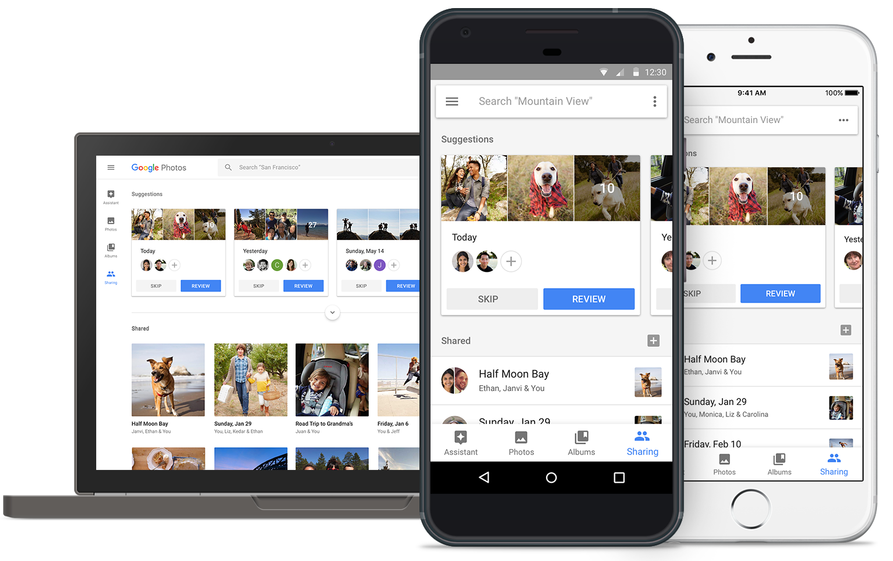
Photos now uses Google's machine learning technology to remind you when it's time to share some photos. The app automatically select the right photos and even suggest who you should send them to based on who was in the photos.

All that's left for you to do is review the choices the app's made on your behalf before hitting that Send button. People you're sharing with will see all your photos and get a reminder to add theirs too. Your sharing activities are collated in the app's new Sharing tab.

This feature will be rolling out on Android, iOS and web in the coming weeks.

Automatically curated albums

Google Photos can now automatically share relevant photos with specific people. Say you took a bunch of photos of your kids: Photos may offer to automatically share them with your wife.

Called Shared Libraries, it lets you give a person access to your full photo library.

Don't worry, you can easily choose to limit sharing by having the app include just the photos of certain people or the images taken from a certain date forward. When the other person shares their library with you, you can automatically save their photos to your own library.

Shared Libraries will be rolling out on iOS, Android and web in the coming weeks.

Photo Books

Like with Apple Photos or services like Shutterfly, you can now order a printed coffee table book comprised of your best photographs without ever leaving the app. Simply select the images you'd like to fill your album with and Google's machine learning algorithm will pick the best shots, removing duplicates and poor quality images.

When placing your order, choose between a high-quality twenty-page softcover book for ten bucks a piece or a hardcover variant for twice as much. Your photo book will be delivered to that special person in your life in the mail.

This feature is rolling out today in the US on web, and on Android and iOS next week.

“We’ll bring photo books to more countries soon,” said the search giant.

Another feature that's coming soon to Photos: personalized suggestions for photo books (i.e. your trip to the Grand Canyon, time with family during the holidays, your puppy and so forth). Machine learning powers features in other Google apps, including smart replies in Gmail for iOS and the newly launched Assistant for iPhone app.

Grab Google Photos for free from App Store.

Gmail for iOS now uses machine learning to provide smart replies

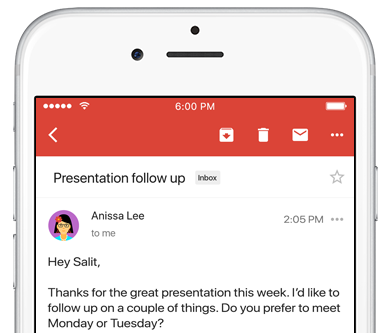
Google on Wednesday launched an updated version of the mobile Gmail app for iOS and Android, bringing out a handy new Smart Reply feature based on the company's machine learning technology. Like with canned responses in Apple's own Messages app, Gmail analyzes the contents of your emails to provide up to three canned responses based on what it thinks the sender is asking in their original message.

Smart Replies may include simple “Yes” and “No” responses. If the sender is asking whether to meet on Wednesday or Friday, Gmail may provide a bit more complex replies such as “Let's do Wednesday”, “Friday works for me” or “Either day works for me”.

Once you’ve selected one, you can send it immediately or edit your response starting with the Smart Reply text. By utilizing machine learning, the Smart Reply feature produces better responses the more you use it. “If you're more of a 'thanks!' than a 'thanks.' person, we'll suggest the response that's, well, more you,” says Google.

To learn about the smarts behind Smart Reply, check out the Google Research Blog.

Smart Reply will roll out globally in English first, with Spanish following in the coming weeks. Additional languages for Smart Replies will be added soon, Google has promised.

According to the search monster, the machine learning-assisted Smart Reply feature already drives twelve percent of replies in its Inbox email app.

Aside from Smart Replies in the Gmail app, today's keynote address at Google's annual I/O conference for developers saw the release of the official Google Assistant app for iOS.

Gmail for iOS is available at no charge from App Store.

AI powered, end-to-end encrypted calls now available in Telegram Desktop

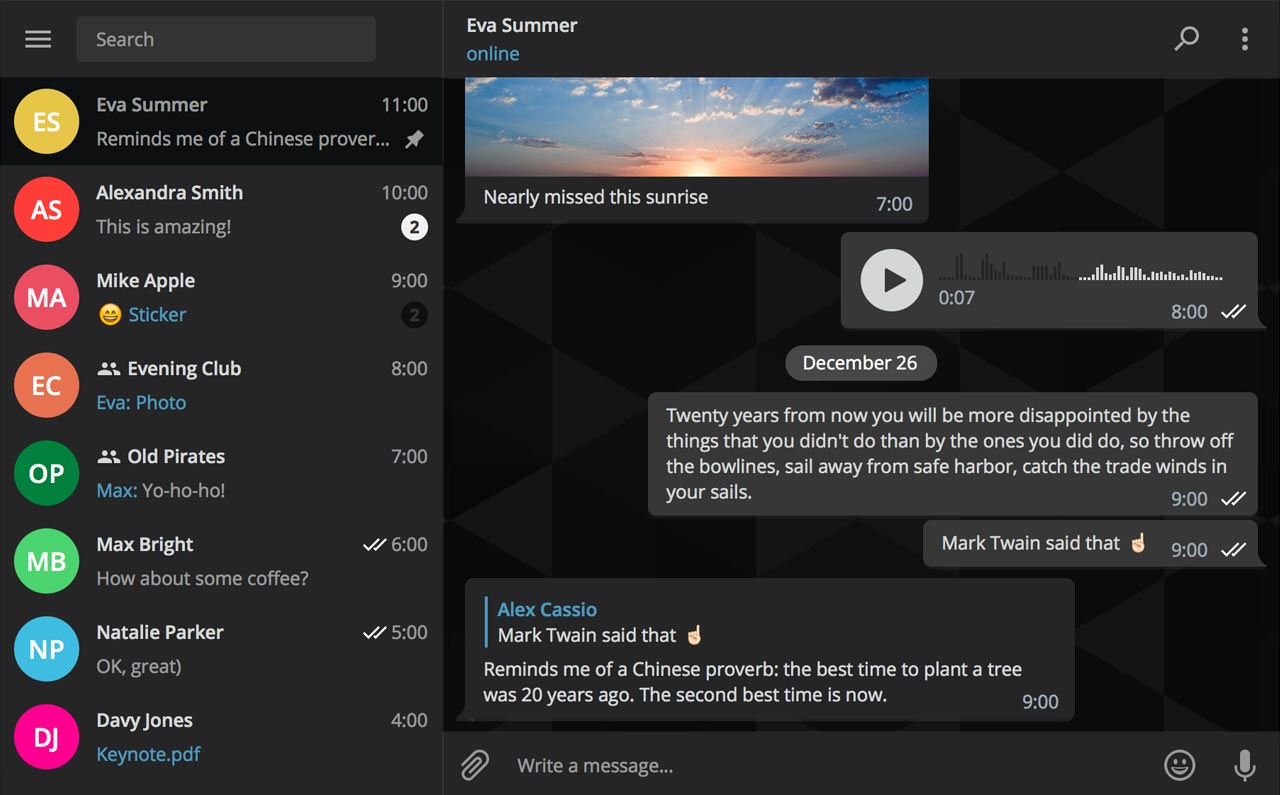
Secure instant messaging service Telegram today launched voice calls in its desktop app for Mac, Windows and Linux nearly two months after implementing the voice-calling feature in Telegram Messenger for iPhone and iPad.

To make sure Telegram calls are the best in terms of quality, speed and security, the app uses artificial intelligence to update its neural network after each call about things such as network speed, ping times, packet loss percentage and other factors that influence the quality of your VoIP calls.

Based on gathered data, the app optimizes dozens of parameters to improve the quality of future calls on the given device and network. By default, Telegram calls are lightweight.

https://twitter.com/telegram/status/864543129847955457

If there's a change in your connection during the call, the app will make necessary adjustments.

For instance, Telegram may boost your sound quality on stable Wi-Fi connection or use less data if your Wi-Fi or cellular coverage is spotty at best.

Whenever possible, your calls will go over a peer-to-peer connection using the best audio codecs to save traffic while providing “crystal-clear quality.” When a peer-to-peer connection cannot be established, the app will use the closest server to you.

Telegram has its own distributed infrastructure all over the world to ensure the fastest possible delivery of your texts and seamless voice calling experience. As mentioned, VoIP calls on Telegram use end-to-end encryption, just like the app's Secret Chats feature, to prevent eavesdropping.

For voice calls, however, they've improved the key exchange mechanism. “To make sure your call is 100 percent secure, you and your recipient just need to compare four emoji”, said the team.

Bottom line: the quality of Telegram calls will further improve as you and others use them, thanks to the built-in machine learning. And with group calling, video calling and screen sharing apparently on the team's to-do list, Telegram is bound to become a capable Skype alternative.

As soon as VoIP calls are enabled for your country, a phone icon will appear on every profile page in Telegram Desktop.

Telegram for iOS is available free via App Store.

Telegram Desktop can be downloaded from Mac App Store or through the official website.

Todoist gains 2-way Google Calendar integration, Dynamic Type support & more

Todoist, the popular cross-platform app for organizing work and errands, is launching a deep two-way integration between it and Google Calendar that lets the app directly pull information from Google Calendar and vice versa. In addition, the app now supports iOS's system-wide Dynamic Type feature and you can now mark individual notifications as read or unread.

Todoist + Google Calendar = winning combo

With a two-way sync between Todoist and Google Calendar, you can visualize, organize and prioritize your tasks from inside your calendar, with any changes made in Google Calendar being instantly reflected back in Todoist and vice versa.

To connect Todoist with Google Calendar, sign into the Todoist web app, click on the gear icon in the upper-right corner and choose Settings from the popup menu. Navigate to the Integrations tab and click Connect next to Google Calendar.

After signing into your Google Account, you’ll be asked which calendar you want your tasks added to, whether you'd like to sync your entire Todoist account or just a specific project, which Todoist project you want new Google Calendar tasks added to, a default event duration for new Todoist tasks in Google Calendar and whether or not you want to sync tasks with a due date but no time.

Once you authorize the integration, any tasks with a due date and/or time in Todoist will automatically be added to a Google calendar of your choosing (recurring tasks will create multiple events) The two-way sync allows you to create events in Google Calendar within Todoist, knowing they'll be automatically added to the Todoist project of your choosing.

All tasks created from Google Calendar have a default @gcal label, but you can change the label by editing the integration after you’ve connected the apps. You can even choose to only sync tasks from a specific project, if you'd like.

On the iPhone and iPad side, Todoist now supports Dynamic Type, a feature that makes it easy to adjust the font size in apps that support this feature. To make words in Todoist bigger or smaller, simply update to the latest version of the app on App Store and set your preferred text size but dragging the slider in Settings → Display & Brightness → Text Size.

To make sure you don’t miss any important updates in shared projects, Todoist for iOS now allows collaborators to mark individual notifications as read or unread.

As for Todoist for Mac, the app's design was refreshed yesterday to make it feel more at home on your Mac, including extending the theme color all the way to the top.

The smart-task Quick Add action has been overhauled as well. Faster than ever before, it now includes a shortcut to assign a task to someone else (just type “+” into the task name field to pull up a list of collaborators).

Todoist for iPhone, iPad and Apple Watch is a free download from App Store.

Todoist for Mac is available free via Mac App Store.

Viber for iPhone gains chat pinning and adjustable notification sounds

Rakuten-owned messaging app Viber is launching a pair of interesting enhancements in its mobile app for iPhone and iPad. The first improvement comes in the form of handy new options for adjusting Viber's default notification sound on a per-chat basis. The other enhancement lets you easily pin your favorite conversations to the top of the chat screen.

Aside from these improvements, Viber 6.8.8 for iPhone and iPad, a free download from App Store, includes unspecified bug fixes and performance improvements.

Chat pinning

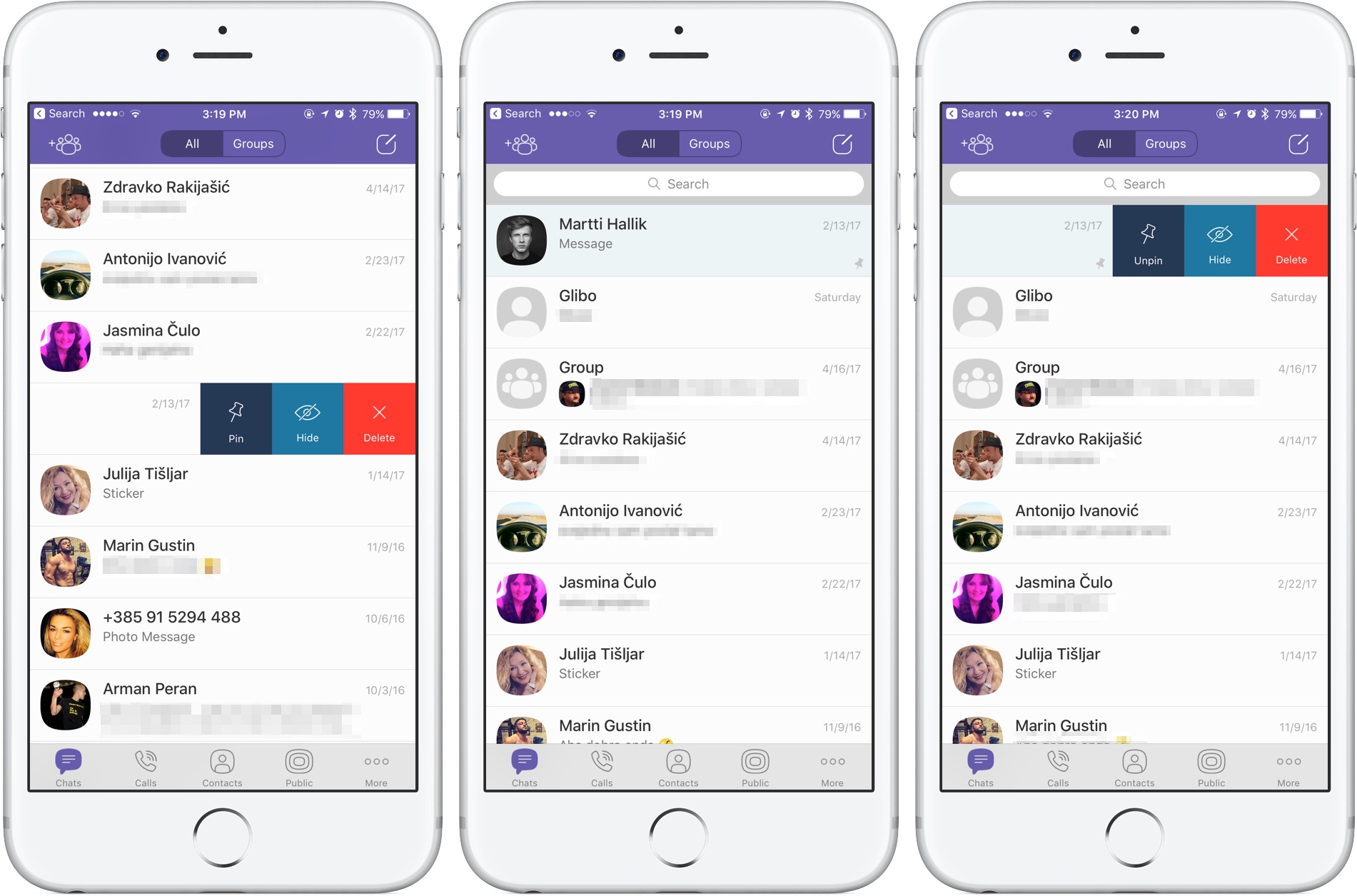
With this feature, you can pin your favorite conversations to the top of the chat list where they're easier to spot. To pin a chat, swipe the conversations in the chat list, then select Pin to pin it to the top of the screen or Unpin if it's already pinned and you'd like to unpin it, as shown on the screenshots top of post.

Rival WhatsApp from Facebook is said to be working on chat pinning, too.

Custom notification sounds

Viber now allows you to override its default notification sound and replace it with the sounds listed in Settings → Sounds. You can choose a new default sound for all Viber notifications or select a different notification sound on a per-chat basis to make it easier to audibly distinguish between notifications for new messages from, say, your Mom and a co-worker.

Download Viber 6.8.8 for iOS via App Store.

Instagram rolls out selfie filters, rewind option for videos, hashtag sticker & eraser brush

Instagram today announced several new capabilities for its mobile app, including selfie filters via the front-facing camera in what appears to be yet another effort to copy the last big Snapchat feature. Aside from face filters, Instagram 10.21 also includes a rewind playback option for videos, a new hashtag sticker an an eraser brush tool.

Face filters

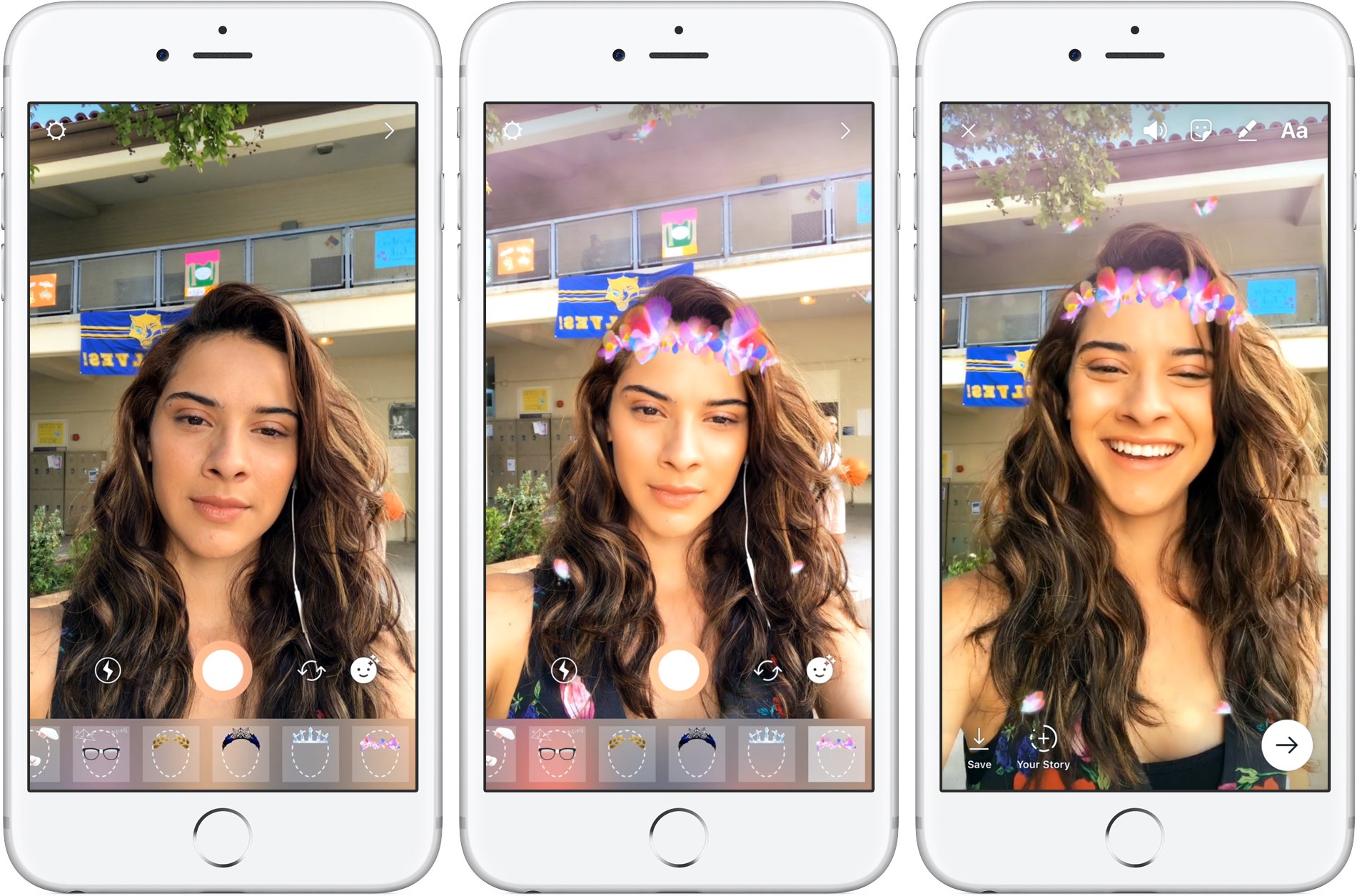
With all-new face filters in the Instagram camera, you can turn an ordinary selfie into something fun and entertaining. A total of eight different face filters are included at launch, with more to be added at a later stage via future updates. To get started with this feature, tap the new face icon in the bottom-right corner of the Instagram camera.

Simply tap a filter to try it on.

The filters include effects ranging from math equations swirling around your head to furry koala ears that move and twitch. “Whether you're sitting on the couch at home or out and about, face filters help you express yourself and have playful conversations with friends,” noted the Facebook-owned company.

https://vimeo.com/217551217

Some of the filters work with a friend.

Moreover, all the face filters included in this edition of Instagram work with Boomerang, meaning you can now add an unexpected twist to the videos you share.

Rewind option for videos

Instagram also provides a new Rewind playback option for videos.

A new camera format next to “Boomerang” and “Hands-Free”, “Rewind” lets you share a rewind of your video. This mode captures your video normally, then makes it play in reverse.

Hashtag stickers

A new hashtag sticker joins Instagram's existing stickers and geofilters. To get started with it, tap the sticker icon in the top-right corner, then choose and customize the new hashtag sticker before adding it to your own Story.

Like with mentions, you can add hashtags using regular text as well.

Hashtag stickers are interactive: folks watching your Story can tap the hashtag sticker or text to visit the hashtag page and explore related posts.

Eraser tool

With the new eraser brush, you can remove parts of drawings or color.

Instagram advises selecting the fill tool after you’ve taken a photo or video to fill the entire screen with color. Then, using the new Eraser tool, you can easily and quite creatively reveal parts of your photo or video underneath.

These new features are available as part of Instagram 10.21 for iOS.

To learn more about these updates, check out Instagram's Help Center.

Instagram is available at no charge from App Store.

Google’s Allo messaging app will soon let you create personalized stickers from your selfies

Google is working on a new feature for its mobile messaging app Allo that will permit iPhone users to create stickers based on their selfies. Taking advantage of neural networks, machine learning and the work of artists, the app will create virtual avatars personalized to match the user's own distinct look, said the company.

“Photography in the form of a selfie is a very direct form of expression. It comes with a set of rules bounded by reality,” wrote Google. “Illustration, on the other hand, empowers people to define themselves—it’s warmer and less fraught than reality.”

The feature is pretty straightforward: you just snap a selfie and the app returns an automatically generated illustrated version of you. You can also customize your new sticker manually with various facial features and other options.

What makes you, you?

Rather than algorithmically determine the colors, shapes and textures in selfies, Google's system takes advantage of an advanced algorithm that picks out qualitative features of one's face in a manner similar to the way people do.

“While we could have trained a large convolutional neural network from scratch to attempt to accomplish this, we wondered if there was a more efficient way to get results, since we expected that learning to interpret a face into an illustration would be a very iterative process.”

Toying with its existing more general-purpose computer vision neural networks, Google found out that a few neurons in these networks were good at focusing on things they weren’t explicitly trained to look at.

The company explains:

By virtue of being large general-purpose neural networks, they had already figured out how to abstract away things they didn’t need.

All that was left to do was to provide a much smaller number of human labeled examples to teach the classifiers to isolate out the qualities that the neural network already knew about the image.

They fed the neural network illustrations created by an artistic team which captured a wide variety of facial features, such as different hairstyles, skin tones and nose shapes. Human curators then trained the network to match the right illustration to the right selfie.

Google's research team has taken special care to ensure that the illustrations cover a range of race, age, masculinity, femininity and androgyny. Furthermore, they're working with a range of artistic voices because “it’s not enough to make an avatar that is a literal representation of yourself when there are many versions of you.”

The feature began rolling out today in Allo for Android, and will come soon to Allo on iOS.

The most recent update to Allo for iOS included Incognito chats for group conversations and new notification settings for selectively enabling and disabling individual notifications.

Google Allo is a free download from App Store.