Learn how to place a video playing in a floating picture-in-picture window overlay anywhere on your Mac's screen instead of automatically snapping to corners.
How to snap Picture-in-Picture videos anywhere on your Mac screen

Learn how to place a video playing in a floating picture-in-picture window overlay anywhere on your Mac's screen instead of automatically snapping to corners.
Learn how to stop your Mac from automatically downloading and installing macOS software updates, security updates, and app updates in the background.
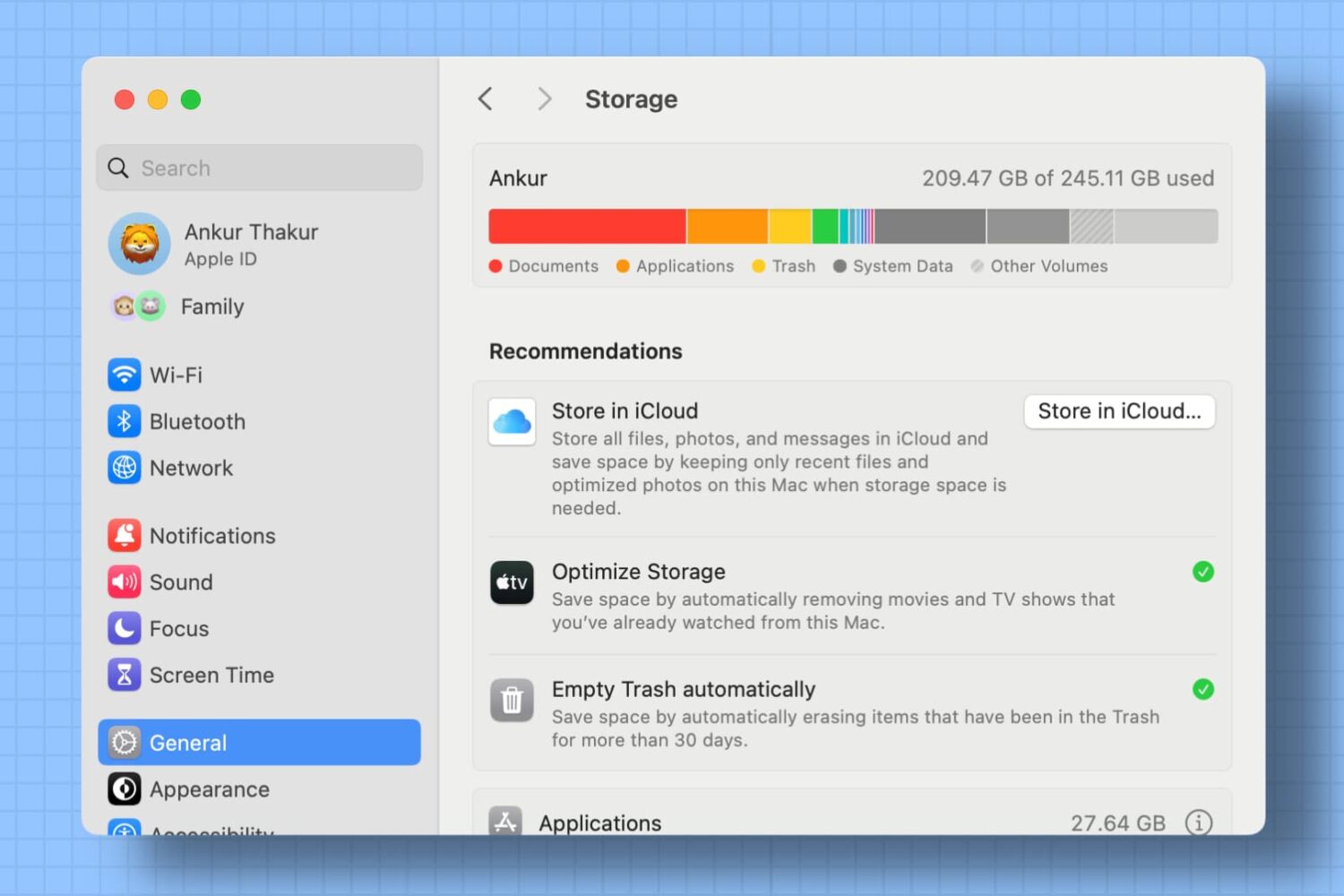
Use the Optimized Storage recommendations on your Mac to free up local space by removing unwanted files or moving infrequently used files to iCloud.

In macOS versions up until Lion, hovering over an item in Spotlight's search results on your Mac would reveal its full file system path. As of macOS Lion, that's no longer the default behavior—the Spotlight overlay gives you some information about the selected file, but not its location. But don't you worry, Apple hasn't ditched this feature entirely as you can reveal a file's path in your Spotlight search results at any time via this practical keyboard shortcut.

We've talked quite a lot about Recovery OS, an underestimated feature of OS X that makes it easier to troubleshoot your Mac even if it refuses to start up properly.
But as you'll see for yourself in this post, Recovery OS is but one of the more than dozen different ways to start up your computer, aside from OS X's regular startup mode. In this tutorial, we'll list all the ways you can start up your Mac and detail each one.
Like Windows, macOS makes having apps, documents, folders or server connections launch automatically whenever you log in to your Mac as easy as dragging them to the System Preferences → Users & Groups → Login Items section.
Sometimes, one or more Login Items may cause software problems or prevent your computer from starting up properly.
Rather than remove all of your Login Items permanently, here's how you can temporarily prevent them from opening automatically when you log in, without needing to adjust your settings.

For those of you who have wondered about the many ways you can start up your Mac, here's a list of the Mac startup keyboard shortcuts you can invoke to access handy macOS features, which are only available at boot time.
Most of the time, your Mac just works—until it refuses to start up properly due to an unforeseen system error, a misbehaving app, a broken system component, and whatnot. Beyond system errors, different people have different needs when it comes to starting up their computers.
For example, you could be a pro user who dual boots between macOS and Windows on a daily basis. Others might wonder about booting a Mac from a disk other than their designated startup disk. Or perhaps you're looking to isolate the cause of a software issue in the macOS Safe Mode or boot straight into Recovery OS as the last option?

SnapBack, a long-standing and very easily overlooked Safari for Mac feature, can save you a ton of clicks if you search a lot, and most of us do. With SnapBack, you can go right back to the last full search results page, even after traveling multiple pages in from your search results.
Part of the reason most users aren't familiar with SnapBack has to do with Apple's decision to remove the little orange SnapBack icon from Safari's address bar and bury the feature in the menus.
Here's that secret SnapBack shortcut that everyone should start using right now.

Learn how to turn off Safari suggestions on your iPhone, iPad, or Mac that appear as content previews when typing search terms in the address bar.
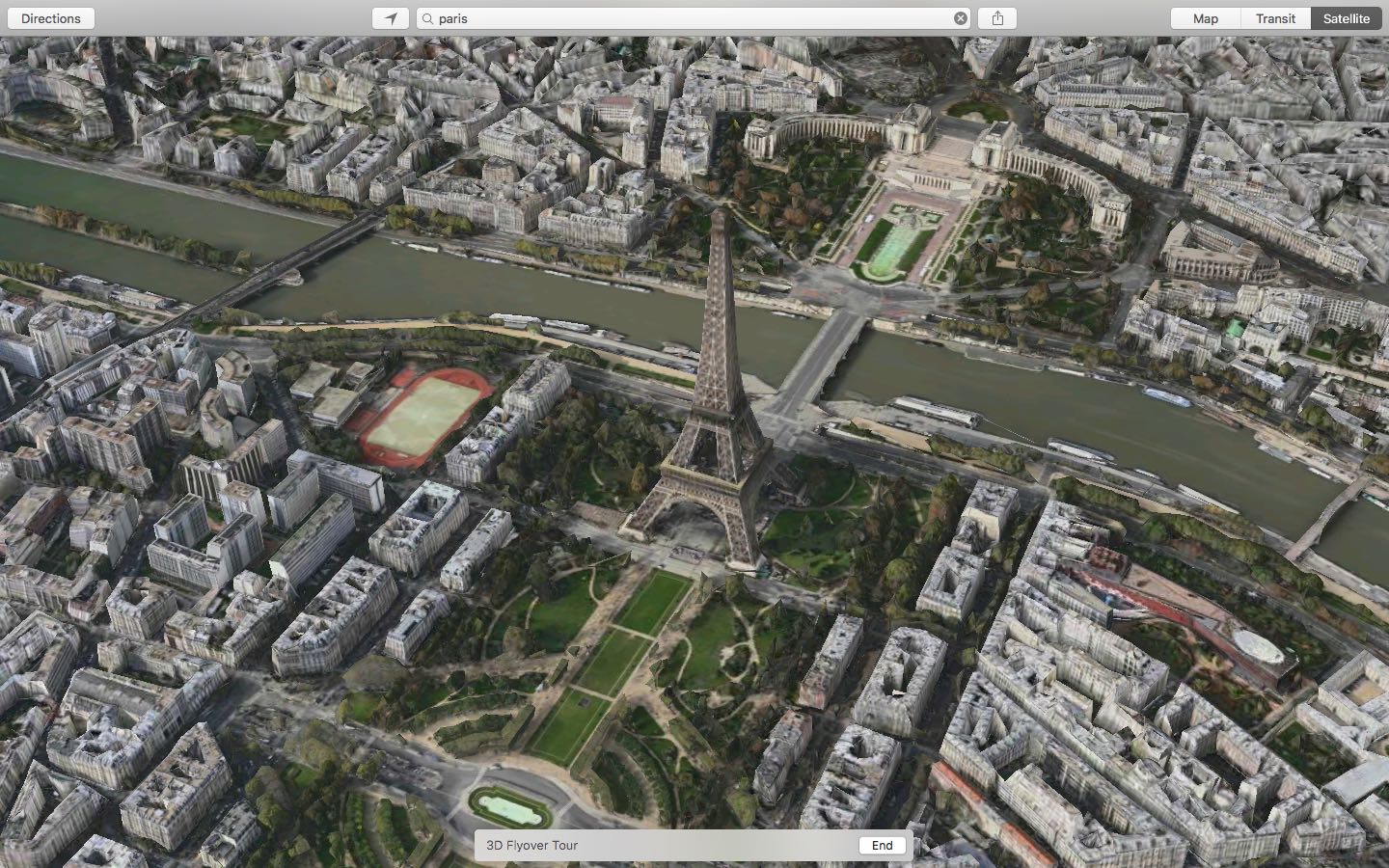
You knew about three-dimensional buildings and landmarks on Apple Maps—a feature they're calling Flyover mode. But did you know that Apple's mapping service includes virtual tours of more than a hundred major metropolises worldwide? If not, that's because Apple hasn't exactly gone to great lengths to advertise it front and center in the Maps interface.
These virtual tours are basically auto-playing animations in Flyover mode, complete with three-dimensional buildings, terrain and landmarks. They're quite useful if you're visiting a city for the first time, though virtual tourists who want a quick overview of a major city will also find them fun and entertaining.
Here's how you can explore and enjoy 3D Flyover Tours on Apple Maps for the iPhone, iPod touch, iPad and Mac.
Not only does Safari give you the fastest way to surf the web on your computer, it's also the most energy efficient web browser on macOS that maximizes your Mac's battery life.
As so many Mac owners use Safari on a daily basis, their browsing histories are packed to the gills with records of previously visited websites.
Finding your way back to a previously visited site by searching the entire browsing history can be quite tedious with months or years of data stored in it.
Like on iOS, Safari for Mac provides a convenient shortcut that lets you quickly jump to any previously visited webpage on a per-tab basis.
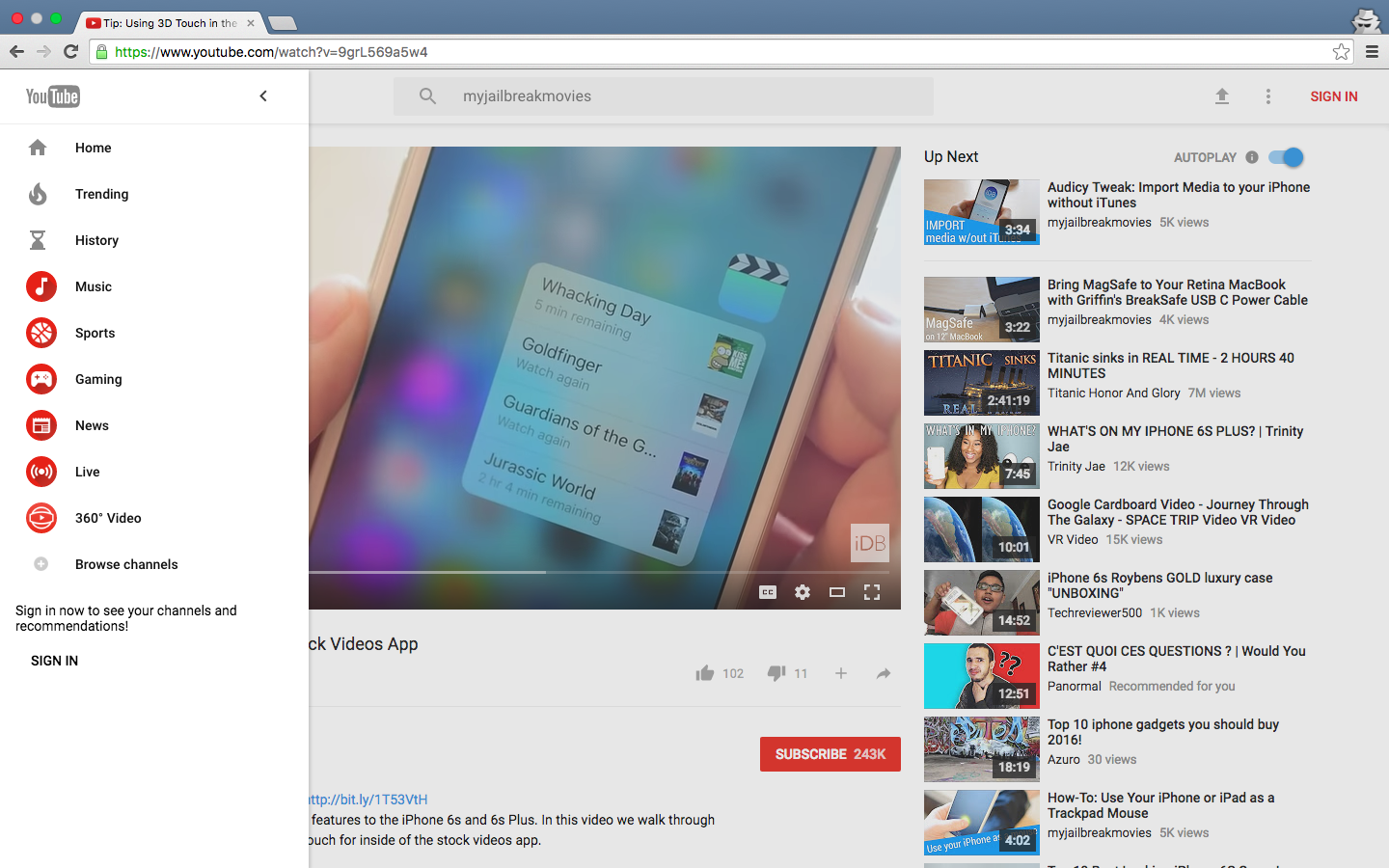
YouTube is getting Google's Material Design refresh pretty soon and it looks pretty neat. Aside from the Upload button being replaced by the upload arrow graphics consistently used across Google's mobile apps, you'll notice a Material Design-inspired search field in the center.
More importantly, YouTube's new looks include the background color on the Channel pages matching the header image, rounded icons in the sidebar, more whitespace around videos in the video player and a few other minor changes.
Chrome users can have an advance look at the upcoming refresh right now. Here's how you can enable Material Design on YouTube ahead of its release, in just a few clicks.