App Updates

Google Earth for iOS gains 3D imagery, guided tours, 64-bit support & more

Google today announced a major update for its popular Earth app for iPhone and iPad, bringing many new features that debuted on the desktop and web app in April of this year.

Importantly, it's received much needed support for 64-bit iPhone, iPad and iPod touch devices to ensure that it will continue to run on iOS 11 which does not support 32-bit apps at all.

But first, check out the key highlights of this release:

Choose your own adventure with Voyager—Experience interactive stories from around the world. Discover new places with Knowledge Cards—Flip through cards and learn about local landmarks. Orbit the world in 3D—Use the new 3D button or tilt the map with two fingers. Snap and share a Postcard—Capture snapshots of locations and share them with your friends. Feeling Lucky?—Roll the dice and see where the world takes you.

If you like the Flyover feature on Apple Maps, you'll love 3D imagery in Google Earth for iPhone and iPad. To switch to the three-dimensional view, tap a new 3D button and use two fingers to rotate and tilt your vantage point (hint: use this mode to explore Apple Park in all its glory).

You can also capture snapshots of the various locations you find in Earth and share them with your friends. To snap a virtual postcard, tap a new camera icon in the app's toolbar section.

And to help you plan your trip, Google Earth for iOS allows you to experience interactive stories from around the world. Called Voyager, this feature is available Under the Travel category.

There, you’ll find detailed multi-day itineraries for seventeen major cities around the world, including tours like “Paris with Kids”, “Beyond the Beaches of Rio de Janeiro” and many more.

Here are a few other Voyager tours worth checking out:

Natural Treasures from BBC Earth—Journey to six habitats, from islands to mountains to jungles, and learn about the unique and thrilling wildlife in each. Gombe National Park in Tanzania—Hear from Jane Goodall about her team’s chimpanzee research and conservation efforts. Mexico with Lola—Check out the little monsters featured in Sesame Street’s Girl Muppets Around the World, and learn about modern Mayan cultures.

If you'd like to jump to someplace new, you should try Google's “I'm Feeling Lucky” feature by tapping a new dice icon in the toolbar. Lastly, Knowledge Cards, another new feature in Google Earth for iPhone and iPad, makes it easy to see related facts for a place.

Just pull up from the bottom of the screen to bring up a card with rich information about the thousands of places and landmarks around the world. As I mentioned before, the app now supports 64-bit hardware and comes with a brand new icon for your Home screen.

Grab Google Earth for iOS for free from App Store.
Lightroom for iOS gains selective brush editing, all-new iPad interface & more

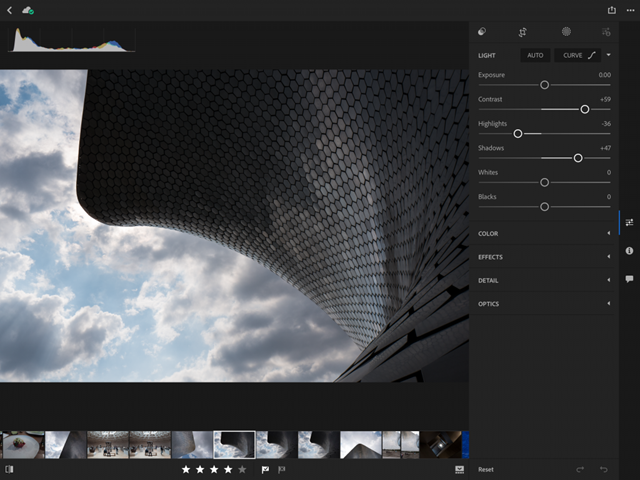
Adobe today updated Lightroom for iPhone and Lightroom for iPad on App Store with some key new features aimed at making editing on the go easier than ever. You can now use a new brush feature to selectively paint in enhancements to any part of your images.

The selective brush option extends to the eraser tool, allowing you to selectively erase both the linear and radial gradients. And if your device has 3D Touch, like iPhone 6s or iPhone 7, you can even vary the effect by just pressing softer or harder as you paint.

iPad Pro users working with an Apple Pencil get the same pressure-sensing to apply more or less of the effect. You'll also notice a new Details tab within the app where you can add the finishing touches to images by controlling noise and enhancing image details.

The in-app camera now supports a new Show Highlight Clipping feature that shows you the over-exposed areas prior to capture, which lets you adjust the exposure or composition in camera. Lightroom for iOS also packs in an improved virtual level via the in-app camera with haptic feedback and support for latest cameras and lenses.

Last but not least, Lightroom for iPad now features a revamped interface, shown top of post, designed for the tablet's larger canvas. According to Adobe, the app makes editing via iPad a serious option as a laptop replacement for any photographer.

Download Lightroom for iPhone and iPad free in App Store.

WhatsApp gains chat pinning, comprehensive file sharing & more in latest update

As part of a broader set of capabilities recently teased for the Facebook-owned WhatsApp messaging platform, the app has now gained a trio of new features in the latest update. WhatsApp version 2.17.40 for iOS brings a chat pinning feature, multi-format file sharing and other improvements.

With the pinning feature, you can make it so your favorite chats remain at the top of the list, so you can quickly find them. To use this feature, just swipe right on a chat in the conversation list, then tap a Pin or Unpin option.

The app has also expanded the file sharing feature, which now allows you to share any type of file with one or more recipients. To send files of any type, open a chat, tap the plus icon at the bottom then choose the Document option.

In the popup menu, select your favorite storage provider like iCloud Drive, Dropbox, Google Drive and so forth (any app that includes an iOS Document Provider extension should be available from the menu).

And lastly, when you receive multiple photos the app now lets you tap and hold on the group of photos to quickly forward or delete all of them in one fell swoop.

Download WhatsApp for iPhone, iPad and iPod for free from App Store.

Fantastical for Mac gains attachment and travel time support, time to leave alerts & more

Developer FlexiBits today released a major update to the Mac edition of its award-winning calendar application, Fantastical, that you may be familiar with.

Version 2.4 brings a host of improvements, including new features like time to leave alerts, attachment support for iCloud and Exchange calendar events, undo/redo and more.

You can now view, create, and edit attachments on iCloud and Exchange (or view them on Google Calendar). With this feature, you can attach things like images, videos, Keynote presentations and other files to your calendar events.

The feature works on other CalDAV servers that support managed attachments.

https://www.youtube.com/watch?v=s2lJ5p8hd8A

Another new feature, aptly named Travel Time, allows customers to receive notifications when they need to leave to help ensure they reach an event on time. You can even define your own travel time so you can plan how long it will take to reach an event.

https://www.youtube.com/watch?v=_tVOwXgnipE

Fantastical 2.4 also improves invitation support for Google Calendar and Exchange with response messages, invitation guest count for Google, the ability to forward Exchange invitations and the option to respond to Exchange invitations without sending a reply.

TUTORIAL: How to create app-specific passwords for Fantastical and other apps

The app includes a bunch of refinements and under-the-hood fixes, like full undo/redo support for adding, editing, and deleting events and reminders, the ability to combine identical events that are on multiple calendars, to mention a few.

There's also a new More link in the Month view to show additional events and reminders, Facebook push updates are now instantaneous while new options in preferences at long last permit you to customize the number of weeks per month.

Have a look at everything new in Fantastical 2.4 for Mac.

https://www.youtube.com/watch?v=GZm3PWDBh5k

Last but not least, you can now forward invitations to other people on Exchange accounts, see the year of the anniversary for contacts and respond to an Exchange invitation without sending a message to the sender by clicking and holding the Accept, Decline or Maybe buttons.

Fantastical requires macOS El Capitan 10.11 or later.

Current users can get the update for free via the Mac App Store's Updates tab or through the in-app updater if the app was purchased directly from the Flexibits Store.

Fantastical 2.4 for Mac is $49.99 on Mac App Store.

A three-week trial is available via the Flexibits website.

You can now reply to Instagram Stories with photos and videos

Instagram today announced that users of its popular photo-sharing service can now reply to Stories from people they follow with photos and videos. “From selfies to Boomerangs, now you can be even more fun and playful when you respond to friends,” said the company.

The new feature requires Instagram version 10.28 for iOS.

To reply to a Story with a photo or a video, hit the new camera button that appears while you're watching a Story. If you don't see the icon, the feature has not launched yet in your country.

Like with regular posts, you can pretty up your reply using Instagram's creative tools, allowing you to use face filters, stickers and the Rewind feature. “Replies also include a sticker of the Story that you can move around and resize,” said Instagram.

You'll get a message via Direct when someone replies to your Story with a photo or a video.

You can tap the message to view the reply and also see a sticker of the original story that’s only visible to you. As with disappearing media in Direct, your friends will know when you’ve taken a screenshot (Android only) or replayed a reply.

To learn more about these new features, be sure to check out Instagram's Help Center.

Instagram for iPhone and iPad is available free from App Store.

Instagram launches stickers for Independence Day and Canada Day

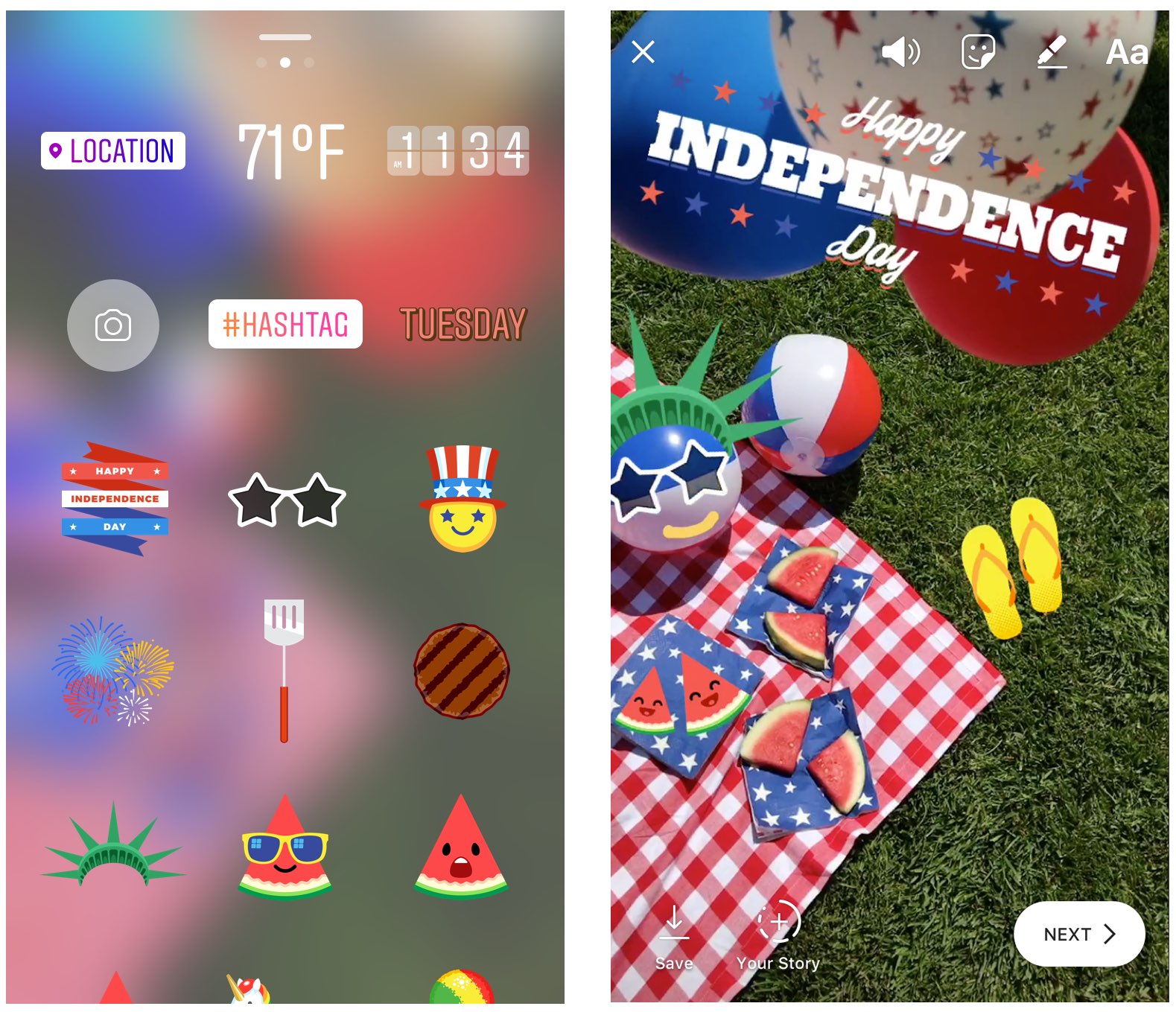
Instagram during the weekend launched stickers in its mobile app for iPhone and iPad which are dedicated to the 4th of July holiday and Canada Day celebrations across North America.

Instagram users in the United States can celebrate Independence Day by posting a Story adorned with one of the stickers in the app's new star-spangled sticker pack, ranging from backyard BBQs to fireworks at night.

Canadians get a sticker to celebrate Canada Day, available in both English and French.

The sticker was designed by Jenn Kitagawa, a multidisciplinary artist and illustrator who grew up in the prairies of Alberta and currently lives in Toronto.

Instagram is available at no charge on App Store.

Instagram unveils offensive comment filter, anti-spam tool in 9 languages

Instagram today announced some much-needed new tools to help users of its mobile app enjoy the service without toxic comments and spam. One is a new filter designed to block certain offensive comments and the other is basically a spam filter supporting nine languages.

Instagram claims that the pair of newly announced tools at their users' disposal will help keep the service a safe place for self-expression and inclusive communities.

Clamping down on toxic comments is now easier with the comment filter that automatically blocks certain offensive comments on your published posts, as well as in live video.

The new offensive comment filter is in addition to Instagram's existing arsenal of tools, like comment reporting, account blocking and so forth. To access this automatic filter, tap Instagram's “...” menu from your profile, then tap the new Comments option.

“We’ll launch this comment filter in English first, but will offer it in more languages over time,” notes the Facebook-owned company. The filter is optional and can be turned off at any time.

To help fight spam, Instagram is rolling out another new filter. Powered by machine learning, it looks for any obvious spam in comments and blocks it from your posts and live videos.

According to Instagram:

Our team has been training our systems for some time to recognize certain types of offensive and spammy comments so you never have to see them. The tools will improve over time, enabling the community’s experience of sharing to improve as well. We hope to make these filters available in more languages as our algorithms improve.

At launch, this dedicated filter will remove spam written in a total of nine languages—English, Spanish, Portuguese, Arabic, French, German, Russian, Japanese and Chinese—with additional language support to be implemented in the future.

Instagram is available free of charge via App Store.

Facebook brings animated reactions, filters, masks and effects to Messenger calls

As part of celebrating its two billion monthly active users milestone, Facebook on Monday unveiled new video chat features for its mobile Messenger app, such as the beautifully animated reactions, interactive filters, masks and effects. “Video chats with your friends and family in Messenger just got a whole lot more fun,” said the firm.

You can use these new video features in one-on-one video calls, as well as in your group video conversations. The new capabilities let you easily share your emotions during a video call with one of the five Facebook reactions, alter your appearance (how about making your friend laugh with a bear mask?) by taking advantage of the many built-in filters and much more.

I like how reactions animate onto the screen and then disappear.

Many reactions have different versions, depending on whether your face is on or off the screen. For instance, tap the love reaction when the camera is facing you, then tap it again when the camera is facing outward to see the difference.

A variety of in-call filters are now available to Messenger users, ranging from subtle lighting tweaks to color changes, like black and white, red or yellow. Each one has a live preview so you can test it on yourself before letting others see it. Many new masks are available for video calls, too, including some with hidden effects that react to your facial movements.

From the Facebook blog:

We have also added animated effects, like falling hearts and twinkling stars, to give your video chats expressive flair. Check out what happens when you wave your arm in front of the camera while using one of those effects! Unlike reactions, masks and effects stay on the screen for the duration of the video chat (or until you take them off or switch to another one).

One of the best new in-call video features is the screenshotting ability.

During an one-on-one or group video call with one or more friends, tap the camera icon at the bottom to take a screenshot of your time together and share it with other friends via Messenger Day or other social media accounts

The image of your video conversation will be saved to your iPhone's Camera roll. Plus, you can quickly send the screenshot to the person or group that you’re video chatting with.

Check out the new Messenger video features in Facebook's video embedded below.

Earlier today, Microsoft started rolling out a much redesigned Skype for iPhone with a Snapchat-like Stories feature, dubbed Highlights.

Moreover, Skype for iPhone now lets you talk to Cortana and other chat bots, as well as post message and in-call reactions by adding huge emoticons, live text and photos with drawings to an overlay that appears on top of the call.

Facebook Messenger is available free on App Store.

Skype for iPhone gains chat bots, its version of Stories, message & in-call reactions and more

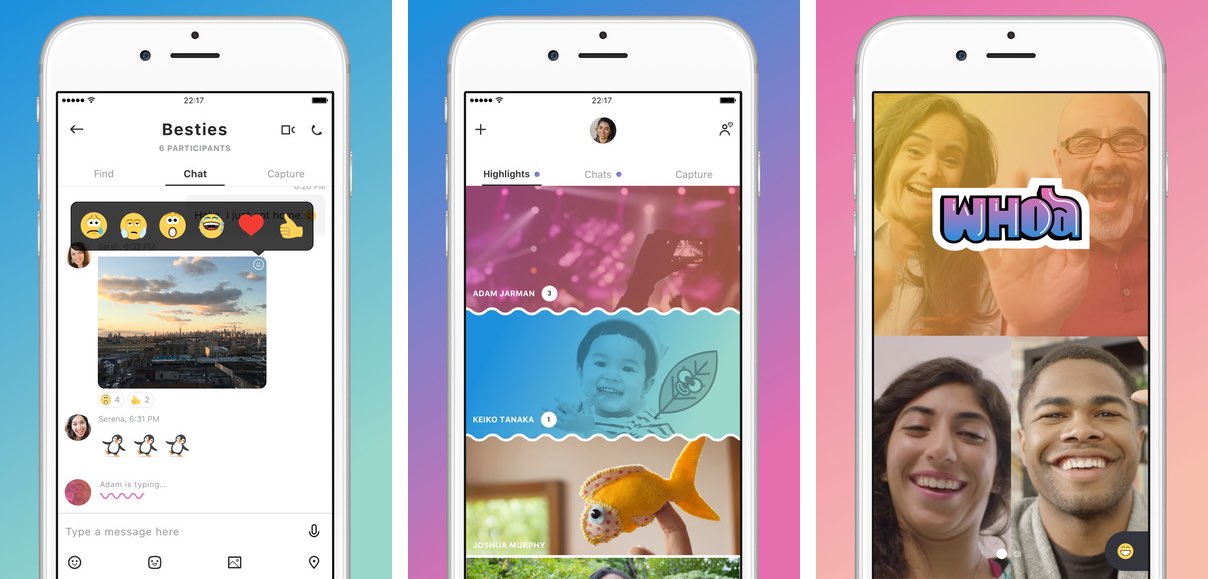
Following a preview at the start of June, Microsoft today began rolling out a redesigned Skype for iPhone app with a refined user interface and new capabilities such as chat bots, a Snapchat-like Highlights feature, message and in-call reactions, easier photo capture and more.

Aside from Microsoft's own smart assistant Cortana, other chat bots now available or coming soon to Skype for iPhone include Gfycat, Giphy, MSN Weather, Bing, Polls, Expedia, Stubhub, BigOven, YouTube and Upworthy.

With in-call reactions, users can add live emoticons, live text and even real-time photos to an overlay that appears on their video and voice calls. Similarly, message reactions let you inform your chat participants how you feel by adding expressive reactions to your chats.

The new Home screen launches with your chat view, but you can now swipe left to get to the Skype camera or swipe right to show your Highlights. Speaking of which, Highlights is a new Snapchat-like feature that lets you share your day-to-day with friends and family on Skype while keeping up with what they are up to.

Your highlight is basically a collection of photos and videos that you can decorate with emojis and text. Only people who follow you on Skype can see your highlights.

You can also respond to others' highlights by reacting with emoticons or even use them as a conversation starter. Unlike Snapchat, your published highlights remain live for a full week.

It remains to be seen if Highlights gains any traction given that every major chat app now has a similar feature of its own. Between Snapchat Stories, Facebook and Instagram Stories, I'm not sure I have the time to update Skype Highlights for my contacts on a daily basis.

https://www.youtube.com/watch?v=qItfRVJFljM

Microsoft readily admits that Highlights is a Snapchat clone.

“There’s a new medium that has risen,” Amritansh Raghav, Corporate Vice President of Skype, said recently of Stories in a comment to TechCrunch. “When you think about this new way of interacting, we want that to be available also in this app.”

The new features are available in Skype for iPhone, but not in Skype for iPad. Skype for Mac and Windows computers will receive the new capabilities within the next few months.

According to Microsoft, a future version of Skype will integrate gaming features into video calls and users will have the ability to synchronize and watch streaming videos together.

Visit skype.com/new to learn more about the app's latest feature additions.

Skype for iPhone and Skype for iPad are available free on App Store.

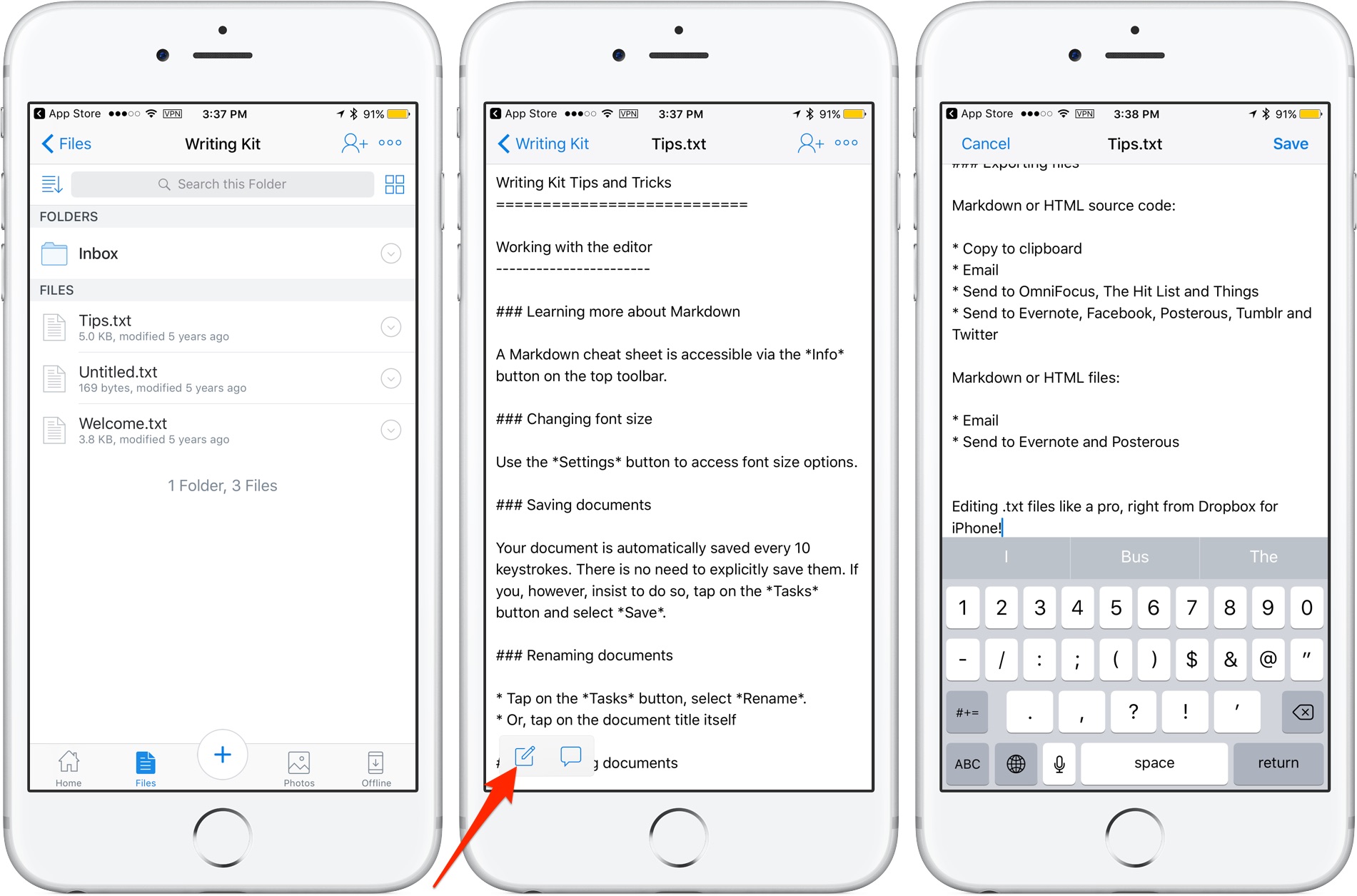
You can now edit text files right from Dropbox app

Cloud storage provider Dropbox today updated its app on App Store with the ability to edit text files right from the mobile app. Now when you browse the files in your Dropbox, simply view any text file then tap a new Edit icon to enter the app's new built-in text editor.

When done editing, tap Save to save the changes directly to the text file in your Dropbox. No more emailing the file back and forth. The bast part is, no longer do you need to use a third-party editor just to make a few quick changes to a text file saved in your Dropbox.

Aside from the built-in text editor, Dropbox for iOS version 54.2 has gained a new auto-capture function. When scanning documents, simply focus on the document and this feature will take a picture automatically.

Dropbox for iOS is a free download via App Store.